
Description
When you first open the application, you must grant the permissions requested by your device.
The login page opens after that (Fig.1).
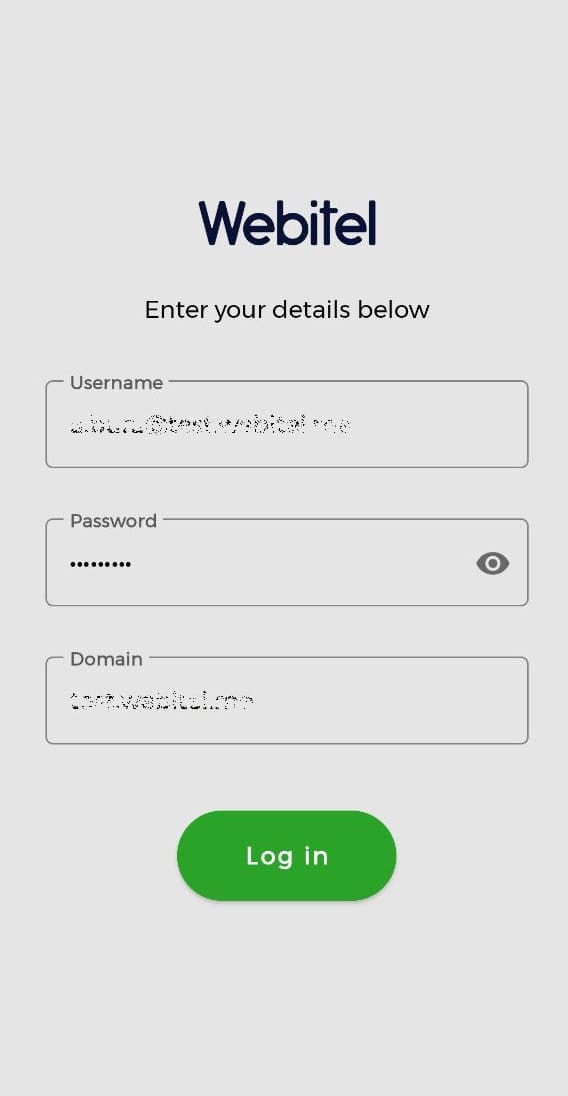
Fig. 1. Login page
Enter the login credentials and click the Log in button.
The agent status is changed via Webitel. You can see the Agent's status in the ; for this, click the 
A circle is displayed next to the agent's avatar (Fig.2):

If the circle is not displayed, the Agent is paused.
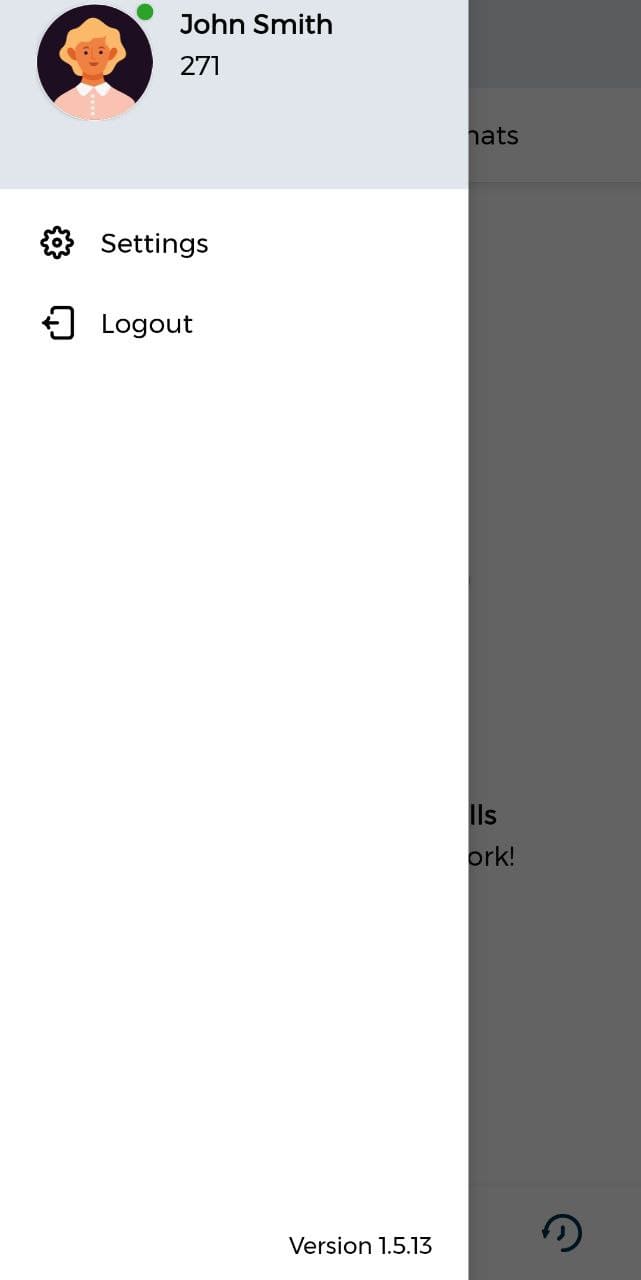
Fig. 2. Sidebar
An Agent will receive calls if the Queue they serve is switched on.
You can find more information about setting up Queues here.
The page looks like this when there are no calls - Figure 3.
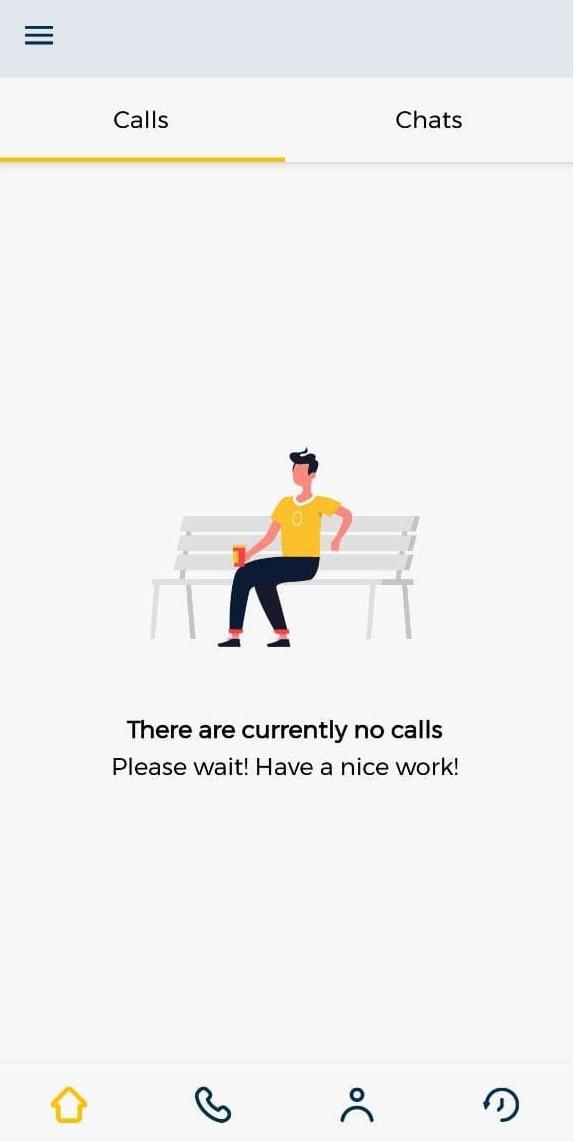
Fig. 3. There are currently no calls
When you receive an inbound call the following buttons are available (Fig.4):



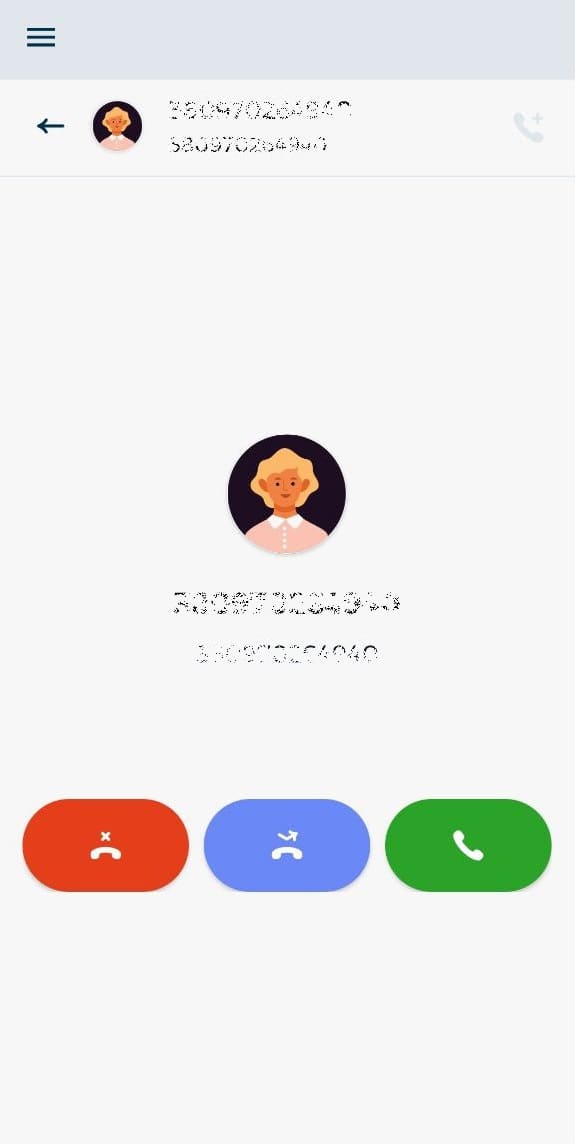
Fig. 4. Inbound call
A ringing sound accompanies an inbound call.
Active call
An active call has the following features available (Fig.5).
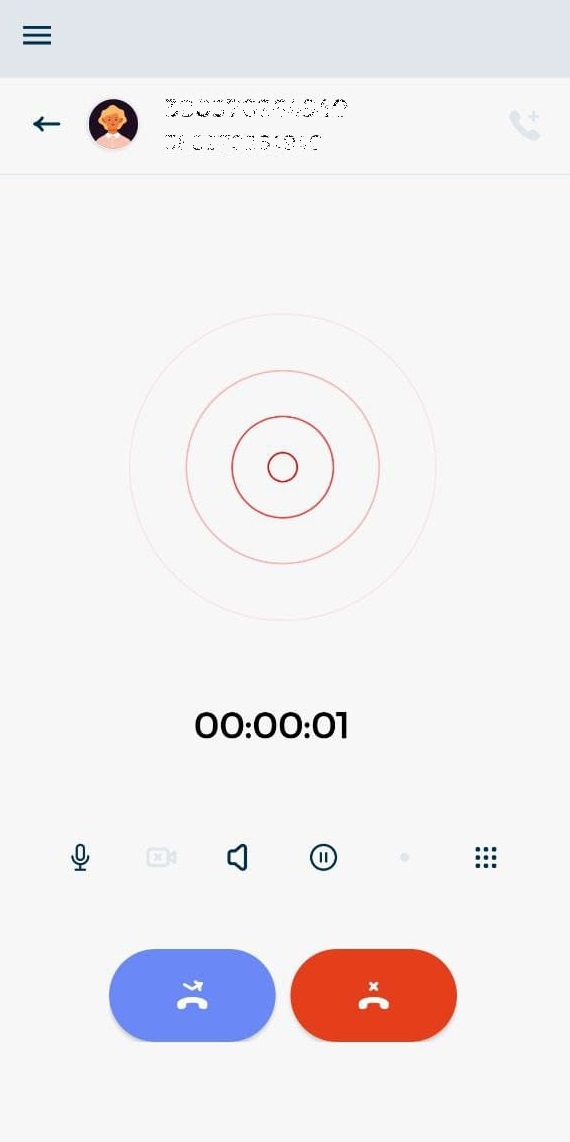
Fig. 5. An active call


Clicking the 

Fig. 6. Home page during a call
Сlick on the number to go to the call page.
Clicking the 
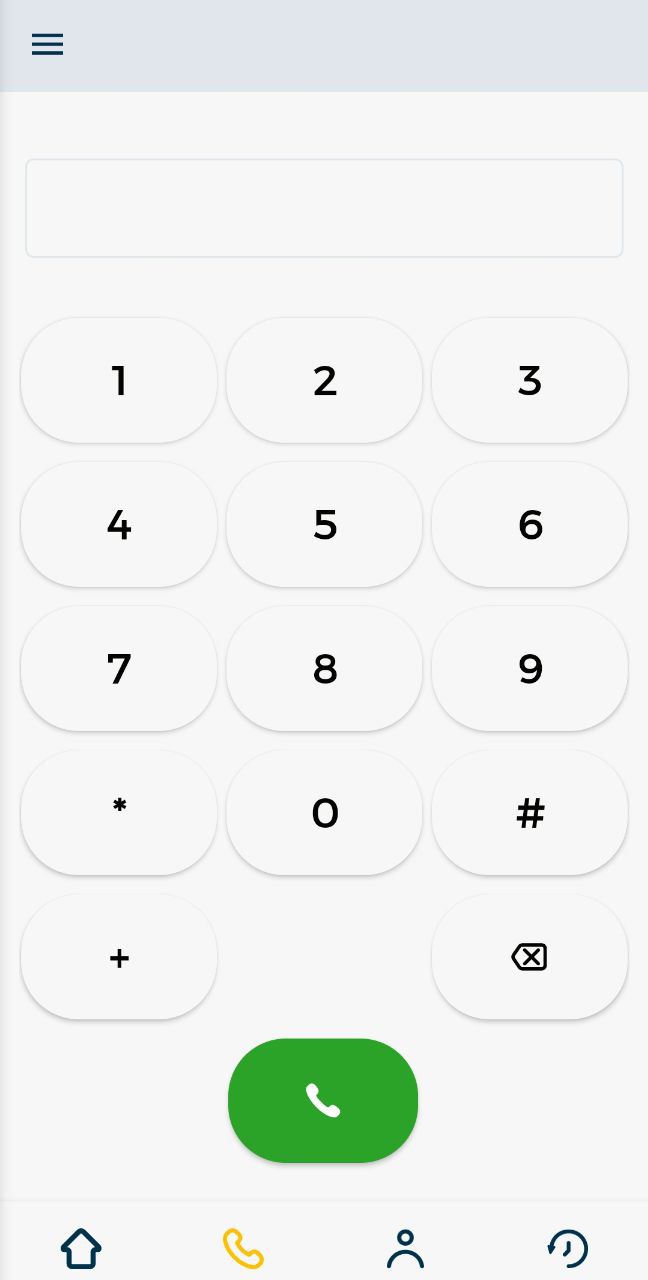
Fig. 7. Keyboard
Clicking the 
If you have not granted permission to access contacts from the device, the list in the Contacts tab will be empty.
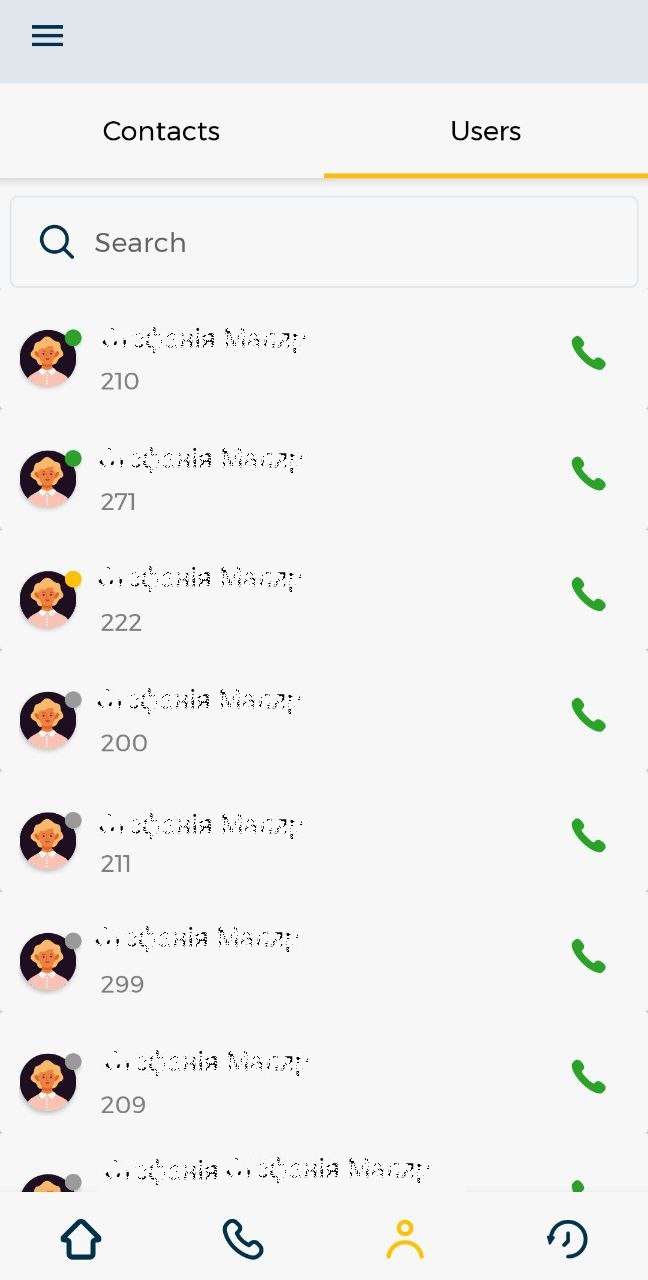
Fig. 8. List of User
Clicking the 
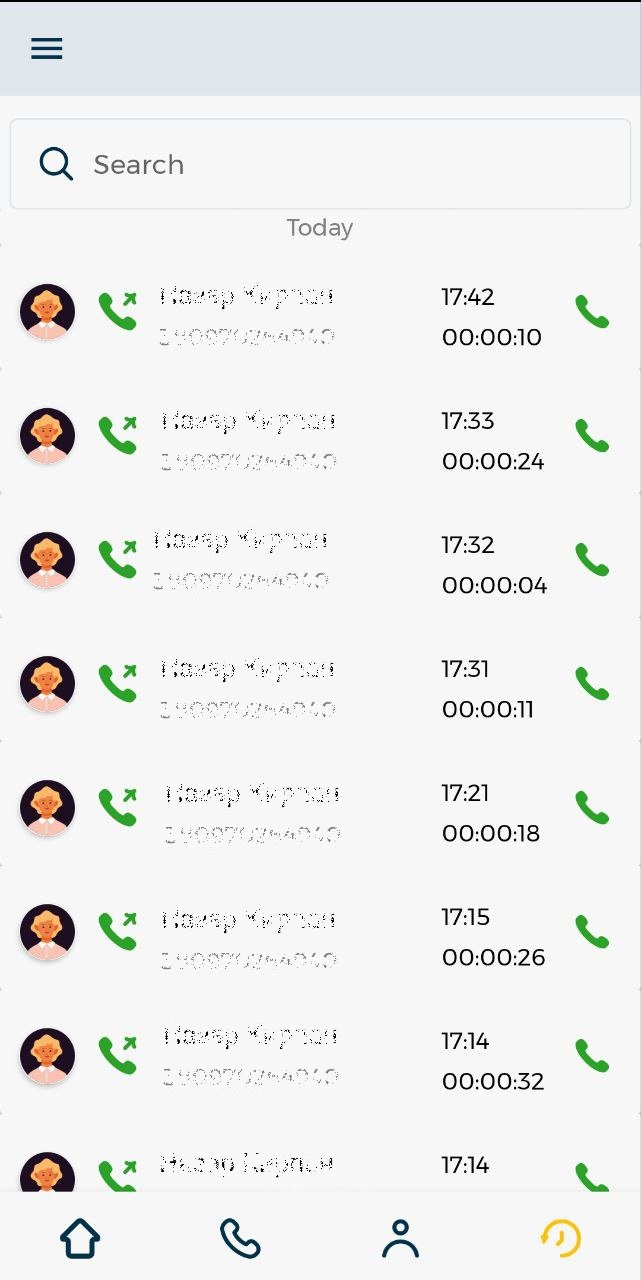
Fig. 9. History
Call transfer
It is used when transferring a call to another Agent after the call has been accepted.
Transfer is made by clicking the button 
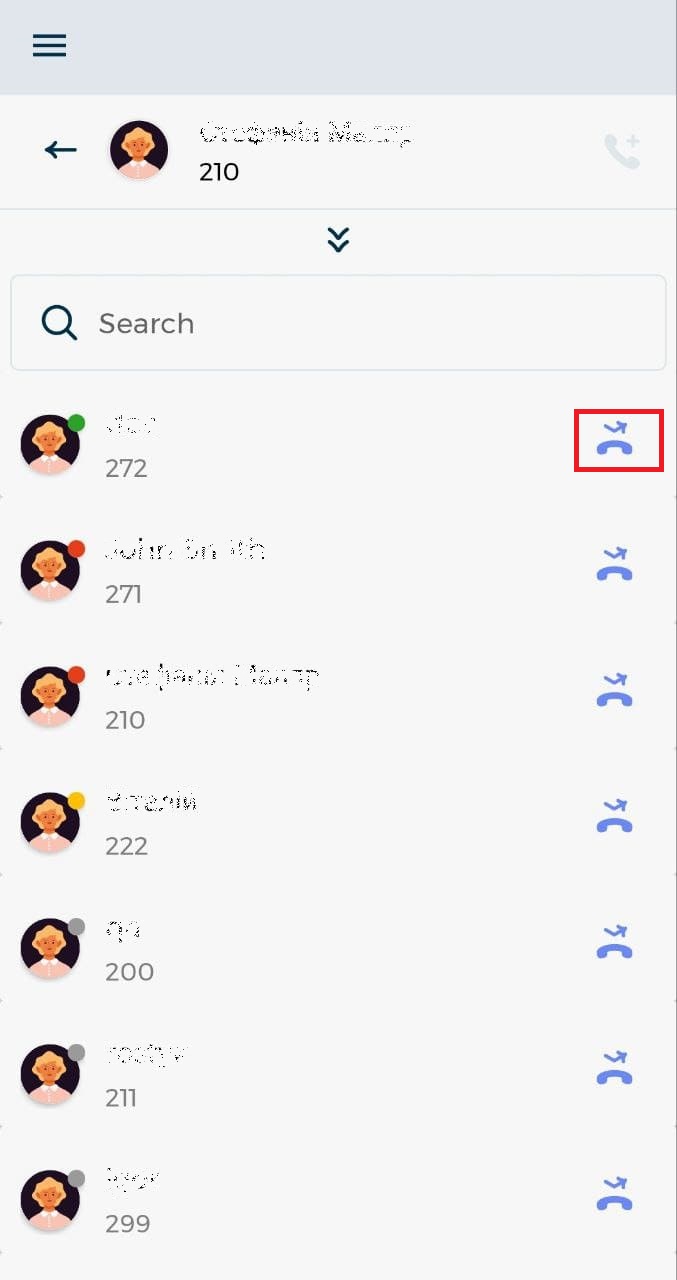
Fig. 10. Transfer