
1. Description
Webitel DeskTrack is a standalone application for the Windows operating system that provides the following functionality:
-
capturing and transmitting the agent’s screen image;
-
creating screen snapshots;
-
recording the screen during calls;
-
allowing a supervisor to connect to the agent’s screen in real time.
The application is a proprietary Webitel product and is used only in On-Site environments, where all users operate within the same network.
2. How it works
Webitel DeskTrack facilitates interaction between the agent’s PC and Webitel services.
The screen-related functionality becomes available only when the following conditions are met:
-
the application is installed on the agent’s computer;
-
the application is running and active in the system tray;
-
the agent is authenticated in the application;
-
the administrator has enabled the Agent screen control setting at the agent or team level;
-
the operating system has granted permission for screen access.
If all conditions are met, the system can:
-
create agent screen snapshots at intervals defined by the screenshot_interval system configuration parameter;
-
record the agent's screen during calls;
-
provide real-time screen access to the supervisor.
3. Functional capabilities
3.1. Screen snapshot creation
Screen snapshots are created automatically by the system when Webitel DeskTrack is running and active on the agent’s computer.
The system generates snapshots at intervals defined in the screenshot_interval configuration parameter (in minutes).
Snapshots are created in the background and do not affect the performance of the agent’s PC or Webitel services.
If the parameter is not set, snapshots are not created, even if Webitel DeskTrack is running.
All generated snapshots are saved in the corresponding system sections:
-
History — when snapshots are created automatically according to system settings;
-
Supervisor (Agents) — when snapshots are created during a supervisor’s manual connection.
Access to viewing snapshots depends on the user's permissions.
3.2. Screen recording during a call
Screen recording is performed only when both of the following conditions are met:
-
Call audio recording is enabled (
record_session); -
The wbt_record_screen variable is enabled at the queue or Flow level.
The resulting file:
-
is available for viewing and downloading in History if the recording was automatic;
-
is available in Supervisor if the recording was started manually.
Note! If wbt_record_screen is enabled in both the Flow and the queue, the queue configuration takes priority.
3.3. Supervisor screen viewing
Webitel DeskTrack enables the supervisor to connect to the agent’s screen in real time. The connection is possible only when both of the following conditions are met:
-
the agent is authenticated in Webitel DeskTrack and the application is active in the system tray;
-
the supervisor’s role includes the Control agent screen permission.
-
While connected, the supervisor can see the agent’s desktop in real time and monitor their work.
-
The connection remains available even when the agent is not in Workspace, as long as Webitel DeskTrack is running and the session has not been lost.
4. Authorization and application shutdown
4.1. Signing in
After installing Webitel DeskTrack, the user must complete the initial sign-in.
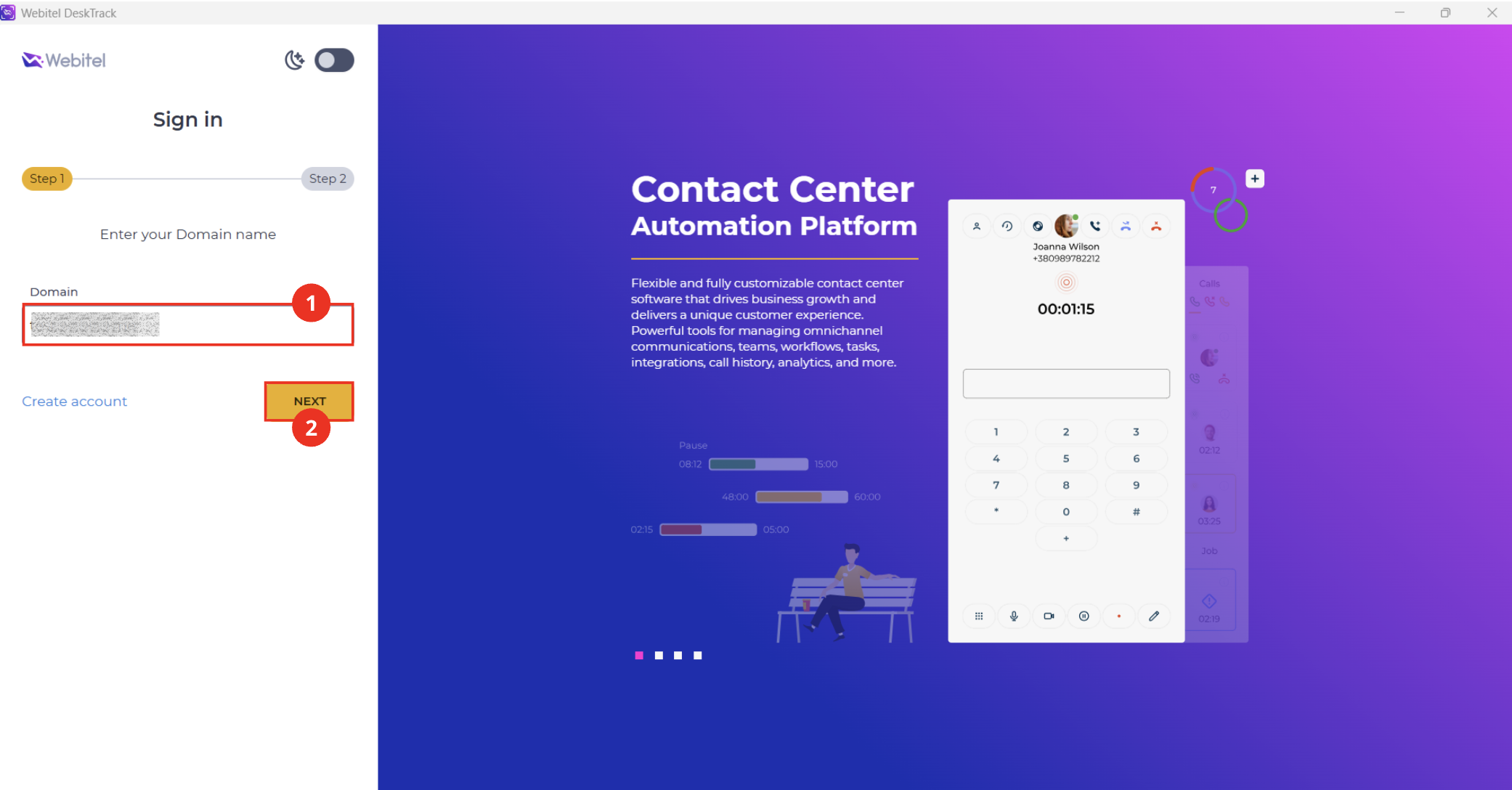
During the first authorization step (Fig. 1), the domain input form is displayed.
-
Specify the address of your domain (Fig. 1.(1)).
-
Click Next (Fig. 1.(2)).
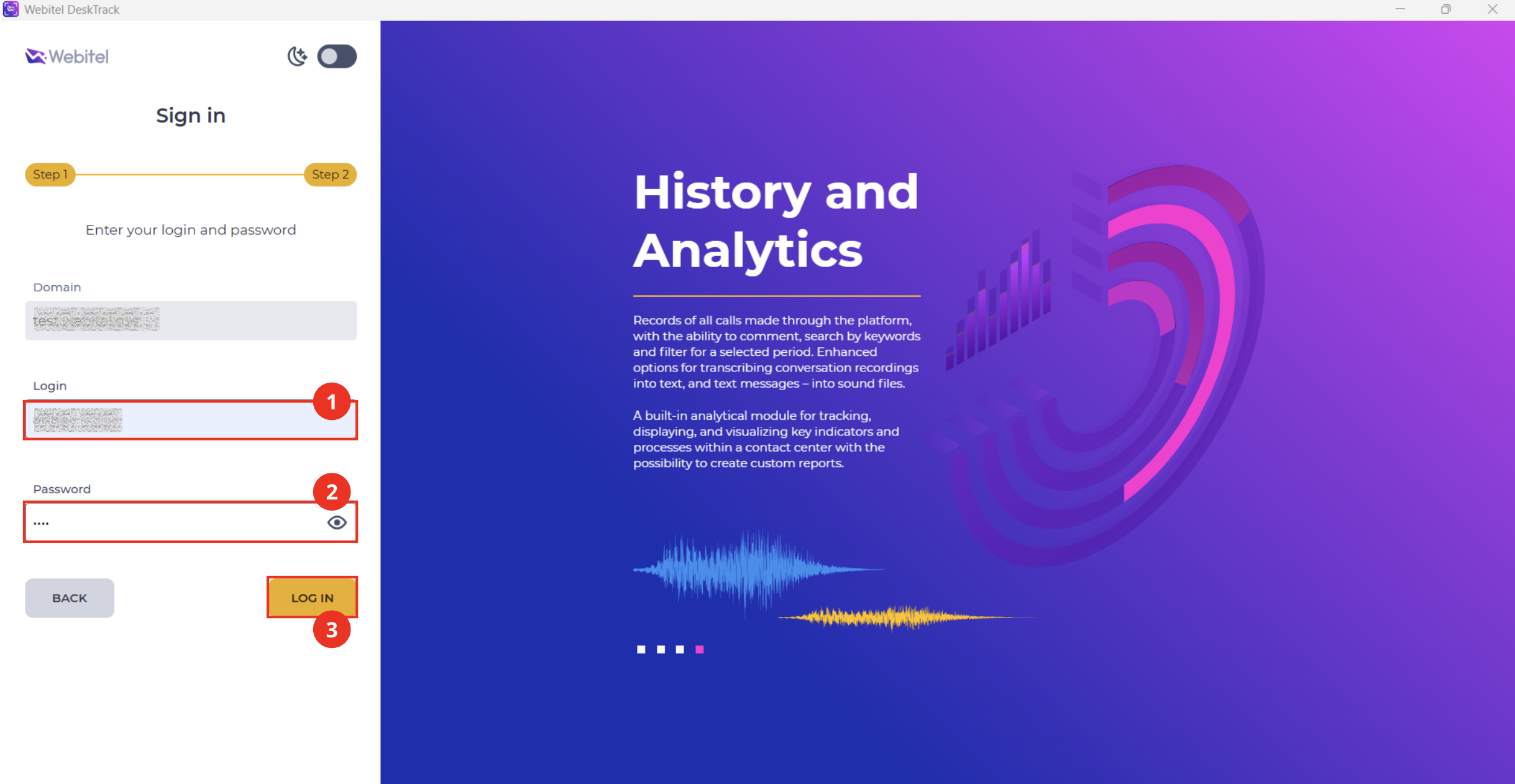
At the second step, the sign-in form is displayed (Fig. 2).
-
Enter your login (Fig. 2.(1)) and password (Fig. 2.(2)) that you use to access the Webitel platform.
-
Click Log in (Fig. 2.(3)).
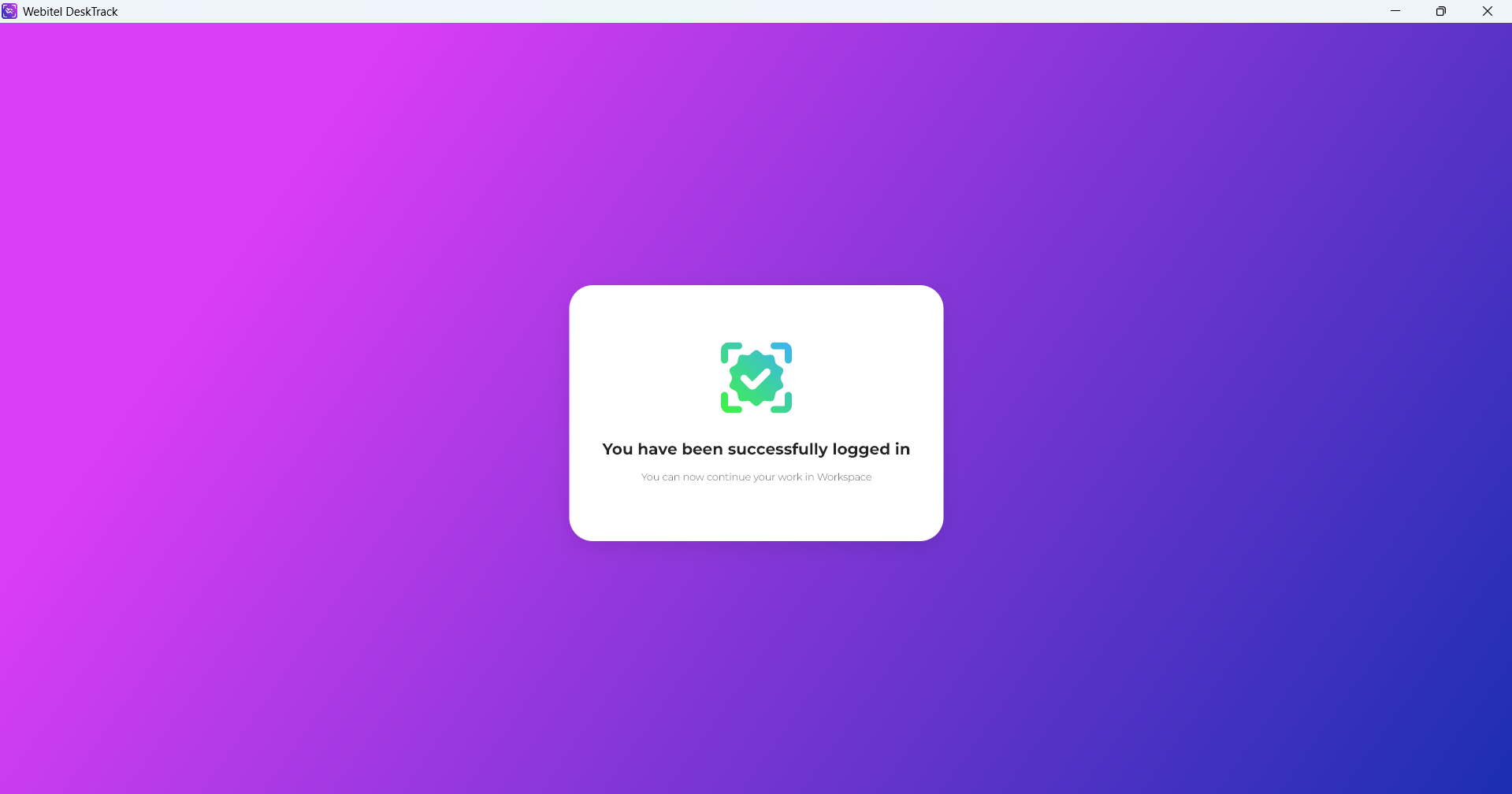
After a successful sign-in, the application displays a confirmation message (Fig. 3) and Webitel DeskTrack minimizes to the system tray and continues running in the background.
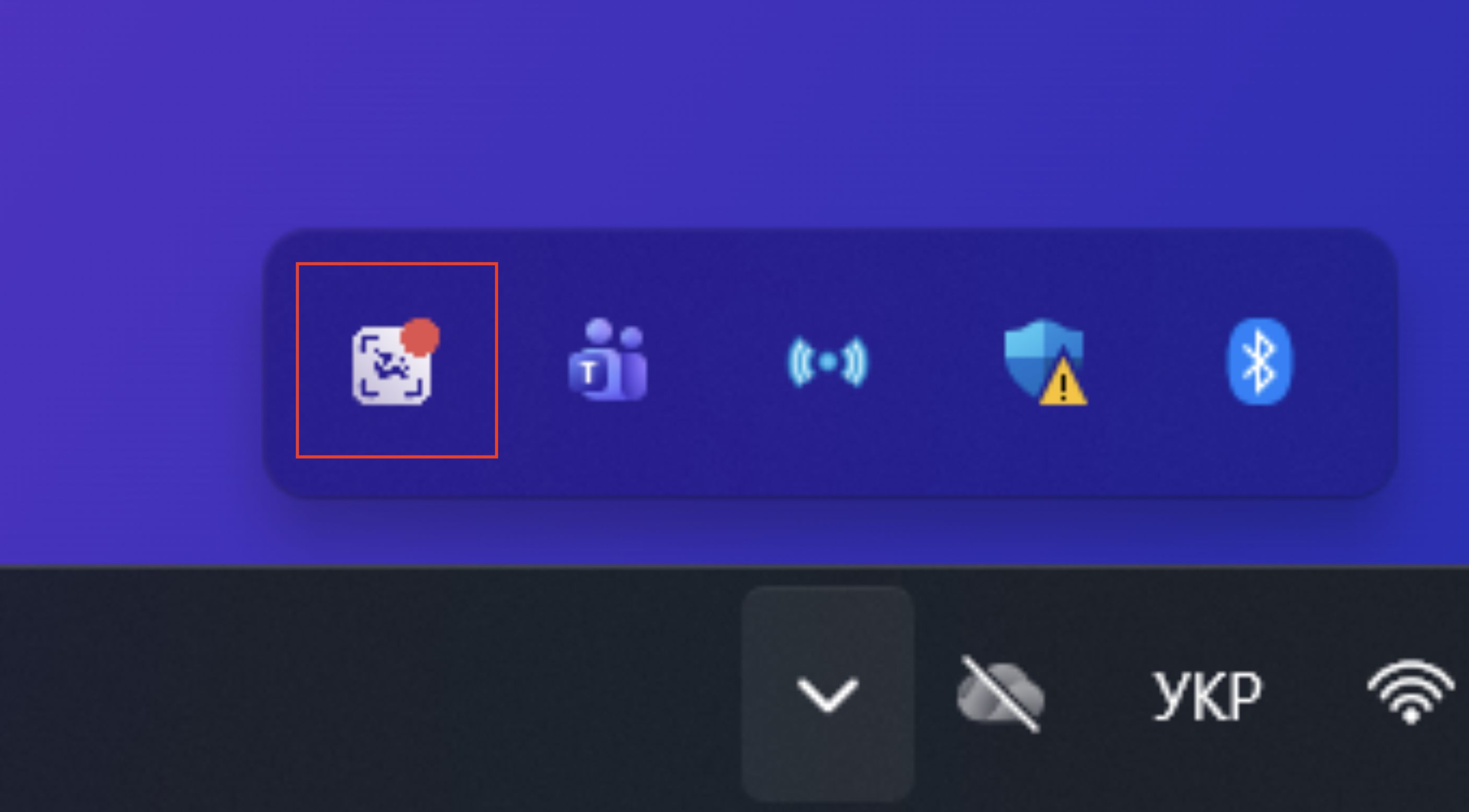
4.2. Logging out of the account (Logout)
To log out of the Webitel DeskTrack account, you need to open the application menu in the system tray (Fig. 4).
After clicking the Webitel DeskTrack icon, a context menu with available actions will appear (Fig. 5).
To log out of the account, select Logout (Fig. 5.(1)).
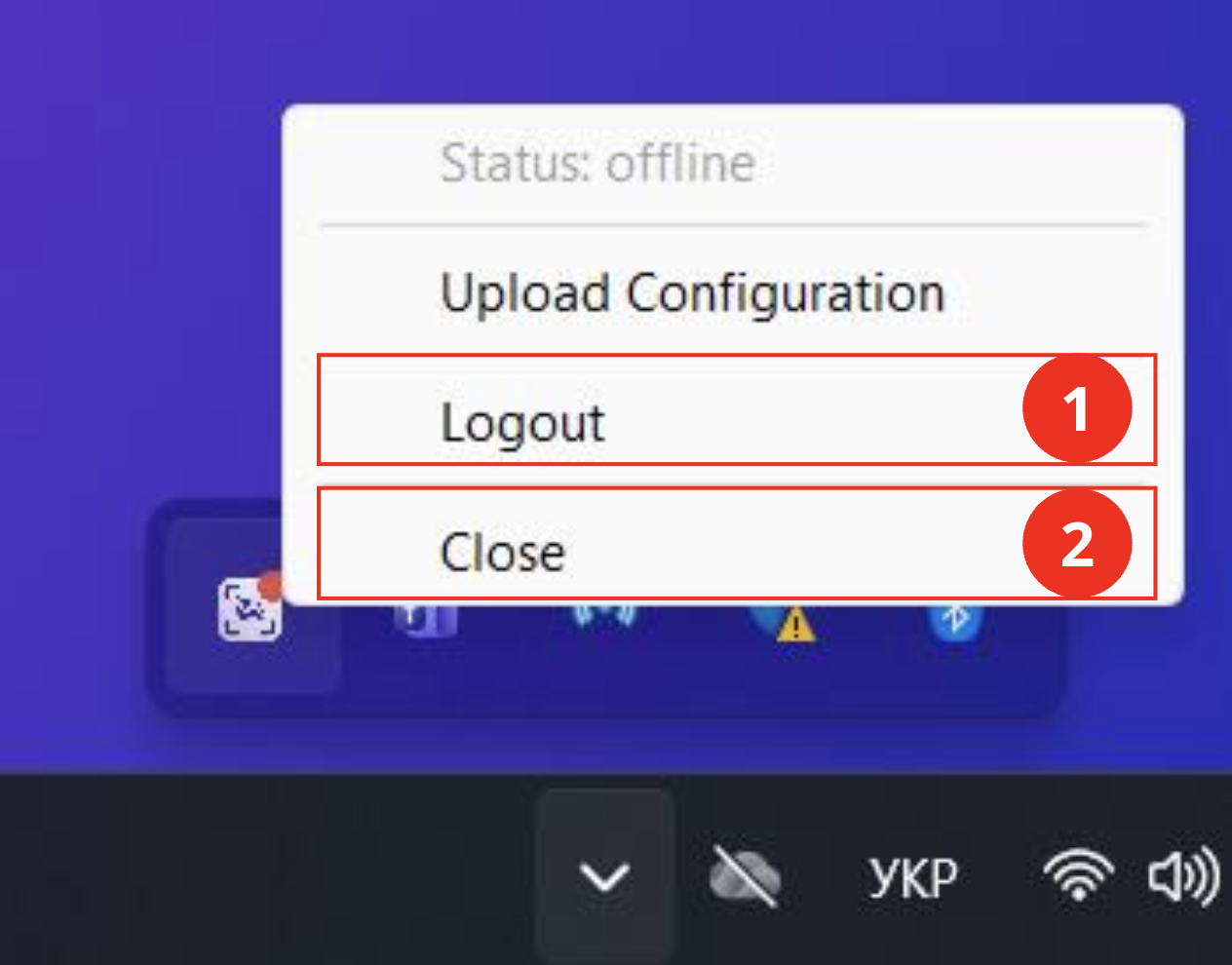
The application does not close — it remains active in the tray and returns the user to the authorization screen (Fig. 1), where they can log in again.
4.3. Closing the application
The Webitel DeskTrack application can be closed either by clicking the Close button in the application context menu (Fig. 5.(2)) or by using the standard window close button (Fig. 6). In both cases, the application completely terminates and is removed from the system tray.
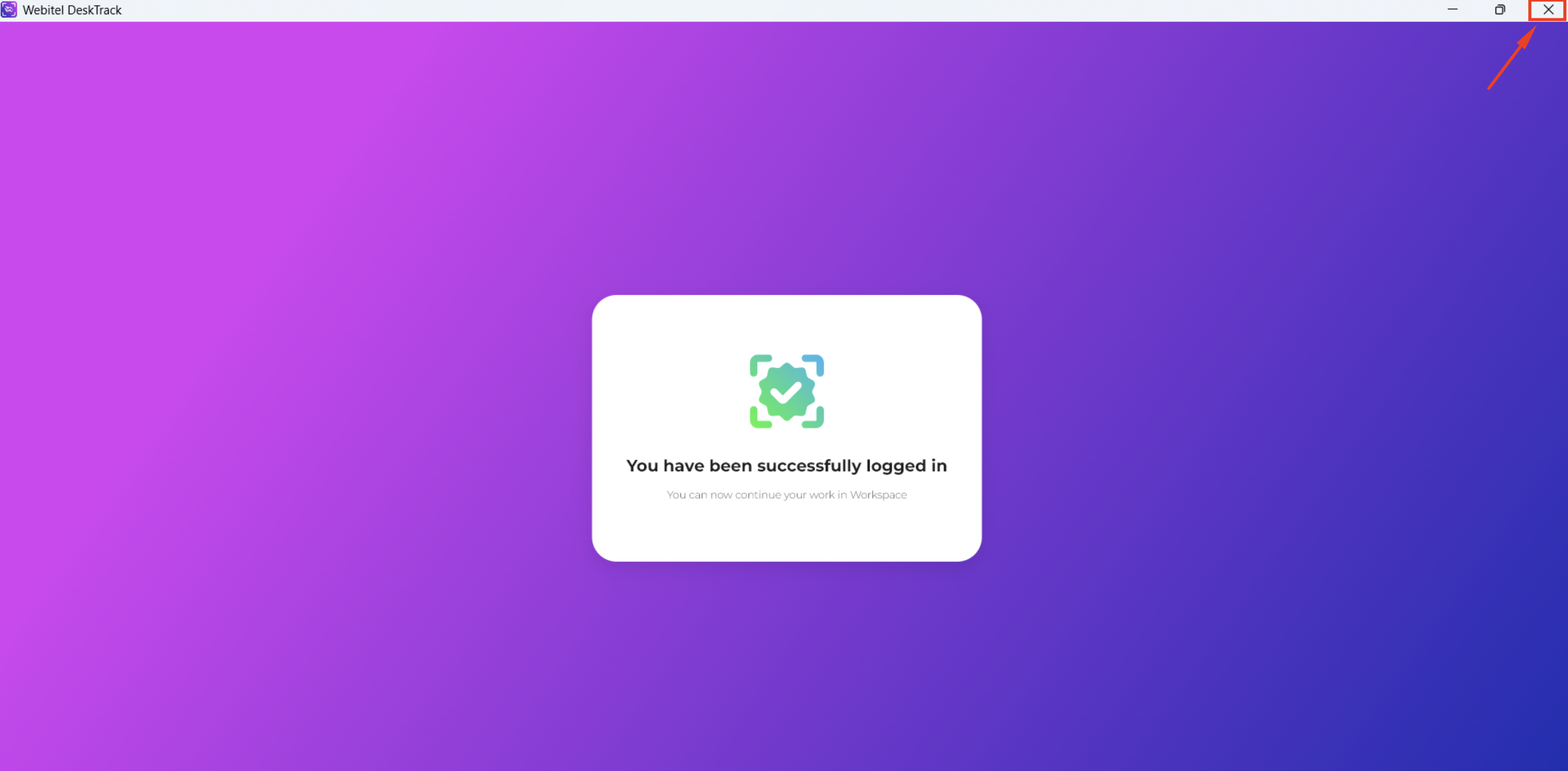
Important! Closing the application does not log the user out. The next time Webitel DeskTrack is launched, the user will remain authenticated if their session is still valid.
5. System behavior in case of failure or state changes
5.1. Authorization lost or the application was closed during a call
If Webitel DeskTrack was closed or authorization was lost during an active call:
-
the call continues in normal mode;
-
the agent completes after-call work;
-
after the after-call work is finished, the agent receives a system notification requiring them to log in to Webitel DeskTrack;
-
screen recording stops at the moment the connection to the application is lost, and the generated video file is saved in the system.
5.2. Enabling the “Monitor agent screen” setting while the agent is working
If the administrator activates the Agent screen control setting at the agent or team level while they are working:
-
the agent is immediately switched to the Offline status;
-
a modal window appears requiring the agent to log in to Webitel DeskTrack;
-
until the application is launched and the login is completed, calls are not routed to the agent.
5.3. Agent logging out of Workspace
If an agent logs out of Workspace:
-
Webitel DeskTrack continues running in the background;
-
the supervisor’s access to the agent’s screen remains available (as long as the application is active).
5.4. Supervisor disconnection during recording
If the supervisor loses connection during an active recording:
-
the recording ends immediately;
-
the saved file becomes available in the system under History and Supervisor (Agents).
5.5. Simultaneous automatic and manual recording
The system processes scenarios as follows:
-
if automatic recording is active, manual recording does not start (a push notification is displayed);
-
if manual recording is already active and automatic recording starts, two separate recordings are created.
6. Webitel DeskTrack session status
-
The application automatically ends the user session after the token expires (after 1 week).
-
After the PC is restarted, the user must sign in again.
-
The agent cannot ignore the system notification about missing connection to Webitel DeskTrack — Workspace remains blocked until sign-in is completed.