
1. Description
Here you can add the evaluation criteria that the Scorecard will consist of.
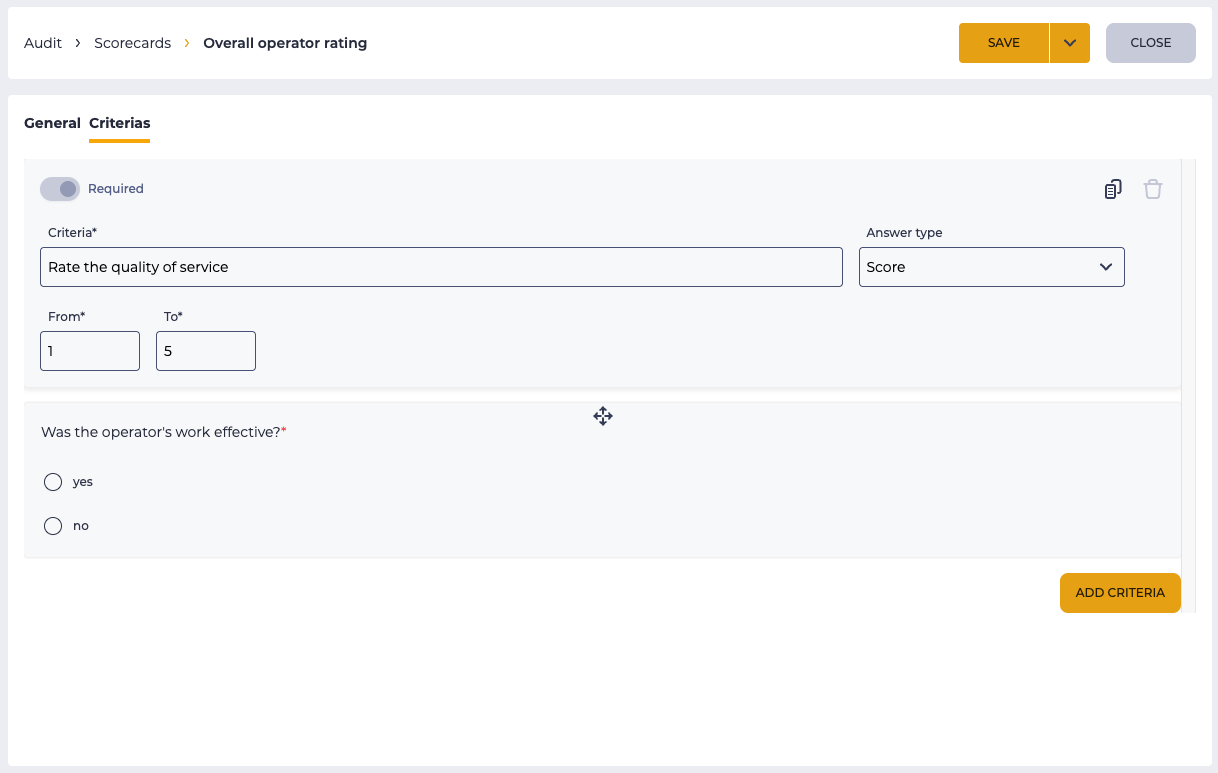
Consists of fields (Fig. 1):
-
Criterion block;
-
Add criteria.
1.1. Criterion block
The criterion block depends on the answer type of the given criterion.
There are the following options:
-
Score;
-
Options.
Each criterion has a copy tool - 

Clicking the
The first criterion is not removed and is mandatory - the removal tool (
Also, the first answer option is not deleted when the answer type is Option.
Holding the 
1.1.1. Score
With the Score answer type, the criterion block consists of the following elements (Fig.1):
-
Required;
-
Criteria;
-
Answer type;
-
From;
-
To.
1.1.1.1. Required
The switch indicates whether this criterion is mandatory for answering when evaluating:
-

-

1.1.1.2. Criteria
Here enters the question of evaluation—the required field.
1.1.1.3. Answer type
This field chooses the type of answer to the question entered in the Criteria field. In this version, this is the Score type.
1.1.1.4. From
Here enter the minimum number of points that a question can be assessed with. The value must be at least 0 and at most 9. Only integers are allowed.
1.1.1.5. To
Here enter the maximum number of points that the question can be scored. The value must be at least 1 and at most 10. Only integers are allowed.
The value in the From field must not be greater than the value in the To field.
1.1.2. Options
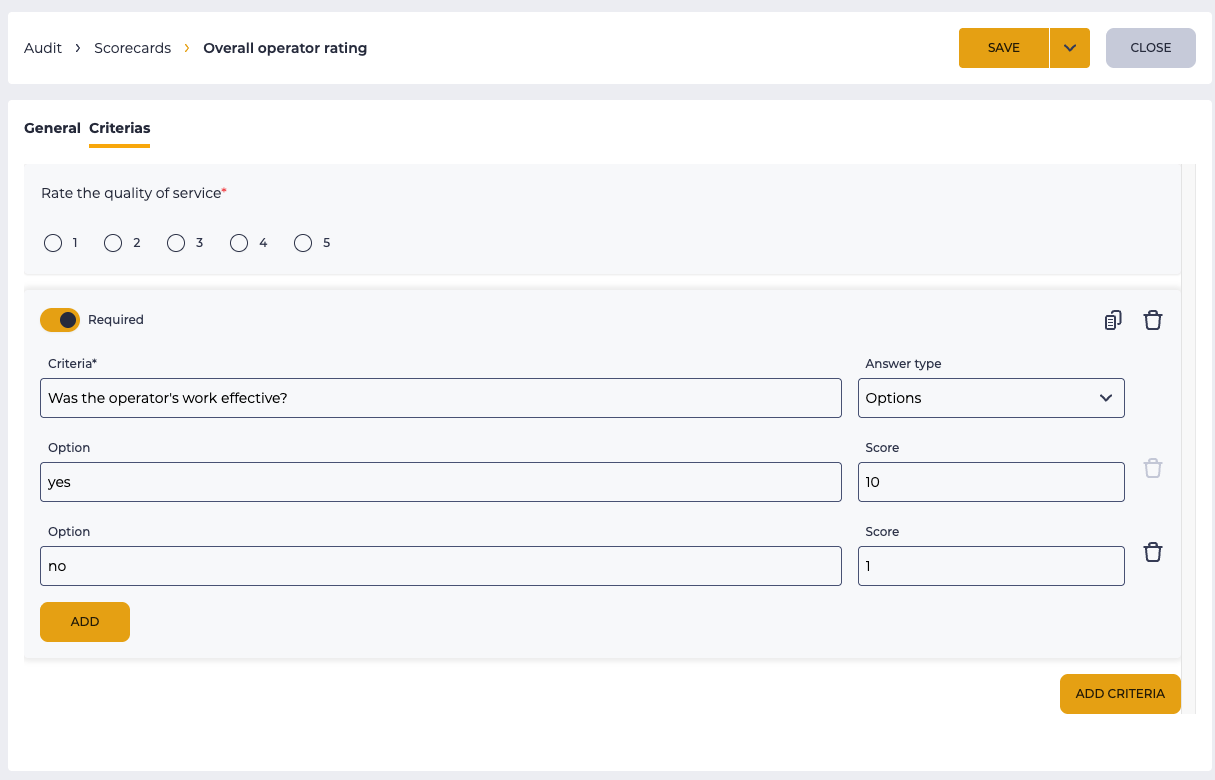
With the Options answer type, the criterion block consists of the following elements (Fig.2):
-
Required;
-
Criteria;
-
Answer type;
-
Option;
-
Score;
-
Removal tool;
-
Add button.
1.1.2.1. Required
The switch indicates whether this criterion is mandatory for answering when evaluating:
-
-
1.1.2.2. Criteria
Here enters the question of evaluation—the required field.
1.1.2.3. Answer type
This field chooses the type of answer to the question entered in the Criteria field. In this version, this is the Options type.
1.1.2.4. Option
In this field, enter the answer to the question entered in the Criteria field.
1.1.2.5. Score
This field chooses the number of points assigned when selecting the option entered in the Option field. Floating point numeric field, limit to 2 characters after the dot.
1.1.2.6. Removal tool
Clicking the
The first line of options is not removed.
1.1.2.7. Add button
Clicking on the Add button adds a new option line - the Option field and the Score field.
1.1.3. Select "Yes"
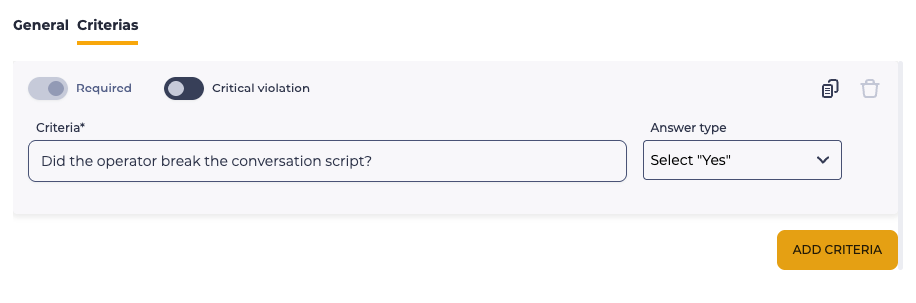
With the "Select "Yes"" answer type, the criterion block consists of the following elements (Fig. 3):
-
Required;
-
Critical violation;
-
Criteria;
-
Answer type;
-
Removal tool;
-
Add criteria button.
1.1.3.1. Required
The switch indicates whether this criterion is mandatory for answering when evaluating:
-

-

1.1.3.2. Critical violation
A criterion attribute set by the auditor during call evaluation.
By default, the switch is disabled –
If the switch is enabled –
-
when selecting the "Yes" answer during evaluation, all other criteria are automatically reset;
-
the overall call score for required and situational questions is set to 0%.
Important!
In case a question with a critical violation is a required criterion, the switch during evaluation must be enabled –
If such logic is not required, the critical violation criterion must be optional.
Note! Criteria with the Select "Yes" answer type do not affect the overall score if the Critical violation switch is disabled –
1.1.3.3. Criteria
Here enters the evaluation question. This is a required field.
1.1.3.4. Answer type
This field chooses the type of answer to the question entered in the Criteria field. In this case — the Select "Yes" type.
1.1.3.5. Removal tool
Clicking the button 
The first criterion is not removed — the removal tool for it is inactive.
1.1.3.6. Add criteria button
Clicking the Add criteria button adds a new criterion block to the form.
A new criterion is added to the end of the list with the default answer type and empty fields for filling.
1.2. Add criteria
Clicking the Add criteria button adds a new criterion block.
The Add criterion button becomes inactive if there is a criterion in which all required fields are not filled.
After filling in the block of criteria, it changes to a preview.