
1. Description
The Workspace application is the Agent's working space.
Hint!
Supports up to 1280×610 pixels (no scroll).
The main tasks of the Agent are servicing calls, chats, and completing tasks.
To start working, you must switch the Call Center to the active position (Fig. 1), thereby switching to the online status.
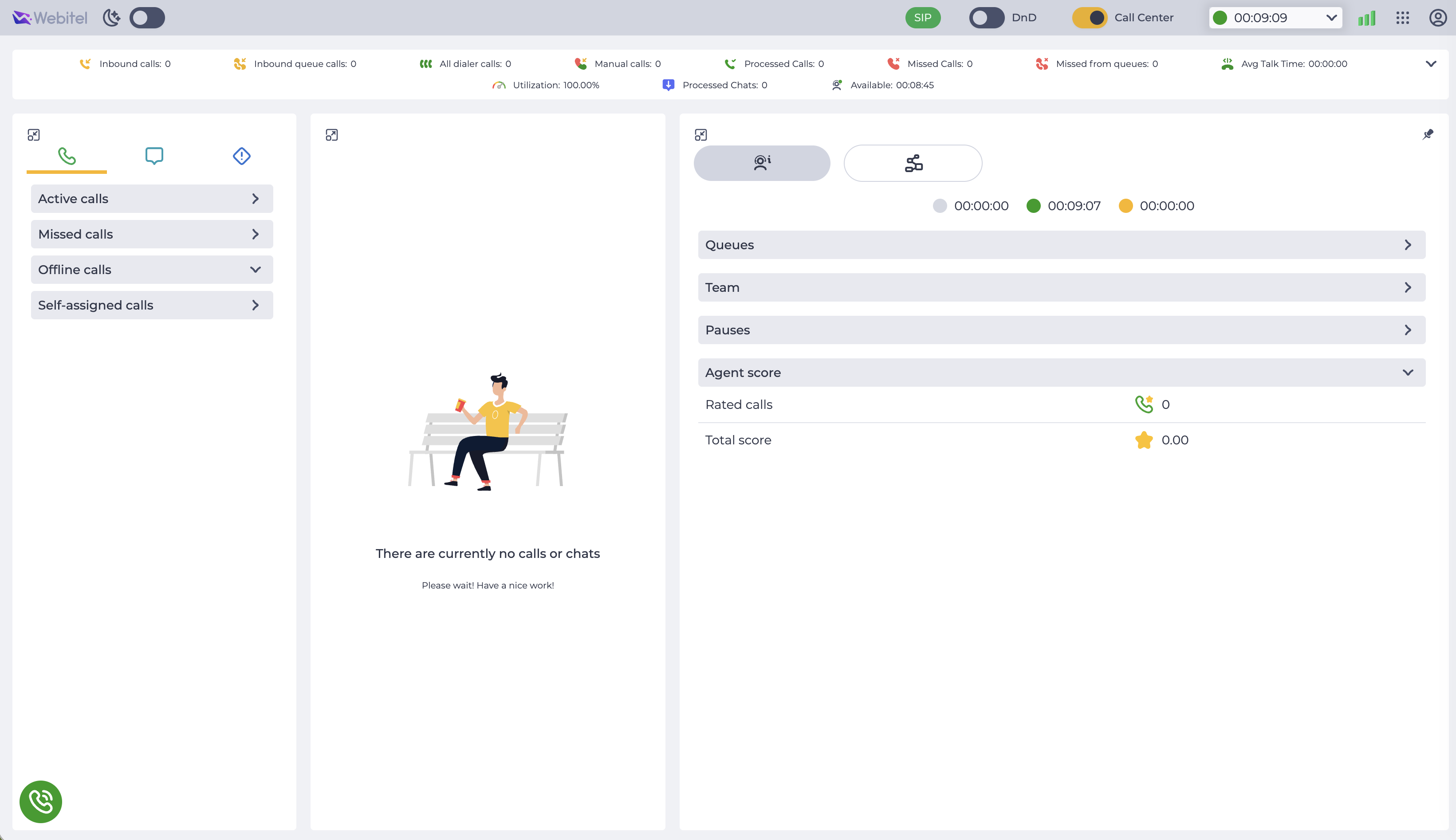
More information can be found on the pages below:
1.1. Network Quality
While working in Workspace, the system automatically monitors network quality.
In the top panel of the interface, an indicator is displayed that monitors and shows the network quality in real time:
-

-

-

Attention! The table below contains technical parameters used to evaluate network quality:
|
Parameter |
Green |
Yellow |
Red |
|---|---|---|---|
|
Ping (Latency) |
< 150 ms |
150–300 ms |
> 300 ms |
|
Jitter |
< 30 ms |
30–50 ms |
> 50 ms |
|
Packet Loss |
< 1% |
2–3% |
> 3% |
|
MOS |
≥ 4.0 |
3.5–4.0 |
< 3.5 |
In addition, during each call, the system performs a deeper analysis of the network connection, evaluating other parameters required for call quality.
If a degradation in connection quality is detected during a call (Jitter, Packet Loss, MOS), after the call ends, a notification is automatically displayed in Workspace:
-
“Network delay was detected during the call.”;
-
“Low network quality was detected during the call.”.
Attention! The network status indicator reflects the current state of the connection, while notifications contain information about the network quality during the call. Therefore, their values may differ.
1.2. Hotkeys
The following hotkeys are available:
-
Alt+N— open/close the window in the Center block where you can make an outgoing call; -
Alt+A— accept a call, a chat, or a task; -
Alt+E— end a call, a chat, or a task; -
Alt+M— mute; -
Alt+H— hold; -
Alt+T — transfer; -
Alt+n —wherenis the button's sequence number in the dynamic window, a digit from1to9. Select the button to be clicked; pressingEnterconfirms the selection. For example,Alt+1.
The Alt or Option buttons are used depending on the PC model.
When you click on 
A progressive web app (PWA) is an app that's built using web platform technologies, but that provides a user experience like that of a platform-specific app. A PWA, like a website, can run on multiple platforms and devices from a single codebase.
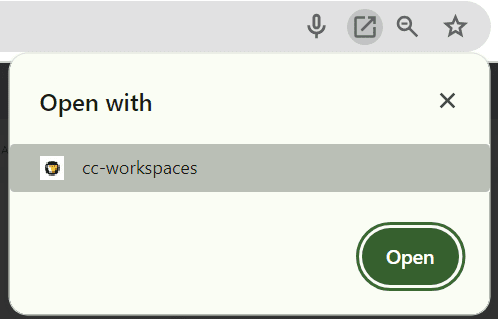
When you click the Open button, Workspace opens as a separate application. All Workspace functionality is available in it.