
1. Description
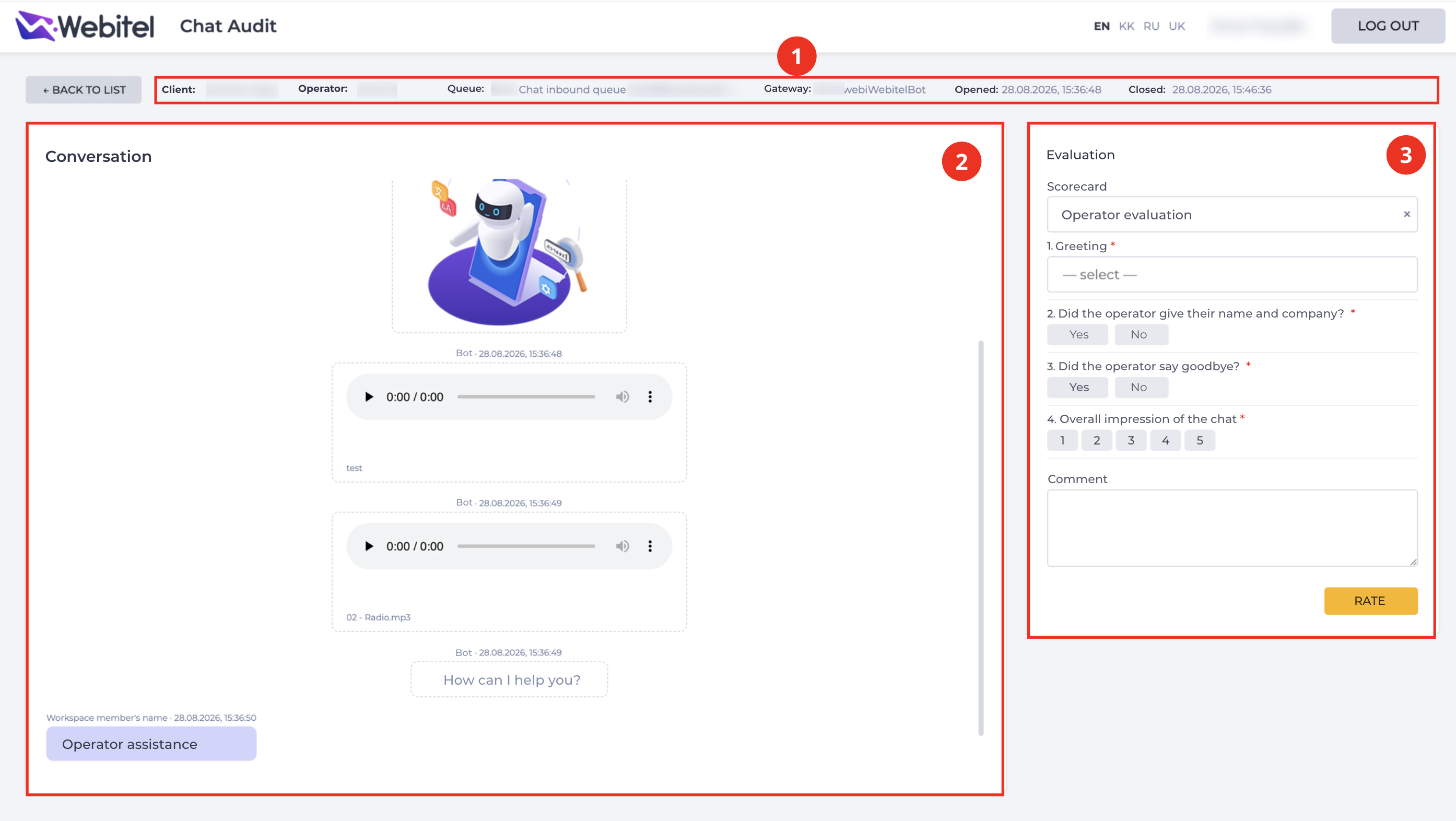
Opens after clicking on a chat record in the registry of the "Chat Audit" page. Displays the chat details and provides the ability to evaluate it (Fig. 1).
Consists of the following elements:
-
Information panel — contains data about the chat;
-
Conversation block — the chat's message history;
-
Evaluation block — the chat evaluation form.
Also contains the "← Back to list" button, which returns to the "Chat Audit" page.
1.1. Information panel
Displays:
-
Client — the client's name;
-
Operator — the operator who handled the chat;
-
Queue — the queue the chat was routed to;
-
Gateway — the text gateway through which the communication took place;
-
Opened — the date and time the chat started;
-
Closed — the date and time the chat ended.
1.2. Conversation block
Displays the complete message history of the chat in chronological order: text messages, audio files, images, etc., indicating the author and time of each message.
1.3. Evaluation block
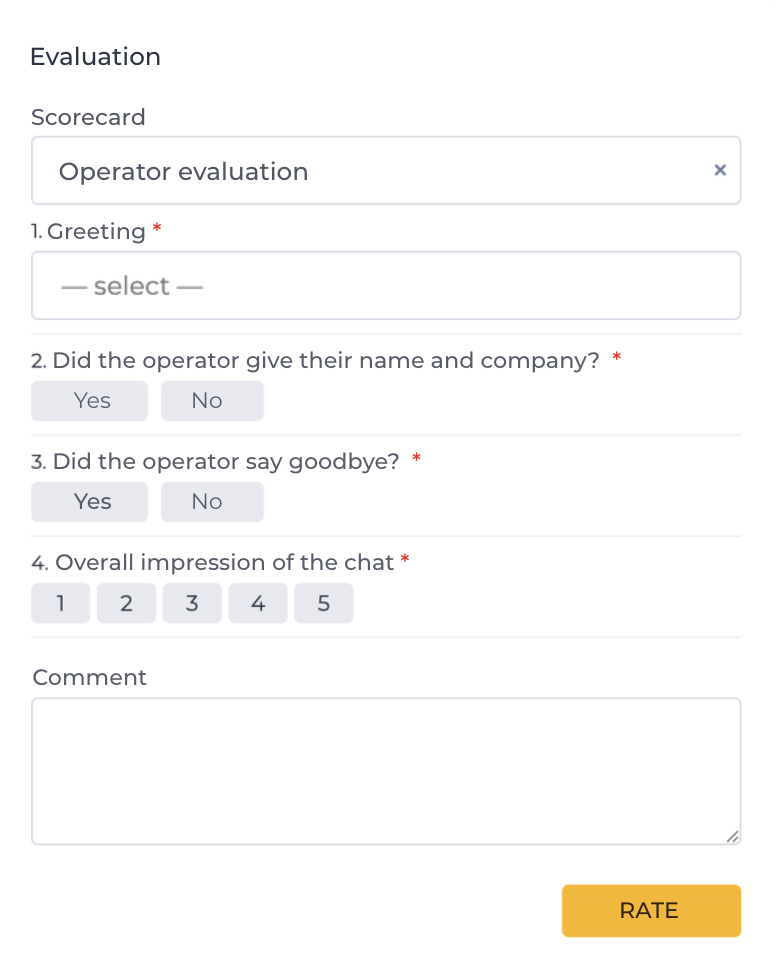
If the chat has not yet been evaluated, the block contains (Fig. 2):
-
Scorecards field — selection of an evaluation scorecard from the list of available scorecards (see the Scorecards documentation);
-
a list of criteria for the selected scorecard — the display type depends on the criterion type:
-
Option — a dropdown list with predefined answers;
-
Score — buttons with numeric values within the minimum and maximum result set in the scorecard;
-
"Yes" answer — "Yes"/"No" buttons.
-
-
Criteria marked with an asterisk (*) are required — the evaluation cannot be saved without answering them;
-
Comment field — free-form text;
-
Rate button — becomes active after all required criteria are filled in; saves the evaluation.
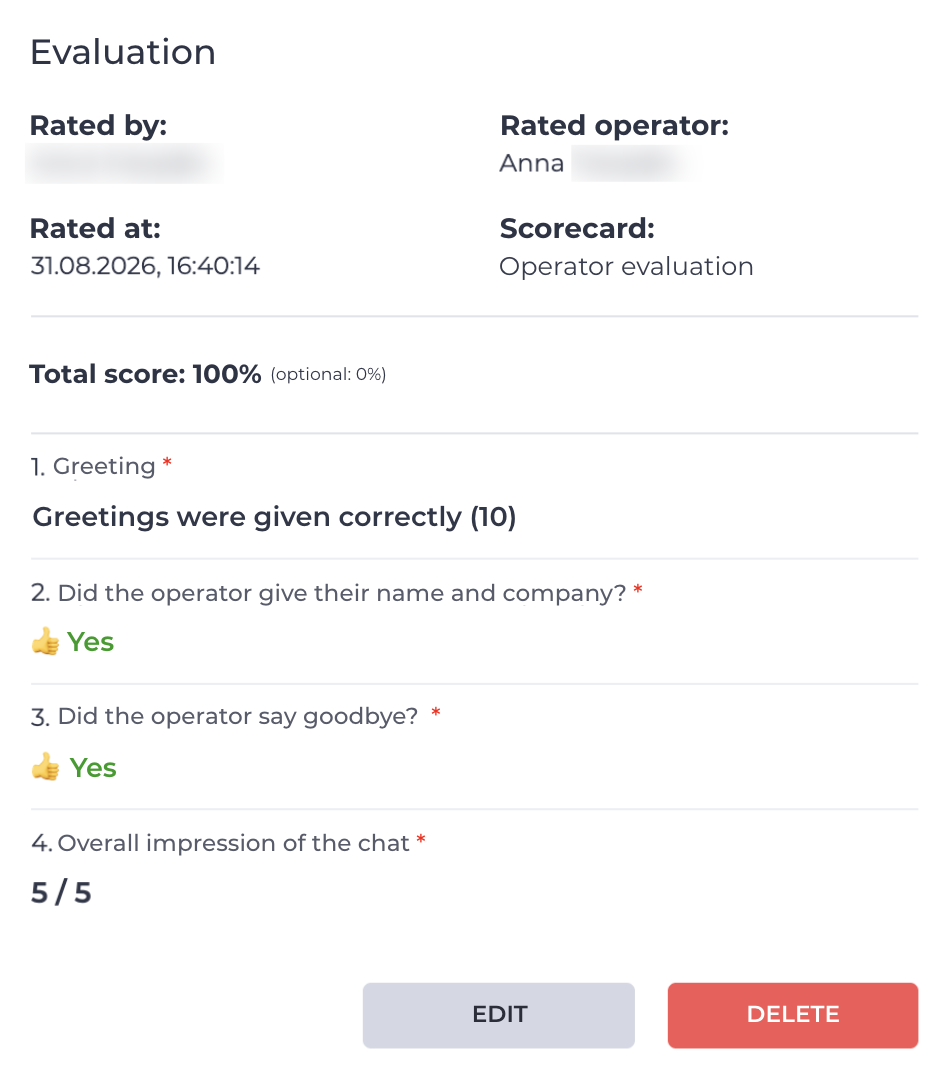
If the chat has already been evaluated, the block displays (Fig. 3):
-
who evaluated and who was evaluated;
-
the date and time of the evaluation;
-
the scorecard used;
-
the overall evaluation;
-
the evaluation results for each criterion;
-
Edit button — allows changing the existing evaluation;
-
Delete button — deletes the evaluation with confirmation.
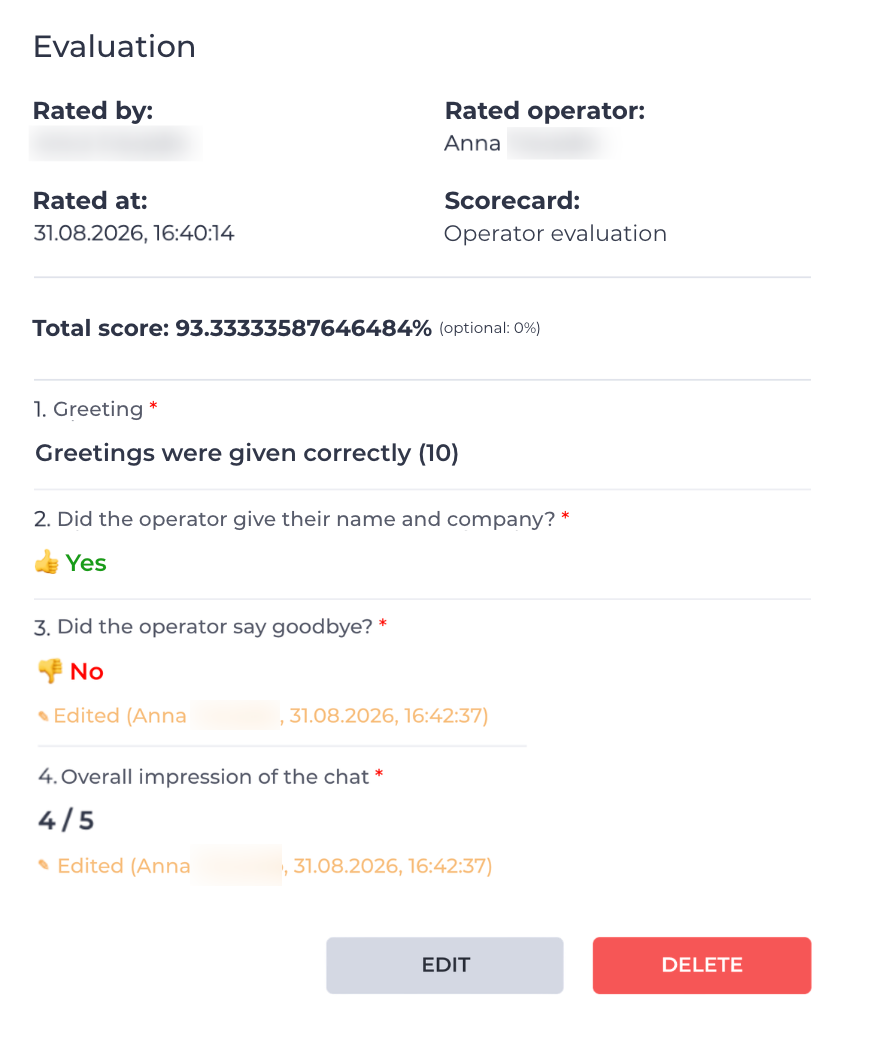
When editing an evaluation, the previous answers and the comment text field are displayed. If the criterion for which the evaluation was given was changed in the scorecard after the evaluation, a "Edited (by whom and when)" label is displayed next to it (Fig. 4).
After deleting an evaluation, the chat can be evaluated again — select a scorecard and click the Rate button.