Webitel: Documentation

Objects (Permissions)

1. Description

It is designed to enable or disable additional settings for permission to operations for a specific section and to access entries (in the registry) of these sections.

The Objects page is available to Users with the Select permission. It is set in the Role permissions tab.

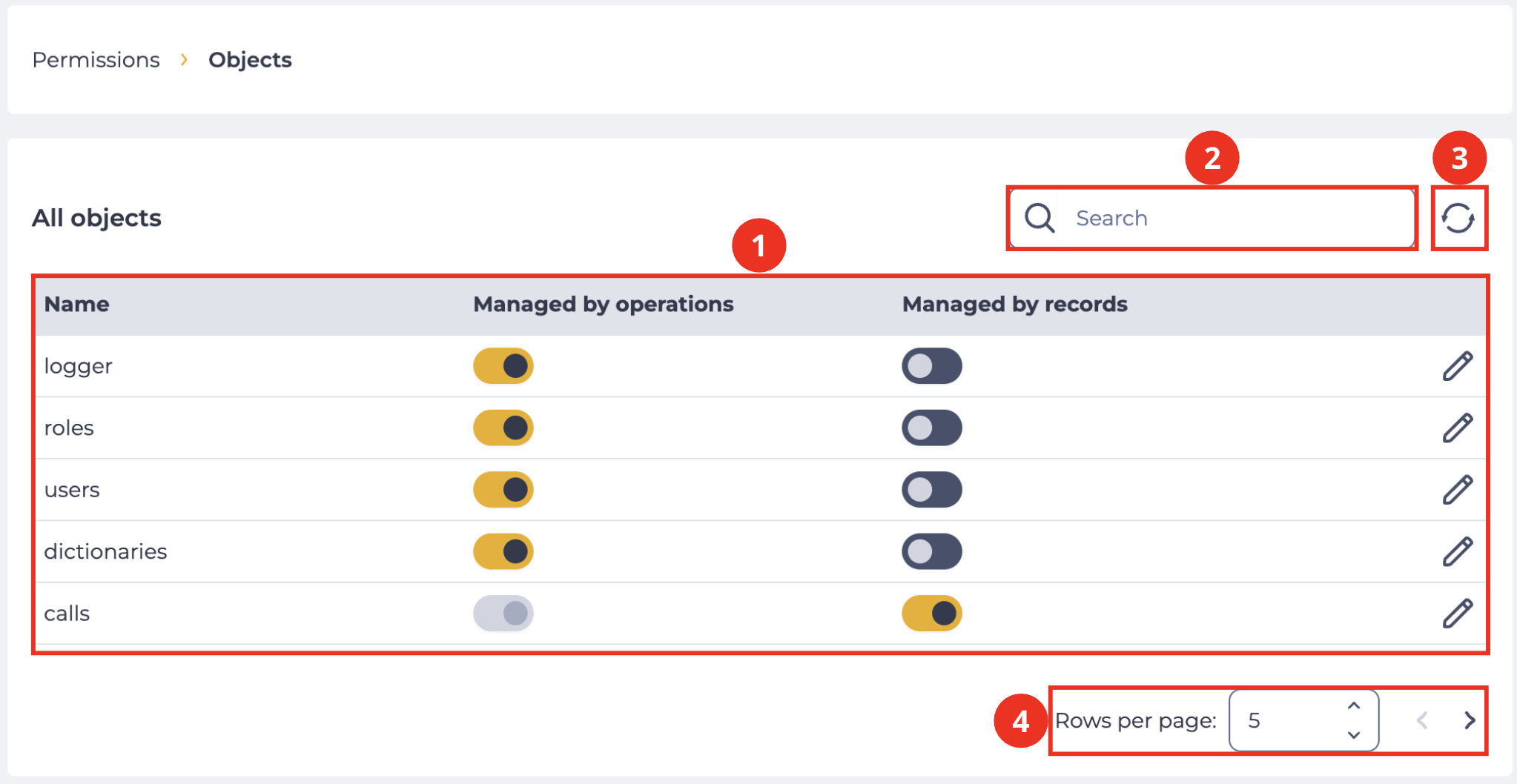
It consists of the following elements:

  1. Search field (Fig.1(1));

  2. Refresh button (Fig.1(2));

  3. Registry (Fig.1(3));

  4. Pagination (Fig.1(4)).

Objects page.png

Fig. 1. Objects page

1.1. Search field

The search is performed on the Name column.

It consists of an input field and a close button ( image-20241218-160723.png ) displayed when the cursor is placed in the input field. To search by part of a word or a number, use the * symbol. You can also use the * character to replace any number of characters.

1.2. Refresh button

Updating the register table is performed by clicking on the refresh button - image-20241220-111256.png .

1.3. Registry

The registry is a list of entries of existing sections, each of which consists of a set of fields:

  1. Name;

  2. Managed by operations;

  3. Managed by records;

  4. Editing tool.

1.3.1. Name

The conditional name of the section is displayed here (Table 1).

Name in the All objects table

Responsible for section

Addresses of sections for which it is responsible

roles

Roles

  • /permissions/roles

users

Users

  • /directory/users

dictionaries

Lookups:

  • /lookups/skills

  • /lookups/regions

  • /lookups/communications

  • /lookups/pause-cause

  • /lookups/buckets

calls

Applications:

  • /history/

  • /supervisor/

  • /workspace/

devices

Devices

  • /directory/devices

gateways

Gateways

  • /routing/sip-gateways

calendars

Calendars

  • /lookups/calendars

acr_routing

Dialplan

  • /routing/dialplan

media_file

Media files

  • /lookups/media

record_file

the ability to playback to conversation recordings in History

 — 

storage_profile

Storage

  • /integrations/storage

import_template

Imports of CSV from file

  • /integrations/import-csv

cc_list

Call lists (Lookups)

  • /lookups/blacklist

cc_team

Teams

  • /contact-center/teams

cc_agent

Agents

  • /contact-center/agents

cc_queue

Queues

  • /contact-center/queues

cc_resource

Resources

  • /contact-center/resources

cc_resource_group 

Resource groups

  • /contact-center/resource-groups

chats


chat_bots

Chat Gateways

  • /routing/chat-gateways

acr_chat_plan

Chatplan

  • /routing/chatplan

cognitive_profile

Cognitive profiles

  • /integrations/cognitive-profiles

schema

Flow schemas

  • /routing/flow

trigger

Triggers

  • /integrations/triggers

contacts

Contacts

  • /crm/contacts

email_profile

Email profiles

  • /integrations/email-profiles

cc_audit_form

Scorecards

  • /audit/scorecards

logger

Change log

  • /system/changelogs

contact_groups

Contact groups


Table 1. Correspondence of entries to the sections for which they are responsible

1.3.2. Managed by operations

The switch enables/disables additional settings by operations:

Бегунок вкл..png  — additional settings for operations are enabled;

Бегунок выкл..png - additional settings for operations are disabled.

1.3.3. Managed by records

The switch enables/disables additional settings by records:

Бегунок вкл..png  — additional settings for records are enabled;

Бегунок выкл..png — additional settings for records are disabled.

The Managed by records switch has no effect on objects that do not have a Permissions tab.
If the Managed by records switch is in the active position, the Managed by operations is also enabled!

1.3.4. Editing tool

Clicking the edit tool Снимок экрана 2024-02-16 014501.png  opens the Managed by operations tab, where you can change the operation rights. 

On the Managed by records tab, you can change the permissions for records.

1.4. Pagination

It consists of the Rows per page field, which indicates the number of entries (it is possible to set from 1 to 1000) per page, and forward and backward buttons for switching pages.

2. Opportunities

2.1. Enable additional settings for operations for a specific section

Goal

Enable additional settings for operations for the Teams section

Preconditions

  1. Access to the Admin application;

  2. Access to the Objects section in the Admin application;

  3. The Select and Update access rights.

Steps


  1. Select the entry that is responsible for the required section — cc_team (which entry is responsible for what, see Table 1)

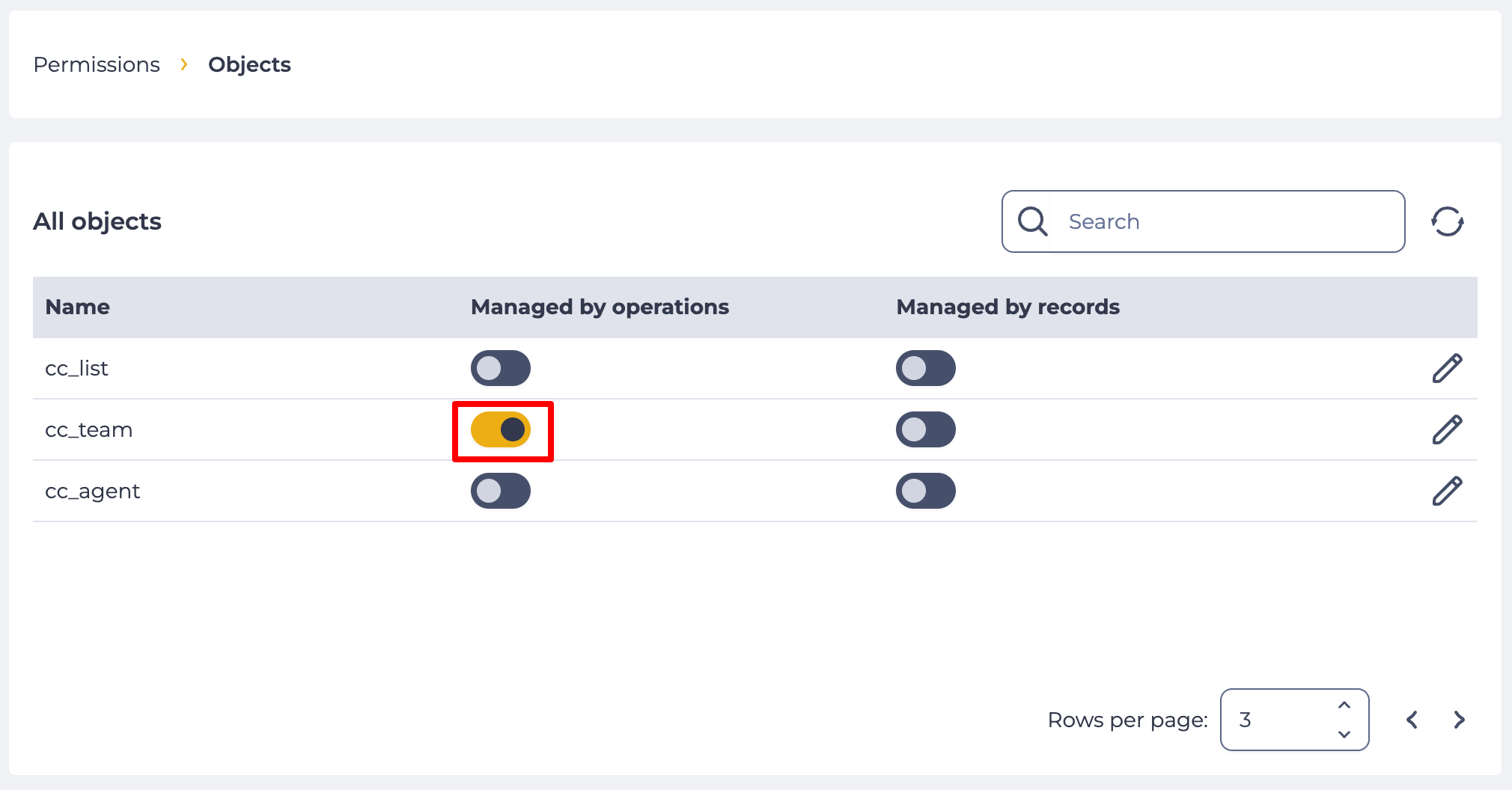
  2. Set the switch in the Managed by operations column to the on position. (Fig. 2).

Result

Additional settings for operations in the Teams section are enabled.

Enabling additional settings for operations in the Teams section.png

Fig. 2. Enabling additional settings for operations in the Teams section

2.2. Enable additional settings for accessing records for a specific section

Goal

Enable additional settings for accessing records for the Teams section

Preconditions

  1. Access to the Admin application;

  2. Access to the Objects section in the Admin application;

  3. The Select and Update access rights.

Steps


  1. Select the entry that is responsible for the required section — cc_team (which entry is responsible for what, see Table 1)

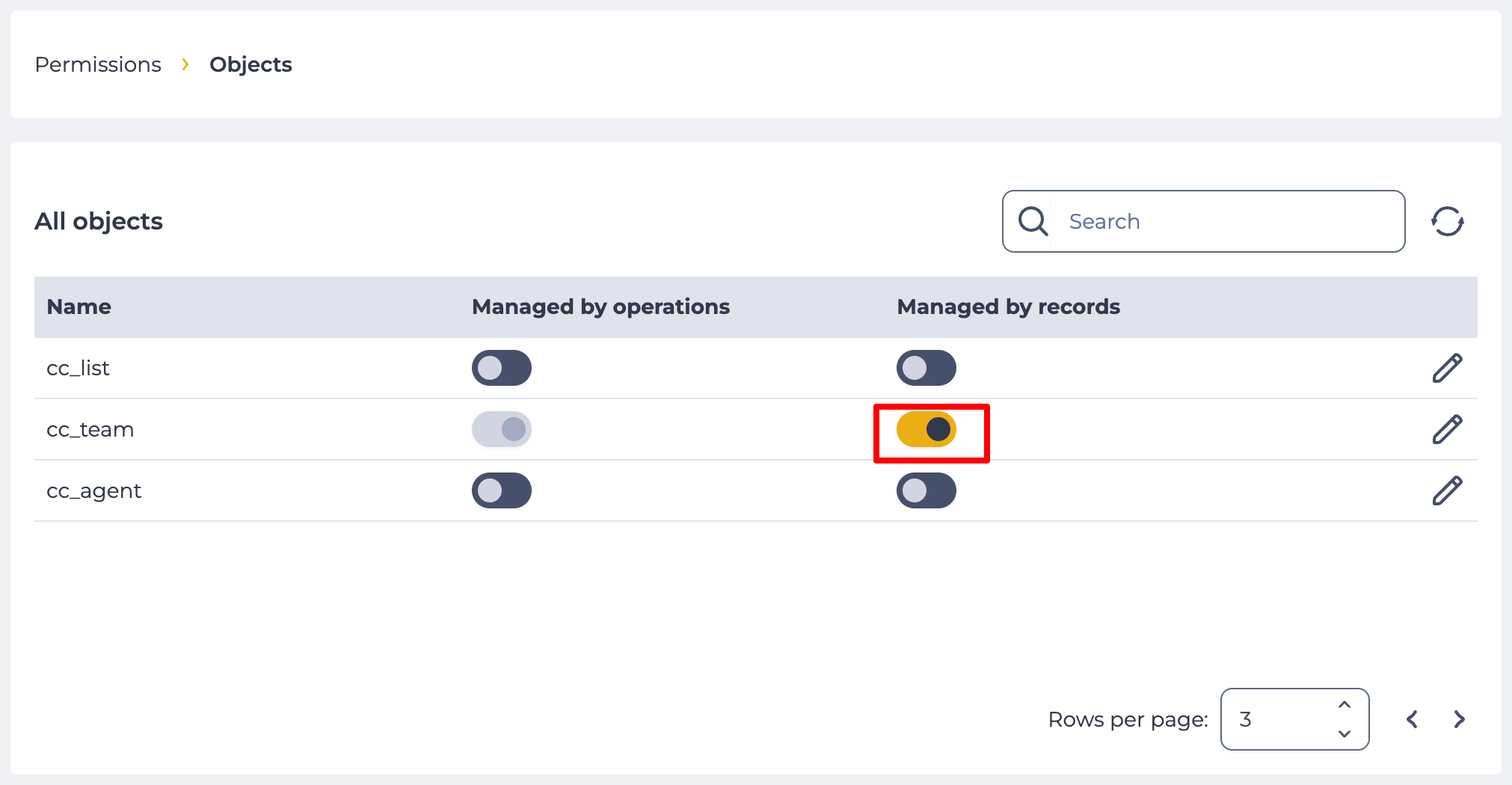
  2. Set the switch in the Managed by records column to the on position. (Fig. 3).

Result

Additional settings enabled. The settings specified in the Permissions tab in each entry from the Teams page are used.

Enabling additional settings for accessing records for the Teams section.png

Fig. 3. Enabling additional settings for accessing records for the Teams section

2.3. Disable additional settings for operations for a specific section

Goal

Disable additional settings for operations for the Teams section

Preconditions

  1. Access to the Admin application;

  2. Access to the Objects section in the Admin application;

  3. The Select and Update access rights.

Steps


  1. Select the entry that is responsible for the required section — cc_team (which entry is responsible for what, see Table 1)

  2. Set the switch in the Managed by operations column to the off position. (Fig. 3).

Result

Additional settings for operations in the Teams section are disabled.

2.4. Disable additional settings for records for a specific section

Goal

Disable additional settings for records for the Teams section

Preconditions

  1. Access to the Admin application;

  2. Access to the Objects section in the Admin application;

  3. The Select and Update access rights.

Steps


  1. Select the entry that is responsible for the required section — cc_team (which entry is responsible for what, see Table 1)

  2. Set the switch in the Managed by records column to the off position. (Fig. 2).

Result

Additional settings for records in the Teams section are disabled.

2.5. Open the Managed by operations tab

Goal

Open the Managed by operations tab

Preconditions

  1. Access to the Admin application;

  2. Access to the Objects section in the Admin application;

  3. The Select and Update access rights.

Steps


  1. Select the entry that is responsible for the required section — cc_team (which entry is responsible for what, see Table 1)

  2. Click the edit button —  Знімок екрана 2024-01-25 011523.png .

Result

The Managed by operations tab opens.

2.6. Open the Managed by records tab

Goal

Open the Managed by records tab

Preconditions

  1. Access to the Admin application;

  2. Access to the Objects section in the Admin application;

  3. The Select and Update access rights.

Steps


  1. Select the entry that is responsible for the required section — cc_team (which entry is responsible for what, see Table 1)

  2. Click the edit button — Знімок екрана 2024-01-25 011523.png . The Managed by operations tab opens.

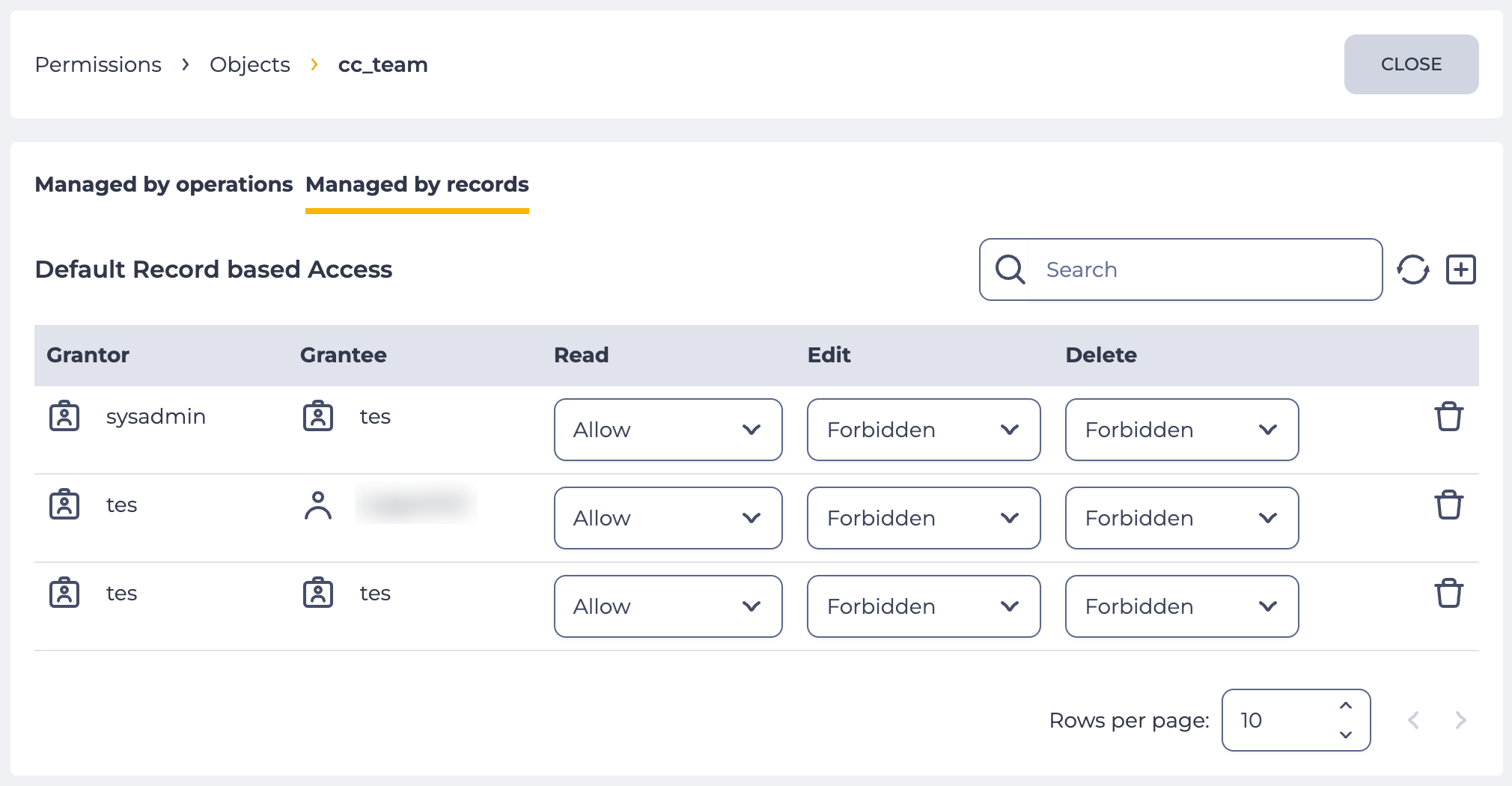
  3. Click on the Managed by records tab (Fig.4).

Result

The Managed by records tab opens.

The Managed by records tab.png

Fig. 4. Open the Managed by records tab