Webitel: Documentation

Accepting an inbound call

1. Inbound call

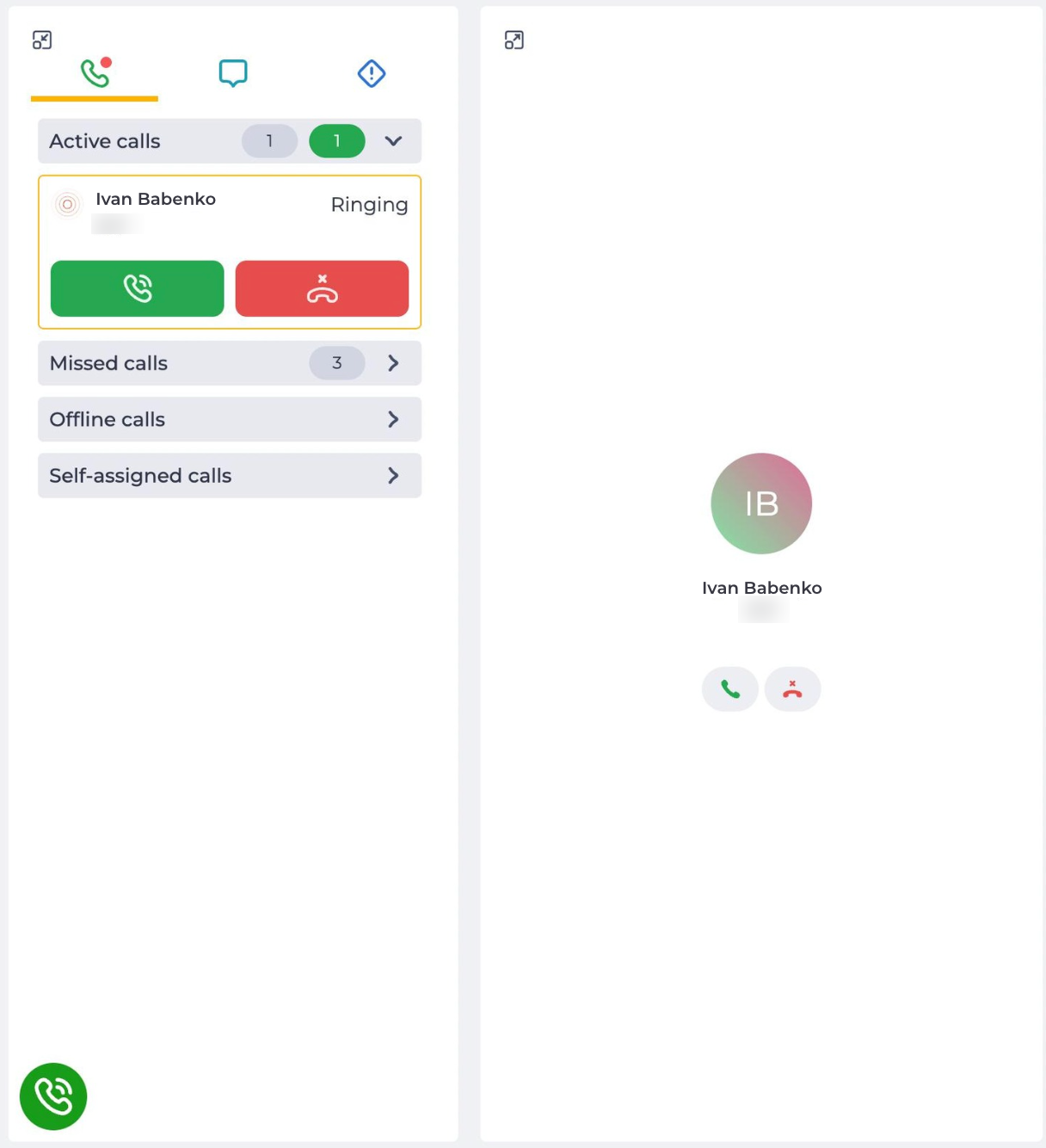
The User is notified about an inbound call with a ringing sound. The call is displayed in the left block in Active calls (Fig. 1).
Call info tab.png
Fig. 1. Inbound call

The Client info tab is displayed in the right panel. More information about the tab can be found here.

To answer an inbound call, the Agent must click the Answer button in the left panel. The Subscriber is connected to the Agent, and the conversation begins (Fig.2).

When you click the Reject button - the call ends, and the Agent is credited with plus one to the missed calls if it was not an internal call.

The central block displays the Subscriber's name, phone number, and the name of the Queue from which the call comes. The following buttons are also present:

  • image2024-2-12_15-20-43.png  - call accept button;

  • image2024-2-12_15-20-27.png  - button to transfer the call to another Agent. More about transfer can be found here;

  • image2024-2-12_15-20-57.png  - finish call button.

2. Recieved call

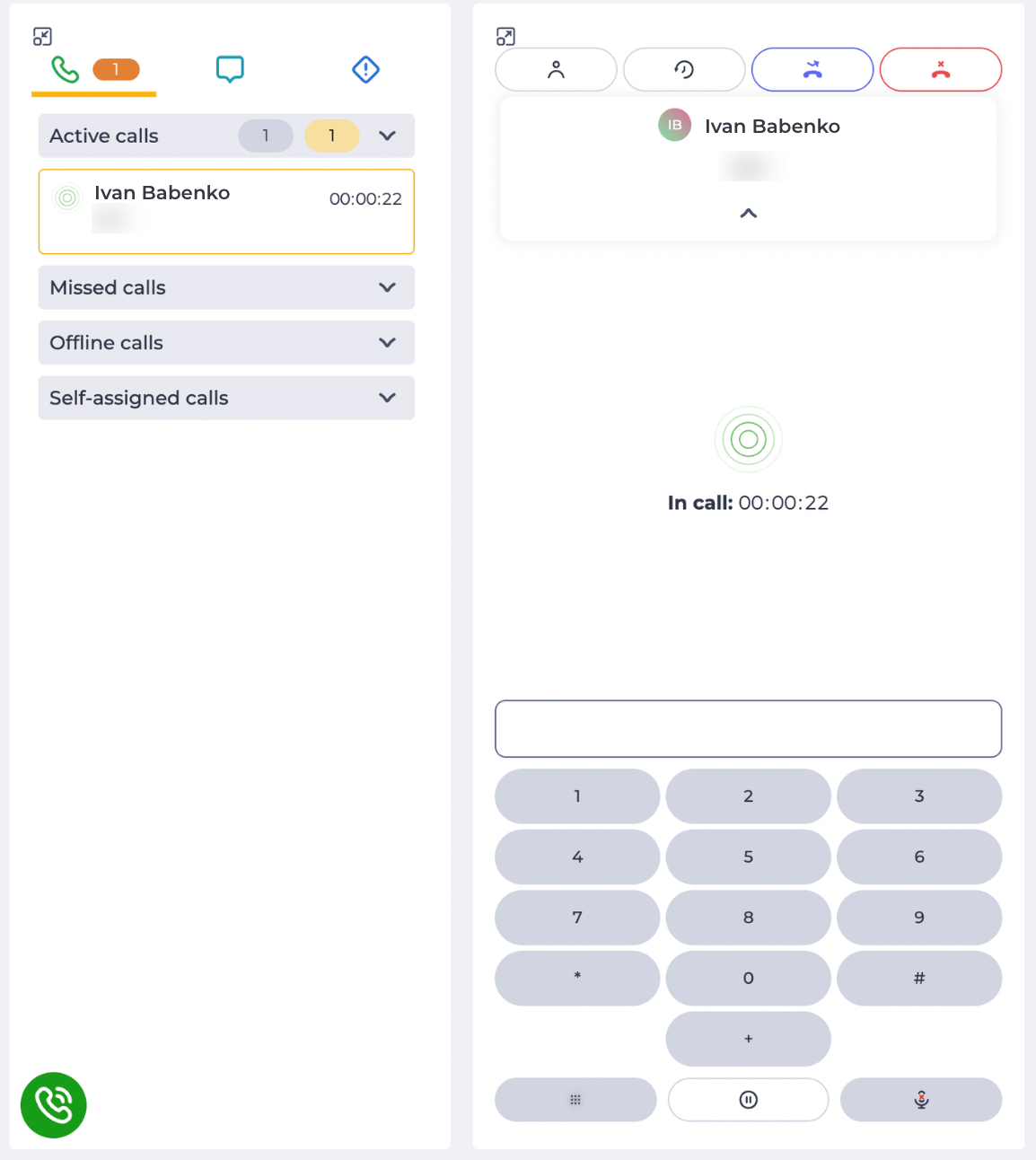
A received call in Workspace looks like thiss - Fig. 2. The right block displays the configured processing. If processing is not configured - the Client info tab is displayed. More information about processing can be found here.
Active call.png
Fig. 2. Answering a call

The following tools are available after answering a call:

  • Снимок экрана 2024-02-12 152808.png  - button at the bottom of the block - expands the numeric keypad with which you can dial the required number to call. Clicking this button again closes the numeric keypad;

If you call another number during the call, the previously answered call will go on hold.

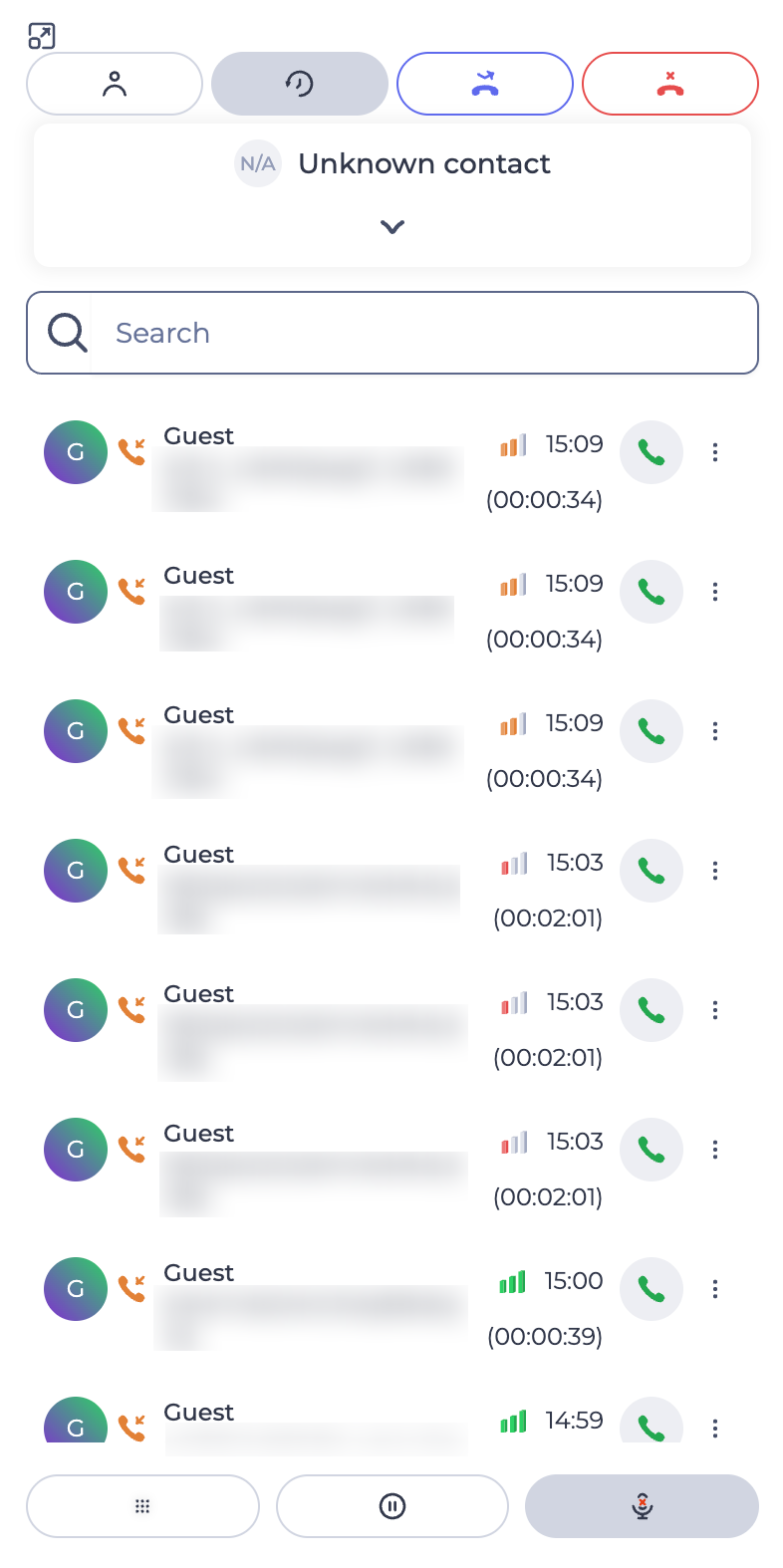
  • image2024-2-12_15-36-20.png   - a button to open the history of calls. It is located in the upper part of the block. It opens a list of completed calls (Fig. 3) with information about the duration of the call, the start time of the call, and the call button. The call is made to the selected number when this button is clicked. The network quality indicator during the call is displayed next to the client's name. The indicator color is determined by the value of the MOS parameter:

Color

MOS value

Green ( image-20260327-134629.png )

≥ 4.0

Yellow ( image-20260327-134600.png )

3.5–4.0

Red ( image-20260327-134649.png )

< 3.5

The indicator is not displayed for calls shorter than 10 seconds.
Archive.png
Fig. 3. Call archive

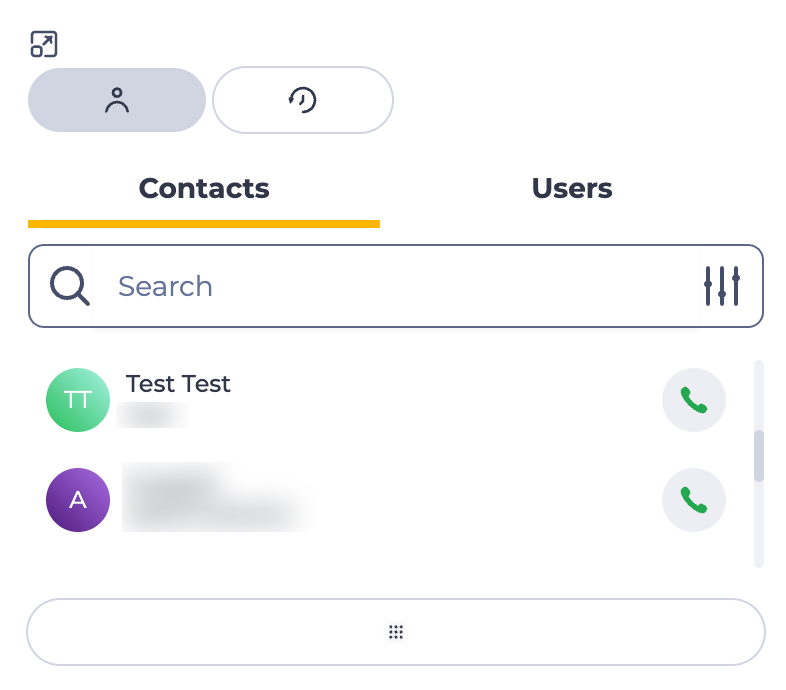
The Сontacts list is displayed in the central panel when you click on the  image2024-2-11_23-39-50.png button (Fig. 4).
The Contacts tab is shown only for Users who have a CALL_CENTER license.
If there is no license, only the Users tab is displayed.

There are the following tabs:

  1. Contacts;

  2. Users.

Contacts.png
Fig. 4. Contacts tab

2.1. Contacts tab

The Contacts tab consists of the following elements:

  • Search field;

  • List of Contacts

2.1.1. Search field

Consists of an input field, search setting icon ( image2024-4-2_15-11-23.png ) and a close button ( image-20241010-124740.png ), which appears when data is entered in the field.

The search is performed by the User's extension or name.

You can create a search query in regex format; the system will display results matching it.

Clicking on the  image2024-4-2_15-11-23.png button opens a list of search options:

  • Name — search by name;

  • Phone — search by phone number;

  • Email — search by email address.

2.1.2. List of Contacts

Contacts from CRM are displayed in the List of Contacts. The call button is active for Contacts who have a phone number.

Clicking on a Contact's name opens his contact's page.

2.2. Users tab

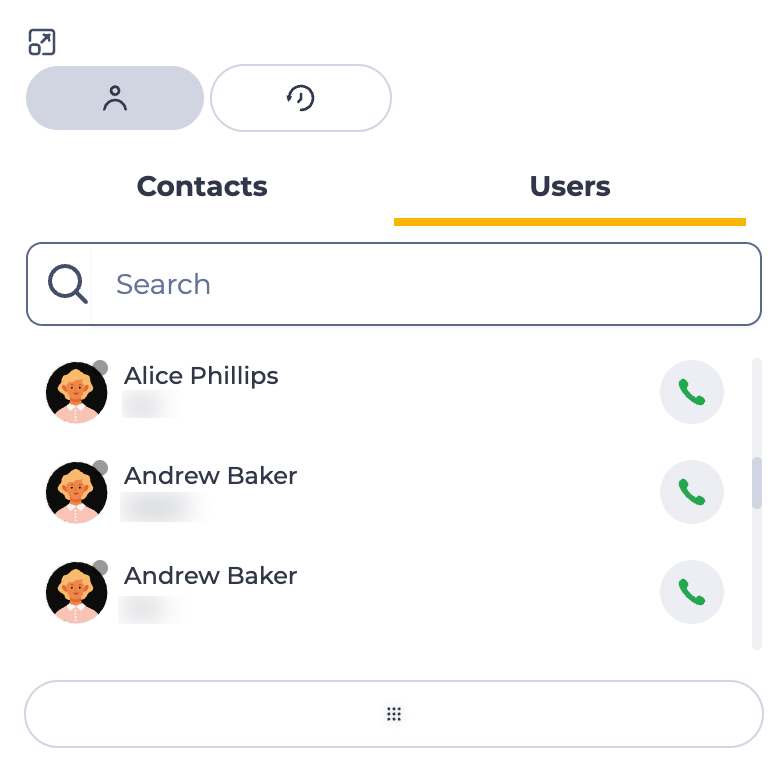
The User tab displays the standard avatar, User name, extension, and call button (Fig. 5).
Users.png
Fig. 5. Users tab

A color indicator the User is currently in depends on the User's state.

The color of the status indicator can be:

  • image2024-4-10_10-39-51.png  - there is a SIP connection;

  • image2024-4-10_10-40-5.png  - online — the "Call center" toggle is enabled;

  • image2024-4-10_10-40-23.png  - Do Not Disturb (DnD) mode — other Users cannot call this User;

  • image2024-4-10_10-40-33.png  - pause status;

  • image2024-4-10_10-40-46.png - busy, is in a conversation, or chat;

  • image2024-4-10_10-41-12.png - unavailable - is offline, or there is no SIP connection;

If the user is in pause mode, they are available for internal calls — the indicator is green.

  • image2024-2-12_15-54-0.png  - call end button;

  • image2024-2-12_15-54-23.png  — hold button is intended for temporarily placing the call on hold. While on hold, the customer cannot hear the agent and, if configured, hears music. The duration of the current call hold is displayed to the agent;

  • Снимок экрана 2024-02-12 155642.png  - this button allows you to turn off the microphone. The disabled microphone looks like this -  Снимок экрана 2024-02-12 155635.png . Click the button again to turn on the microphone;

  • image2024-2-12_15-44-29.png  - button to transfer the call to another Agent. You can see more about the transfer here.