
1. Description
The call transfer functionality is used to transfer an active call to another Agent, user, or a contact center queue after the call has been answered.
There are two transfer directions available in the system:
-
Standard transfer (to a user or number);
-
Transfer to a contact center (to an Agent or a queue).
For each direction, the following transfer types are supported:
-
Blind transfer (not supported when transferring to a contact center Agent);
-
Transfer with consultation.
2. Standard transfer
Standard transfer is used to transfer a call to another system user or to a number.
2.1. Blind transfer
A blind transfer is performed without prior communication with the call recipient.
To perform a transfer, the user:
-
clicks the transfer icon in the central Workspace panel –

-
opens the Users tab (Fig. 1.(2));
-
performs one of the following actions:
-
selects a user from the list and clicks the blind transfer icon –

-
in the search field (Fig. 1.(4)), the Agent enters an internal number, an Agent name, or a number matching a rule configured in the Dialplan section, and then clicks the Transfer button (Fig. 1.(5)). Hovering over the button displays the tooltip: "Blind transfer".
-
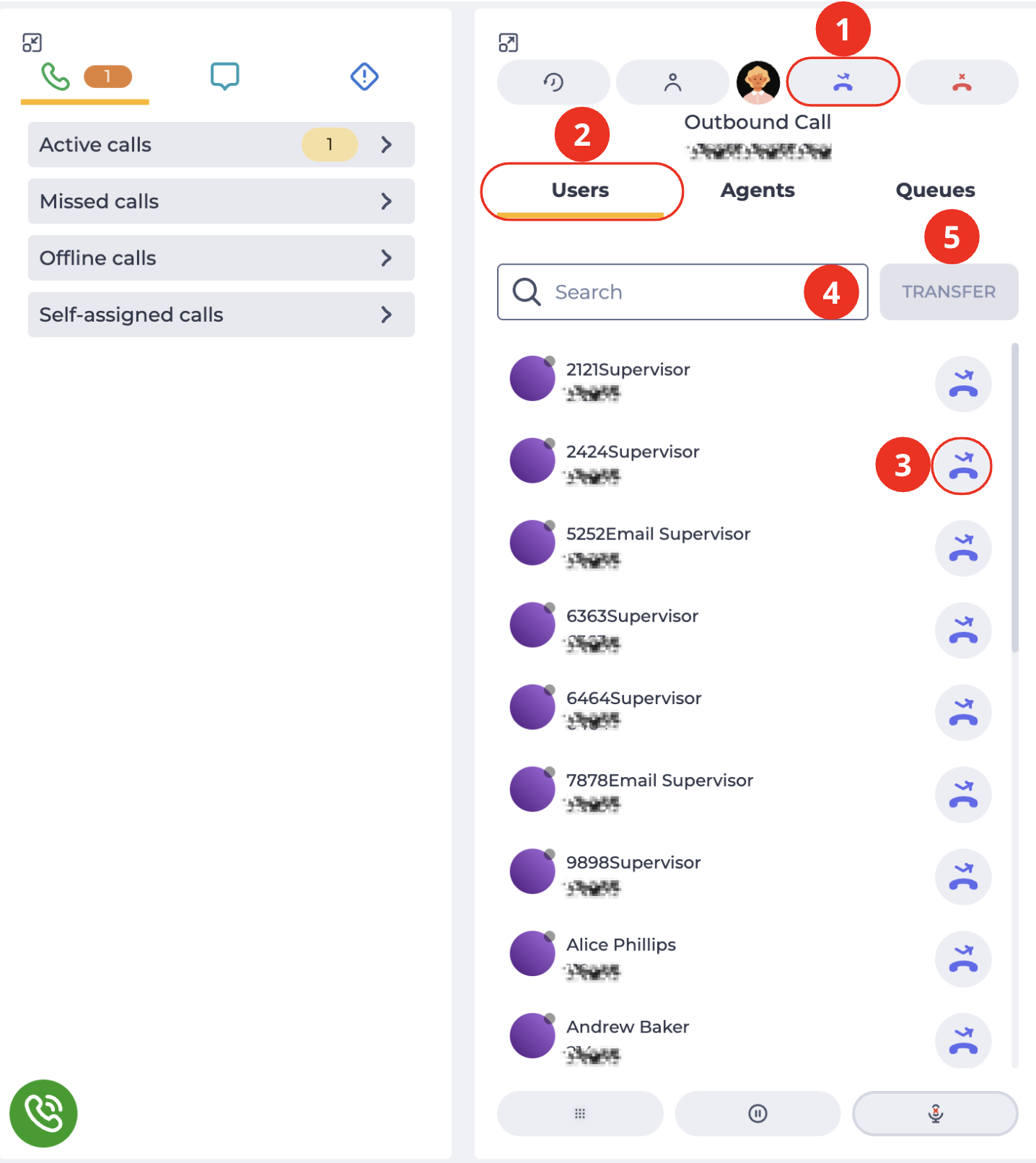
Transfer to an internal user number is supported.
After the transfer is completed:
-
the call is terminated for the current user;
-
further call handling is performed by the receiving user.
When transferring a call from a queue, the post-processing form behaves as follows:
-
if the form was submitted before the transfer, the result is recorded in the call history;
-
if the form was not submitted, no post-processing data is recorded in the call history.
2.2. Transfer with consultation
A transfer with consultation is a call transfer to another user after prior communication and agreement with that user.
A transfer with consultation is performed via an outgoing call.
To perform the transfer, the user who accepted the call:
-
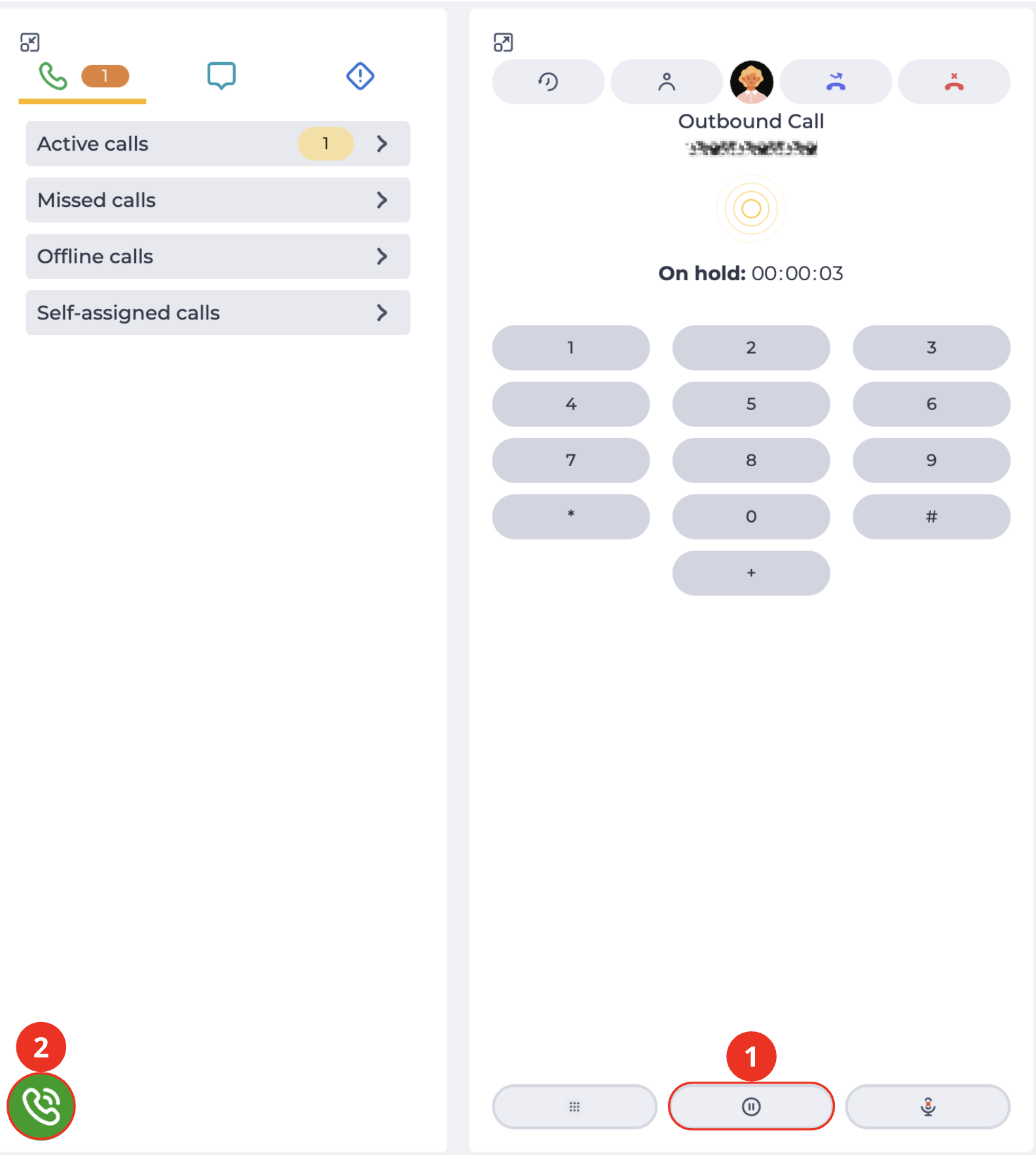
puts the conversation with the client on hold by clicking the Hold button

-
clicks the Call button in the left Workspace panel –

-
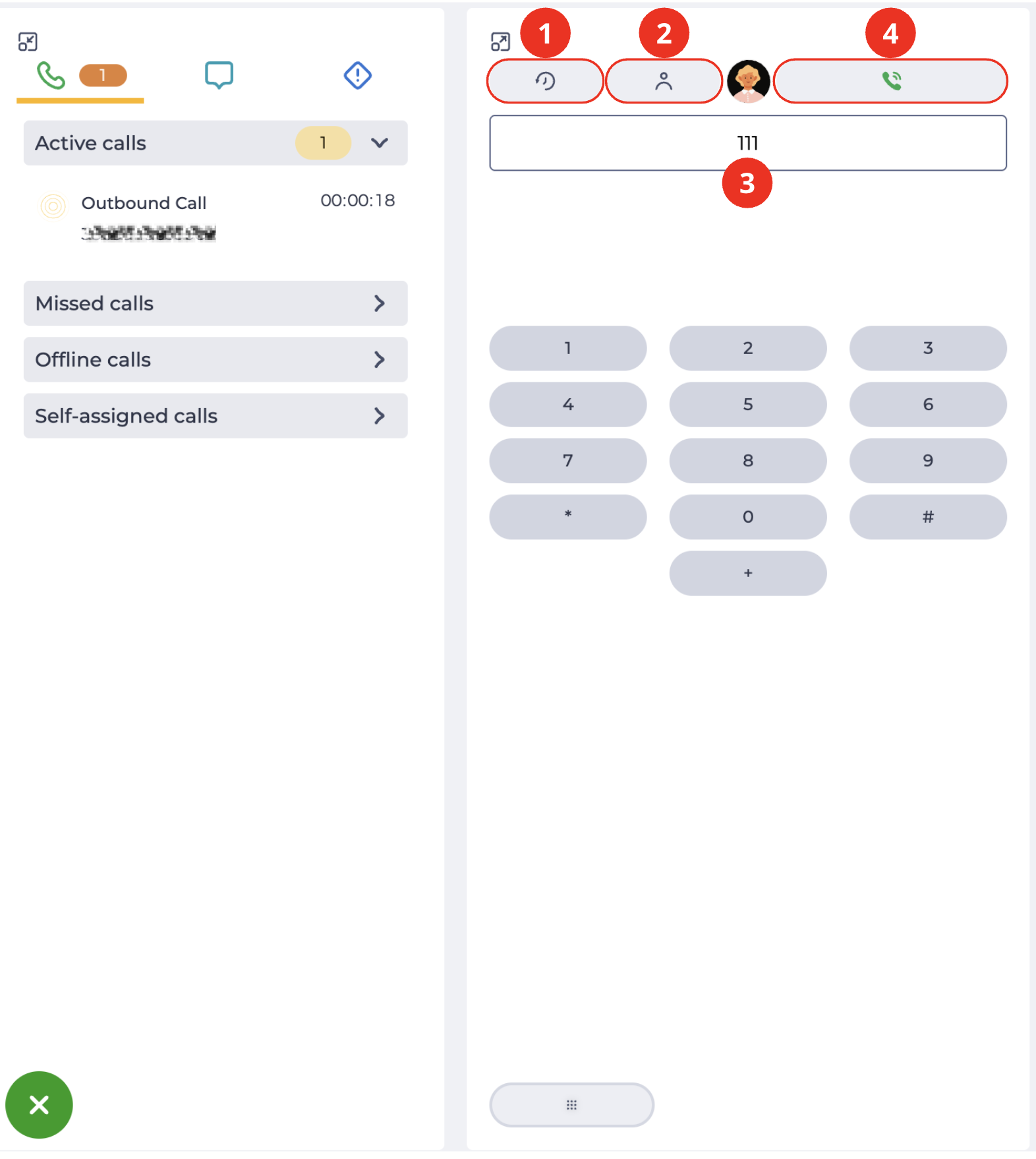
selects the required contact from the call history (Fig. 3.(1)), the user list (Fig. 3.(2)), or enters the internal user number in the dial field (Fig. 3.(3)) and clicks the Call button (Fig. 3.(4)).
-
After the connection is established, a conversation takes place between the users, during which the reason for the transfer is communicated.
-
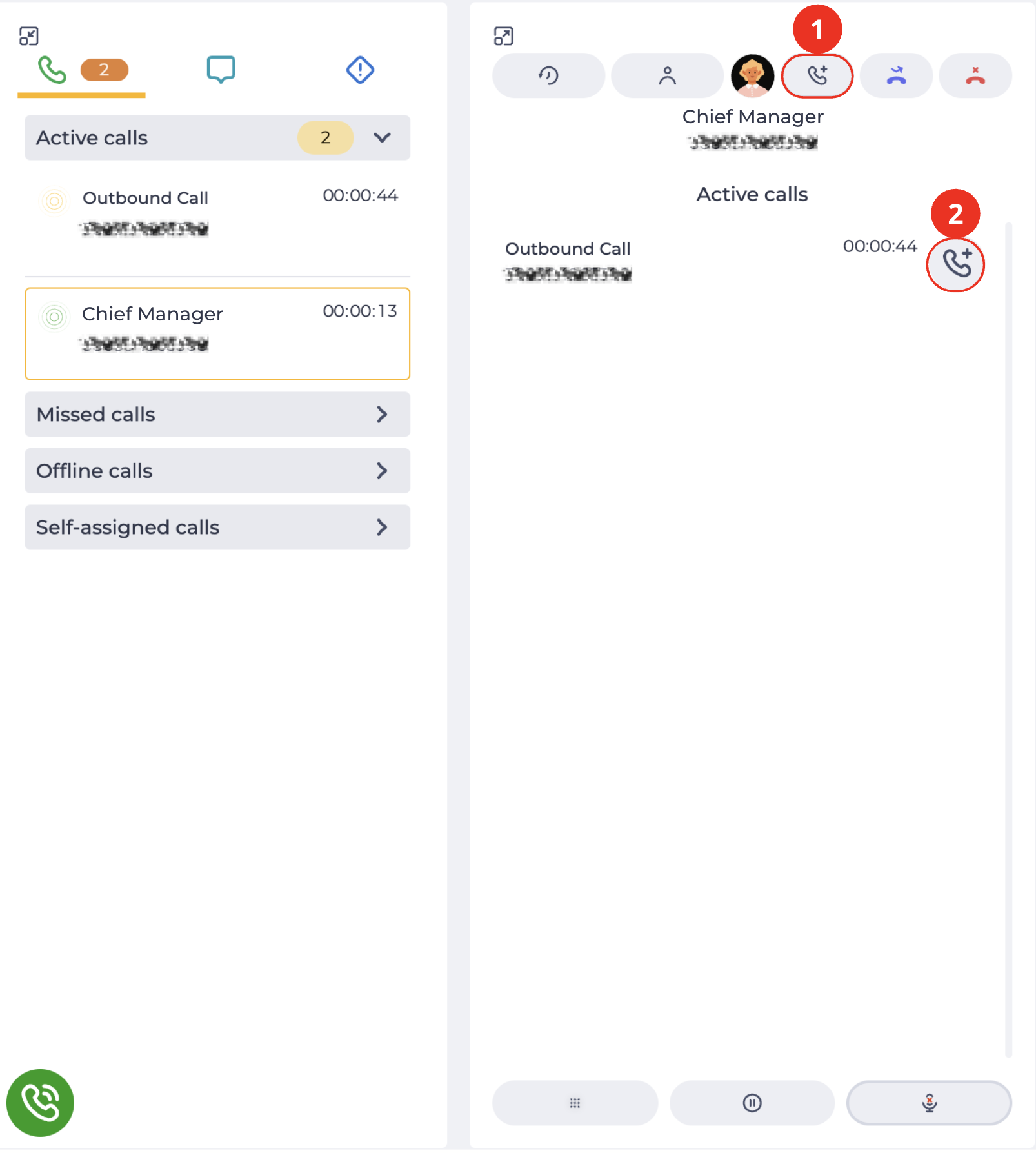
To connect the calls, the user clicks the Connect button

-
In the list of active calls, the user clicks the Connect button

After that:
-
the client is connected to the selected user;
-
the call is terminated for the user who initiated the transfer.
3. Transfer to the Contact Center
Transfer to the Contact Center is used to pass an active call to an Agent or to a queue.
3.1. Transfer to a Contact Center Agent
3.1.2. Transfer with consultation
3.1.2.1. Call not from a queue
The user has an active call that did not originate from a queue. The post-processing form is not open.
To perform the transfer, the user:
-
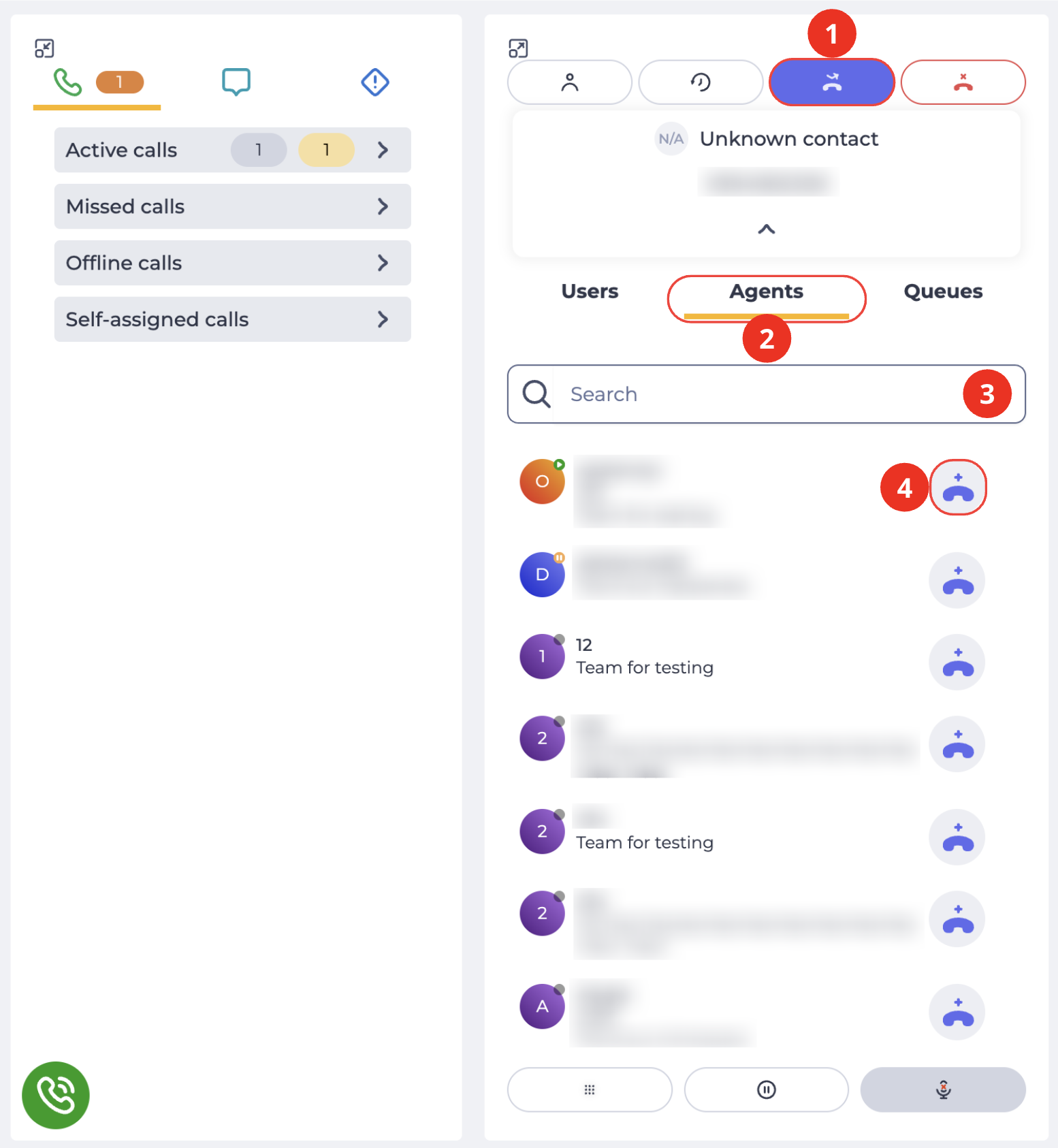
clicks the Transfer icon in the top panel of the active call –
-
opens the Agents tab in the central panel (Fig. 5.(2));
-
if necessary, uses the search field (Fig. 5.(3)) to find the required Agent in the list;
-
clicks the Transfer with consultation icon next to the required Contact Center Agent –

After that:
-
a connection is established between the user and the selected Contact Center Agent;
-
the client is placed on hold.
The user can:
-
return to the conversation with the client;
-
connect the client to the Contact Center Agent.
When the client is connected to the Agent:
-
the call is terminated for the user;
-
the post-processing form is not opened for the Contact Center Agent.
3.1.2.2. Call from a queue
The user has an active call that originated from a Contact Center queue. The queue post-processing form is open.
To perform the transfer, the user:
-
clicks the Transfer icon in the top panel of the active call –
-
opens the Agents tab in the central panel (Fig. 5.(2));
-
clicks the Transfer with consultation icon next to the required Contact Center Agent –
-
waits for the connection to be established with the Agent. The client is placed on hold.
The user can:
-
return to the conversation with the client;
-
connect the client to the Contact Center Agent.
When the client is connected to the Agent:
-
the call is terminated for the user;
-
the post-processing form is opened for the Contact Center Agent;
-
the post-processing form displays the data entered by the user before the transfer.
Post-processing form data is passed to the Contact Center Agent even if the form was not submitted before the transfer and the user performed only the call transfer.
3.2. Transfer to a Contact Center queue
Transfer to a Contact Center queue is used to pass an active call to a selected queue.
3.2.1. Blind transfer
3.2.1.1. Call not from a queue
The user has an active call that did not originate from a queue. The post-processing form is not open.
To perform the transfer, the user:
-
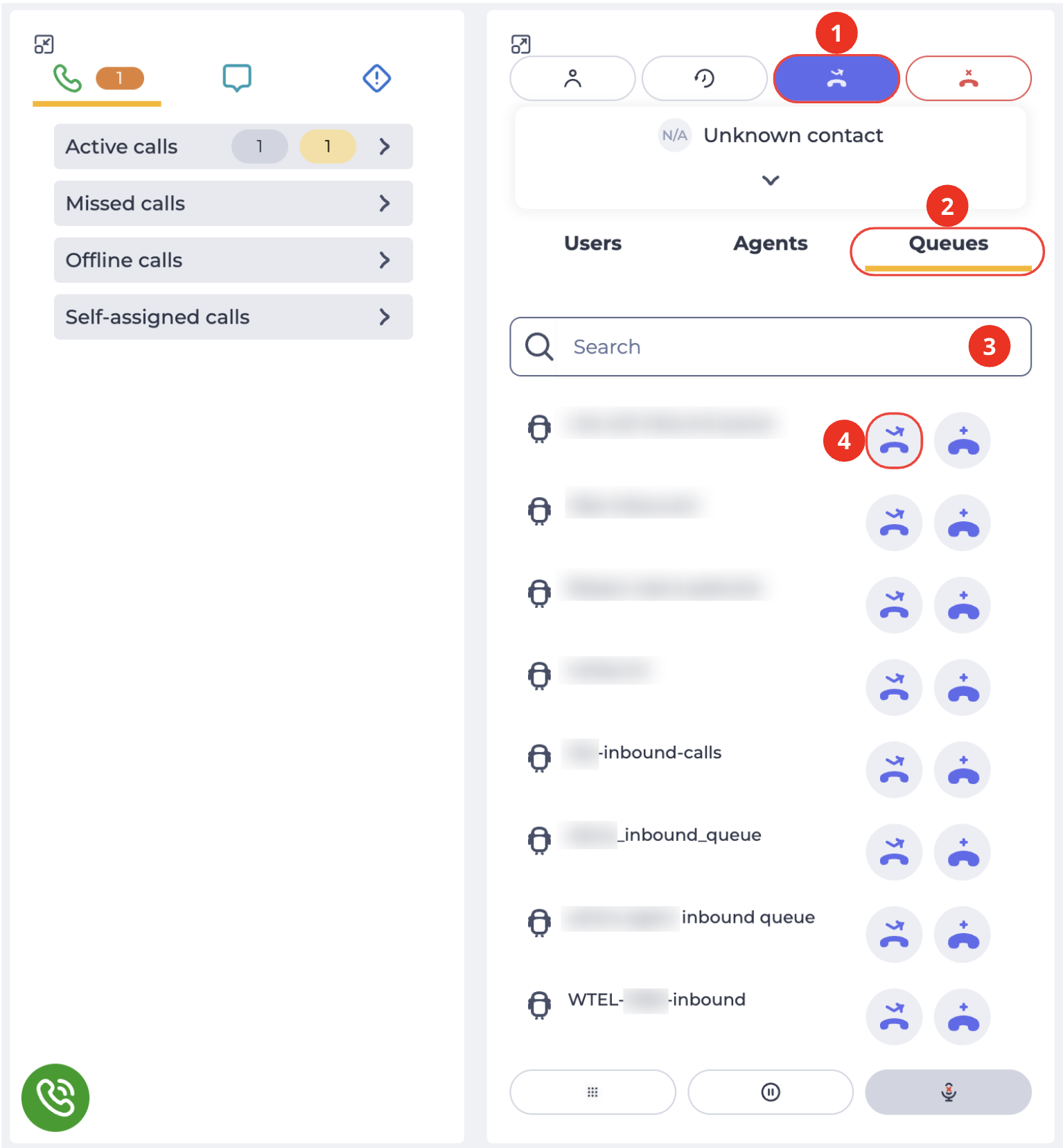
clicks the Transfer icon in the top panel of the active call –
-
opens the Queues tab in the central panel (Fig. 6.(2));
-
if necessary, uses the search field (Fig. 6.(3)) to find the required queue in the list;
-
clicks the Blind transfer icon next to the required Contact Center queue –
After the transfer is completed, the call is terminated for the user.
If:
-
a queue Agent answers the call — the post-processing form is opened for the Agent;
-
the call is not answered — the call is terminated (due to a timeout or by the client).
3.2.1.2. Call from a queue
The user has an active call that originated from a queue. The queue post-processing form is open.
To perform the transfer, the user:
-
clicks the Transfer icon in the top panel of the active call –
-
opens the Queues tab in the central panel (Fig. 6.(2));
-
clicks the Blind transfer icon next to the required Contact Center queue (Fig. 6.(4)).
After the transfer is completed, the call is terminated for the user.
If:
-
a queue Agent answers the call — the queue post-processing form is opened for the Agent, and the call history records the result specified in both post-processing forms;
-
the call is not answered — the call is terminated, and the call history records the result specified in the post-processing form.
3.2.2. Transfer with consultation
3.2.2.1. Call not from a queue
The user has an active call that did not originate from a queue. The post-processing form is not open.
To perform the transfer, the user:
-
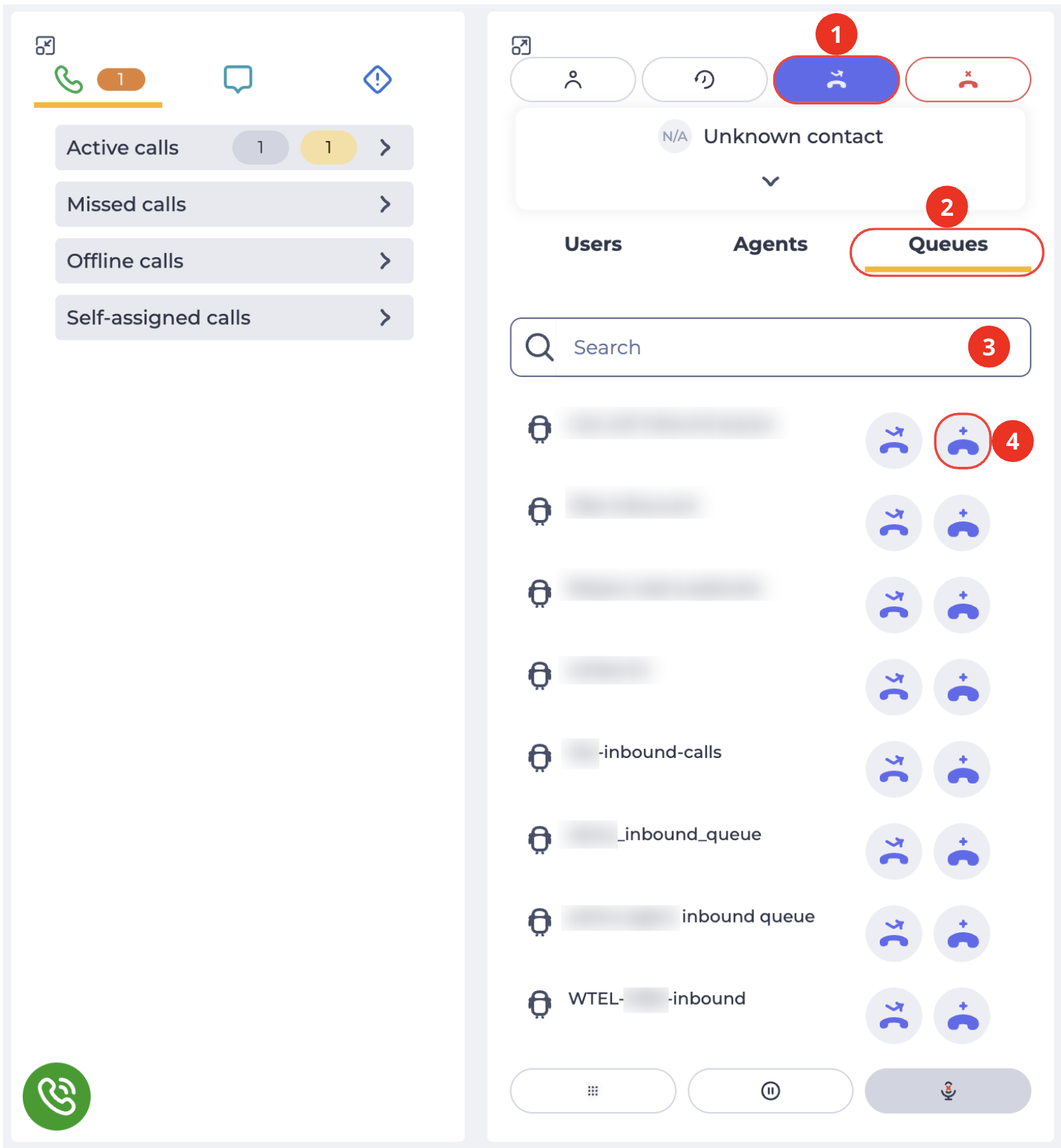
clicks the Transfer icon in the top panel of the active call –
-
opens the Queues tab in the central panel (Fig. 7.(2));
-
if necessary, uses the search field (Fig. 7.(3)) to find the required queue in the list;
-
clicks the Transfer with consultation icon next to the required Contact Center queue –
The user waits for the connection with a queue Agent to be established. The client is placed on hold.
The user can:
-
return to the conversation with the client;
-
connect the client with the queue Agent.
When the client is connected to the queue Agent:
-
the call is terminated for the user;
-
the queue Agent’s post-processing form is opened;
-
the call history records the result specified in the post-processing form.
3.2.2.2. Call from a queue
The user has an active call that originated from a Contact Center queue. The queue post-processing form is open.
To perform the transfer, the user:
-
clicks the Transfer icon in the top panel of the active call –
-
opens the Queues tab in the central panel (Fig. 7.(2));
-
clicks the Transfer with consultation icon next to the required Contact Center queue –
-
The user waits for the connection with a queue Agent to be established. The client is placed on hold. The queue Agent’s post-processing form is not opened at this stage.
-
The user can:
-
-
return to the conversation with the client;
-
connect the client with the queue Agent.
-
-
When the client is connected to the queue Agent:
-
-
the call is terminated for the user;
-
the queue Agent’s post-processing form is opened;
-
the queue Agent gets a wrap-up form for the second queue — the one the call was transferred to;
-
the call history records the result specified in both post-processing forms (the queue post-processing data is transferred even if the form was not submitted before the transfer).
-