
1. Description
Designed for managing sound and push notifications, as well as the volume of events in Workspace.
Contains the following blocks:
-
Notification (Fig. 1.(1));
-
Change call ringtone (Fig. 1.(2));
-
Volume settings (Fig. 1.(3)).
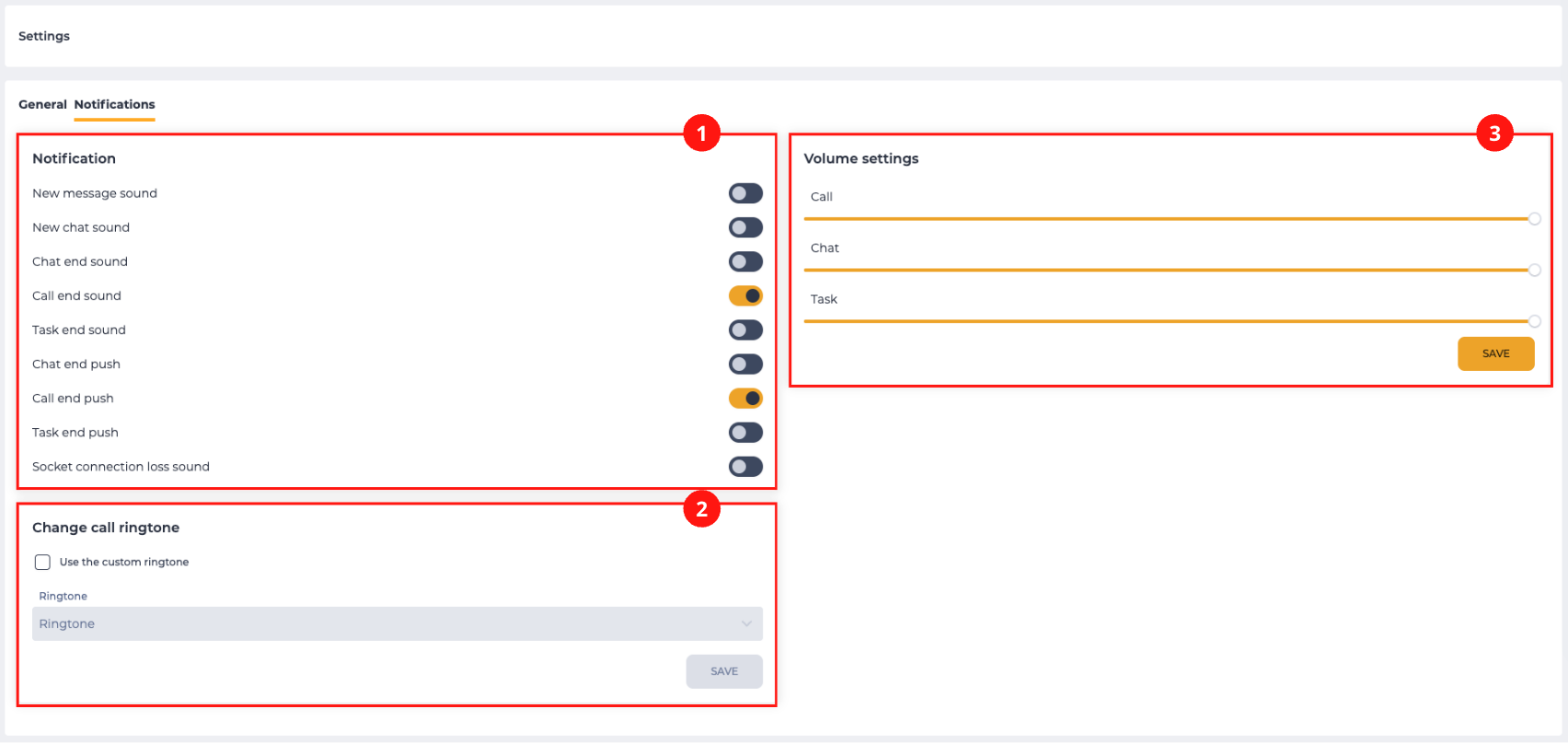
Settings apply only to the user account and have a higher priority than system settings configured in Admin → System → Configuration:
-
when a user is created, their settings are automatically set according to the system settings;
-
when system settings are changed, they are also updated in the user settings.
1.1. Notification
In this block, you can manage sound notifications that inform the user about events in the Workspace interface:
-
New message sound — a short sound signal that is played immediately after a new message is received in a chat.
-
New chat sound — a short sound signal that is played immediately after a new chat is received.
-
Chat end sound — a short sound signal that is played immediately after a chat is completed.
-
Call end sound — a short sound signal that is played immediately after a call is ended.
-
Task end sound — a short sound signal that is played immediately after a task is completed.
-
Chat end push — a pop-up notification that is displayed immediately after a chat is completed, regardless of whether after-call work is present.
-
Call end push — a pop-up notification that is displayed immediately after a call is completed, regardless of whether after-call work is present.
-
Task end push — a pop-up notification that is displayed after after-call work is completed (if applicable), or immediately after a task is completed (if there is no after-call work).
-
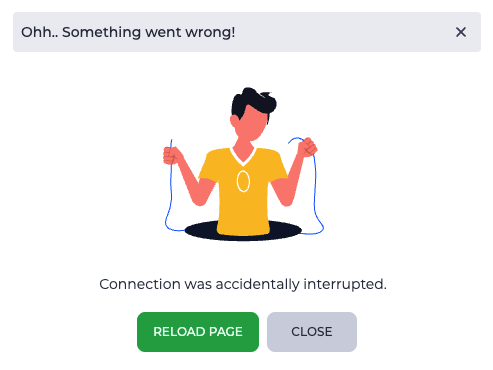
Socket connection loss sound — a sound signal that starts playing when the connection to the server is lost (for example, due to no internet connection or long inactivity on the tab). At this moment, a modal window opens automatically (Fig. 2), which displays an illustration, an explanatory message, and two buttons:
-
Reload page — stops the sound and reloads the application;
-
Close or the icon

-
1.2. Change call ringtone
The Use the custom ringtone checkbox allows changing the ringtone.
The Ringtone field becomes active when the Use the custom ringtone checkbox is selected.
In the Ringtone field, a melody is selected that will be played during calls. After selecting a melody from the list, it can be previewed (Fig. 3).
When the button 
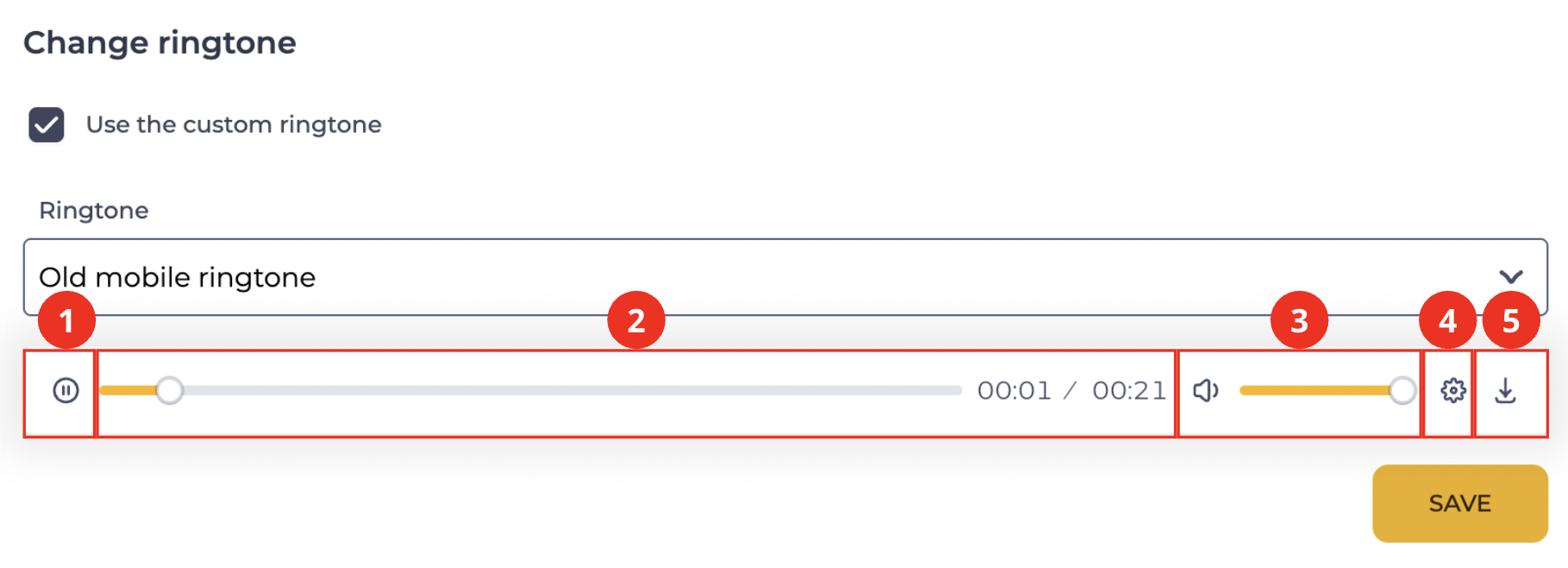
The panel consists of:
-
Play/Pause button (Fig. 3.(1));
-
Playback progress bar (Fig. 3.(2));
-
Volume control for playback (Fig. 3.(3));
-
Settings button — used to adjust the playback speed (Fig. 3.(4));
-
File download icon (Fig. 3.(5)).
The Save button becomes active after selecting a melody. Clicking the Save button saves the configured settings.
1.3. Volume settings
Using the slider, the volume of notification sounds for calls, chats, and tasks can be adjusted.
To save the changes, click the Save button.
If the volume is not configured, the system volume of the device is used.