
1. Description
It is designed to set up a chat in the Telegram messenger.
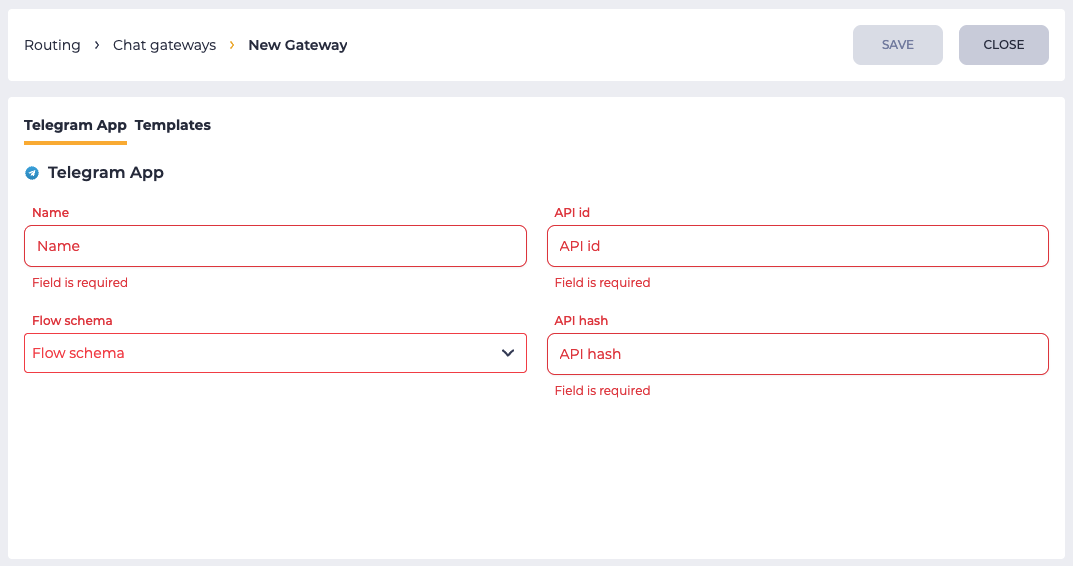
Consists of fields (Fig. 1):
-
Name;
-
Flow;
-
API id;
-
API hash.
1.1. Name
Here you enter the name that will be displayed in the registry of the Chat Gateways page.
1.2. Flow
Here you choose which Flow will be processed when the Chat Gateway is used.
When you click on the Flow field, a drop-down list opens from which the flow is selected. If the required flow is not in the drop-down list, use the Flow field as a search field.
How to create a new flow can be found here.
1.3. API id
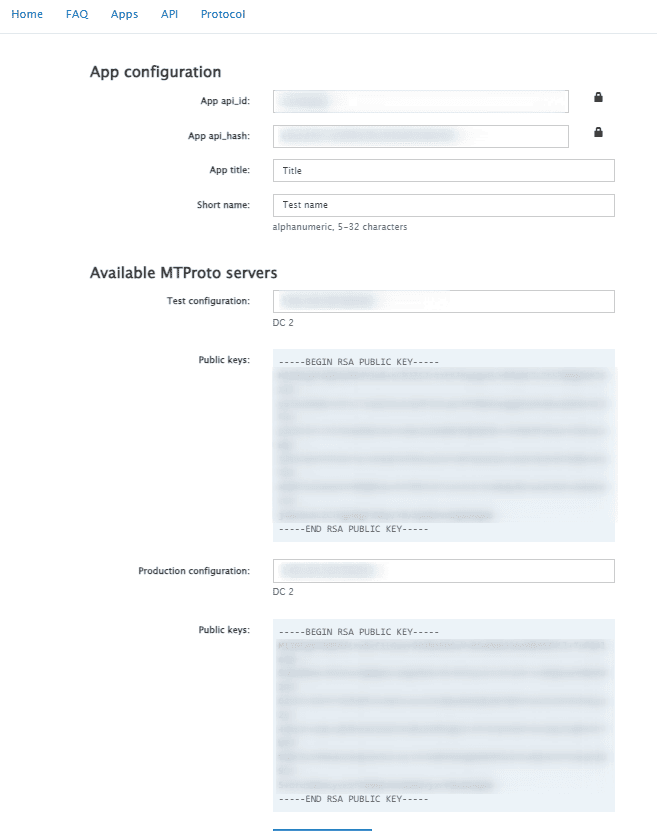
API identifier that is taken from the configuration page (Fig. 3).
1.4. API hash
API hash that is taken from the configuration page (Fig. 3).
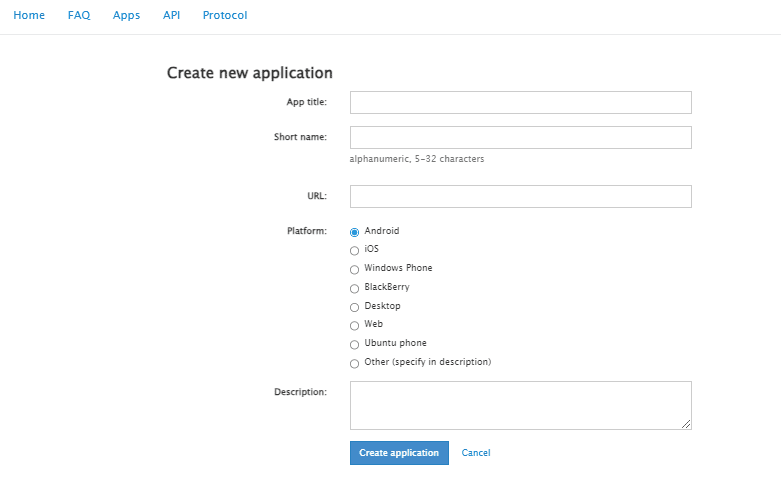
Log in to the site https://my.telegram.org to get the API id and API hash. Go to API development tools. Fill out the form and click the Create application button (Fig. 2).
The configuration page opens. The following parameters are taken from here (Fig. 3).
2. Telegram Authorization
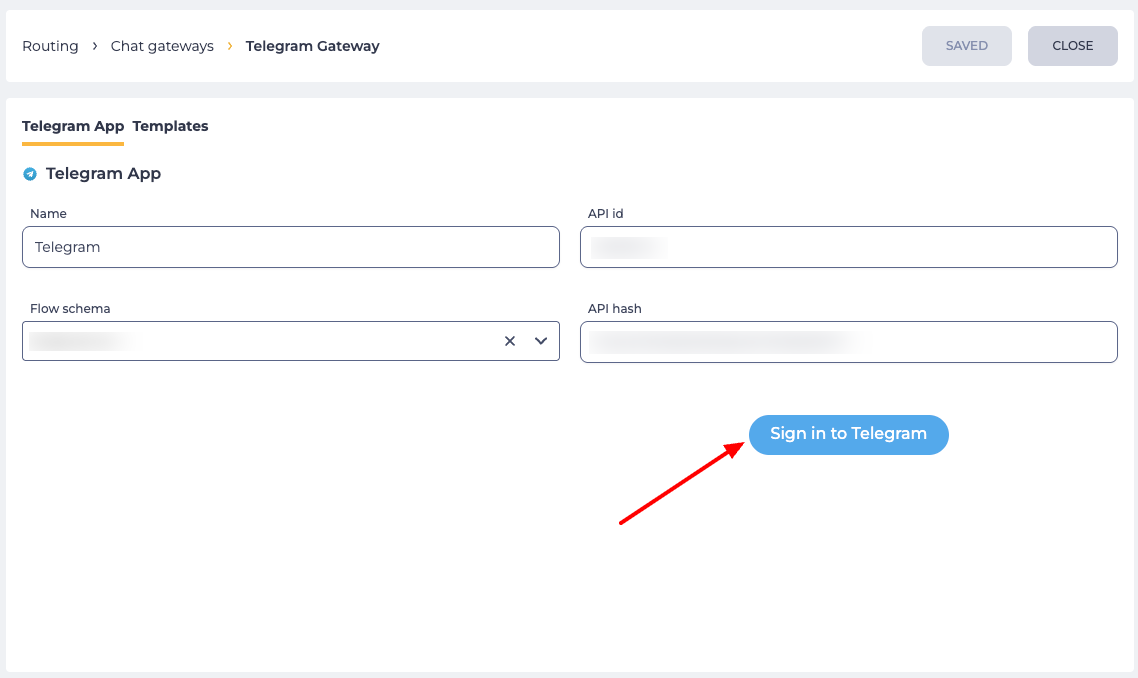
After filling in the fields and saving, you need to sign in to Telegram. To do this, click the Sign in to Telegram button (Fig. 4) — the authorization window will open.
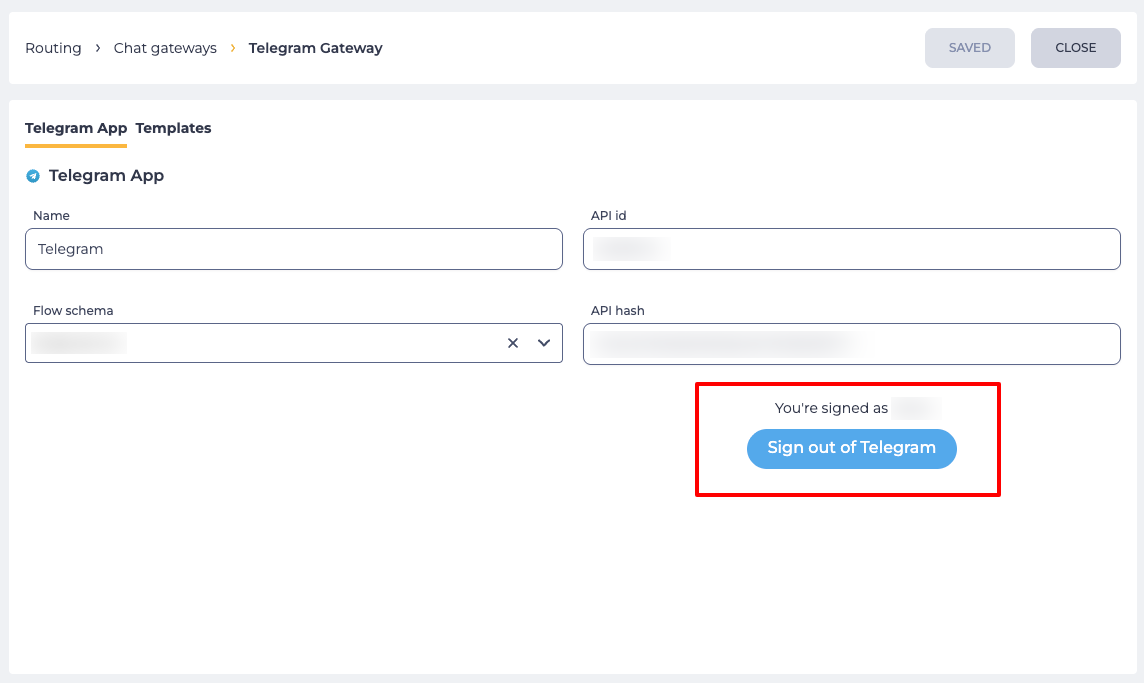
After successful authorization (Fig. 5):
-
the button changes to Sign out of Telegram;
-
above the button, the message "You're signed as [username]" is displayed.
3. Opportunities
3.1. Change settings
|
Goal |
Change a Name/API id/API hash |
|---|---|
|
Preconditions |
|
|
Steps
|
|
|
Result |
Data saved. |
3.2. Change a Flow
|
Goal |
Change a Flow |
|---|---|
|
Preconditions |
|
|
Steps
|
|
|
Result |
Data saved |
4. Additional materials
4.1. Instructions
4.1.1. Create a Telegram App