Webitel: Documentation

Central block

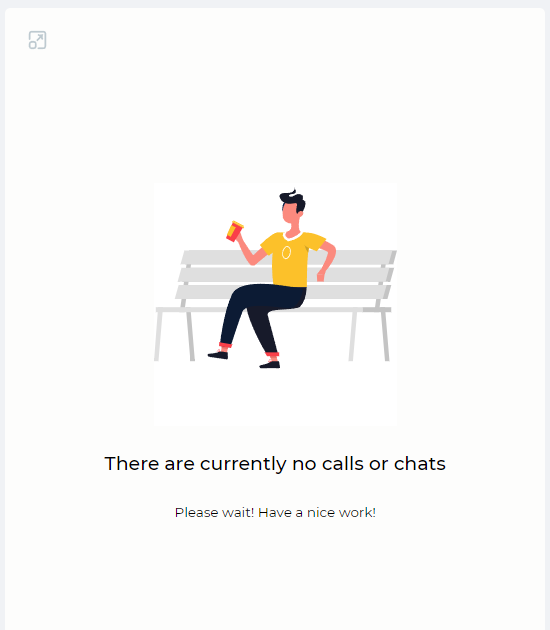
While waiting, the block with information about this is displayed (Fig.1).

Waiting.png

Fig. 1. Waiting

When you click the  Снимок экрана 2024-02-11 192219.png  icon, the block is enlarged, and the button changes to the  image2024-2-11_19-23-4.png  icon.

When you click the  image2024-2-11_19-23-4.png  icon, the block is reduced, and the button changes to the  Снимок экрана 2024-02-11 192219.png icon.

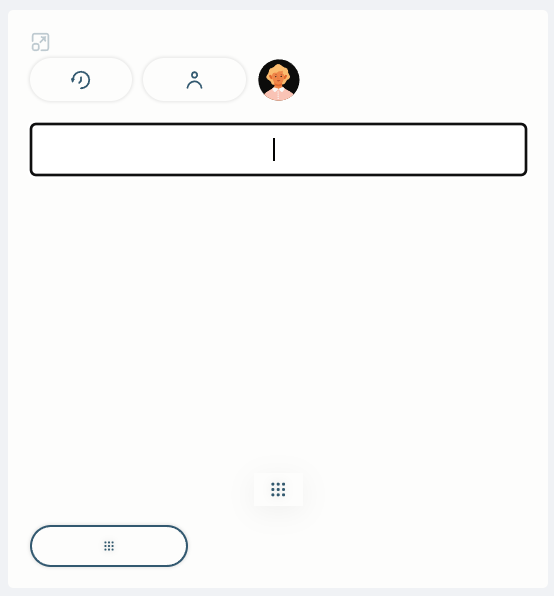
The central panel will change (Fig. 2), if you click the Снимок экрана 2024-02-11 233021.png  button in the left block. 

Central block after clicking the call button.png

Fig. 2. Central block after clicking the call button

Here, you can manually dial a number.

You can enter a phone number from the keyboard or use the numeric keypad.

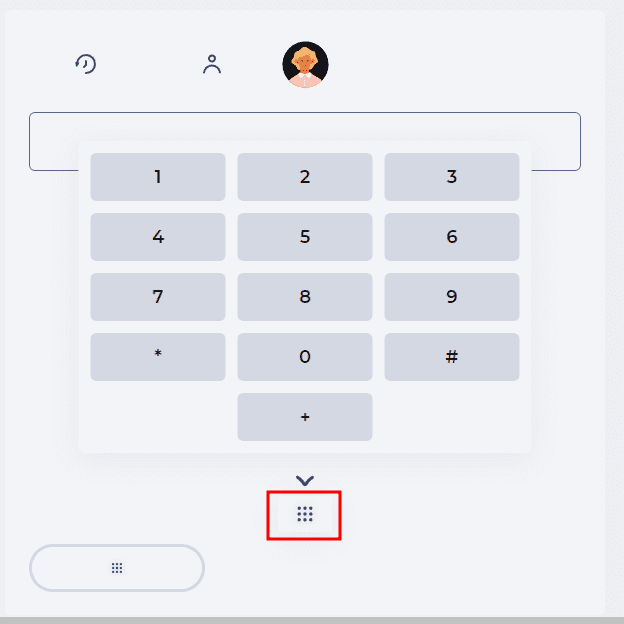
A numeric keypad is opened by clicking the image2024-2-13_16-45-46.png  button at the bottom of the panel to dial the required number for a call (Fig.3).

Numeric keypad - Workspace.png

Fig. 3. Numeric keypad

After entering the number in the upper right corner of the block, the image2024-2-13_16-47-13.png  button is displayed, which makes a call to the entered number.

Clicking the image2024-2-13_16-45-46.png  button again closes the numeric keypad.

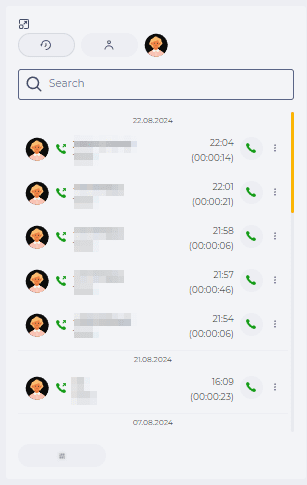
Click the image2024-2-13_16-48-50.png  button at the top of the block to open the call archive. A list of calls made earlier opens (Fig.4) with information about the duration of the call, the start time of the call, and the call buttons; when clicked, a call is made to the chosen number. More about working with calls can be found here.

If you click image2024-9-17_18-12-3.png , a list opens with an Open in History option, which opens Call info in the History app in a new browser tab.

Central block - archive.png

Fig. 4. Central block - archive

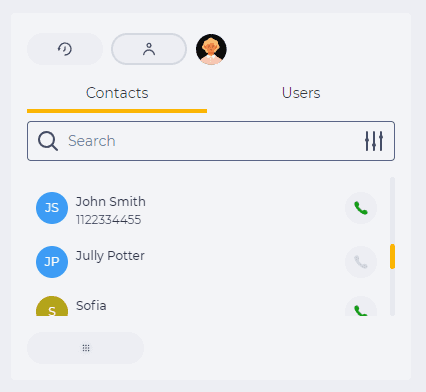
The Сontacts list is displayed in the central panel when you click on the  image2024-2-11_23-39-50.png button (Fig.5).
The Contacts tab is shown only for Users who have a CALL_CENTER license.
If there is no license, only the Users tab is displayed.

There are the following tabs:

  • Contacts;

  • Users.

Contacts tab.png

Fig. 5. Contacts tab

The Contacts tab consists of the following elements:

  • Search field;

  • List of Contacts

Search field consists of an input field and a search setting icon  image2024-4-2_15-11-23.png .

Close button ( image2024-4-2_15-8-40.png ) appears after entering text in the search field; clicking the button deletes the entered text.

You can create a search query in regex format, and the system will display the results that match it.

Clicking on the  image2024-4-2_15-11-23.png button opens a list of search options:

  • Name;

  • Phone;

  • Email.

Contacts from CRM are displayed here. The call button is active for Contacts who have a phone number.

Clicking on a Contact's name opens his contact's page.

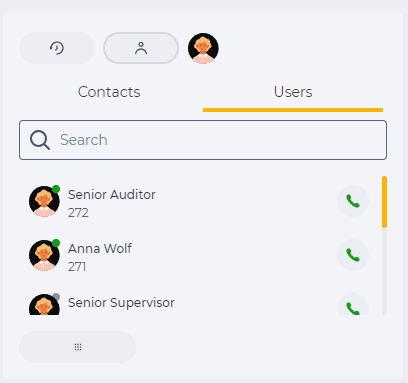
The Users list displays the standard avatar, User name, User extension and call button (Fig.6).

The search is performed by the internal number, or name, of the User.

It consists of an input field and a close button ( image2024-1-25_1-6-25.png ), which is displayed when data is entered in the input field.

You can form a search query in regex format, and the system will display results that match it.
Users tab.png

Fig. 6. Users list

A color indicator the User is currently in depends on the User's state.

The color of the status indicator can be:

image2024-4-10_10-39-51.png  - there is a SIP connection;

image2024-4-10_10-40-5.png  - online status;

image2024-4-10_10-40-23.png  - in DnD mode;

image2024-4-10_10-40-33.png  - pause status;

image2024-4-10_10-40-46.png - busy, is in a conversation, or chat;

image2024-4-10_10-41-12.png - unavailable - is not in the system, or there is no SIP connection.

When you click the image2024-2-13_16-52-44.png  button, which is located at the bottom of the block, opens up the opportunity to dial a phone number for a call (Fig.2).

To return to the block with the call waiting display (Fig.1), click the image2024-2-13_16-53-19.png  button in the left block.