
1. Description
Used to specify general information about the policy.
Consists of the following fields (Fig. 1):
-
Name;
-
Description;
-
State;
-
Encrypt files;
-
Channels;
-
MIME types;
-
Retention days;
-
Maximum upload speed (kbps);
-
Maximum download speed (kbps);
-
Maximum file size (bytes).
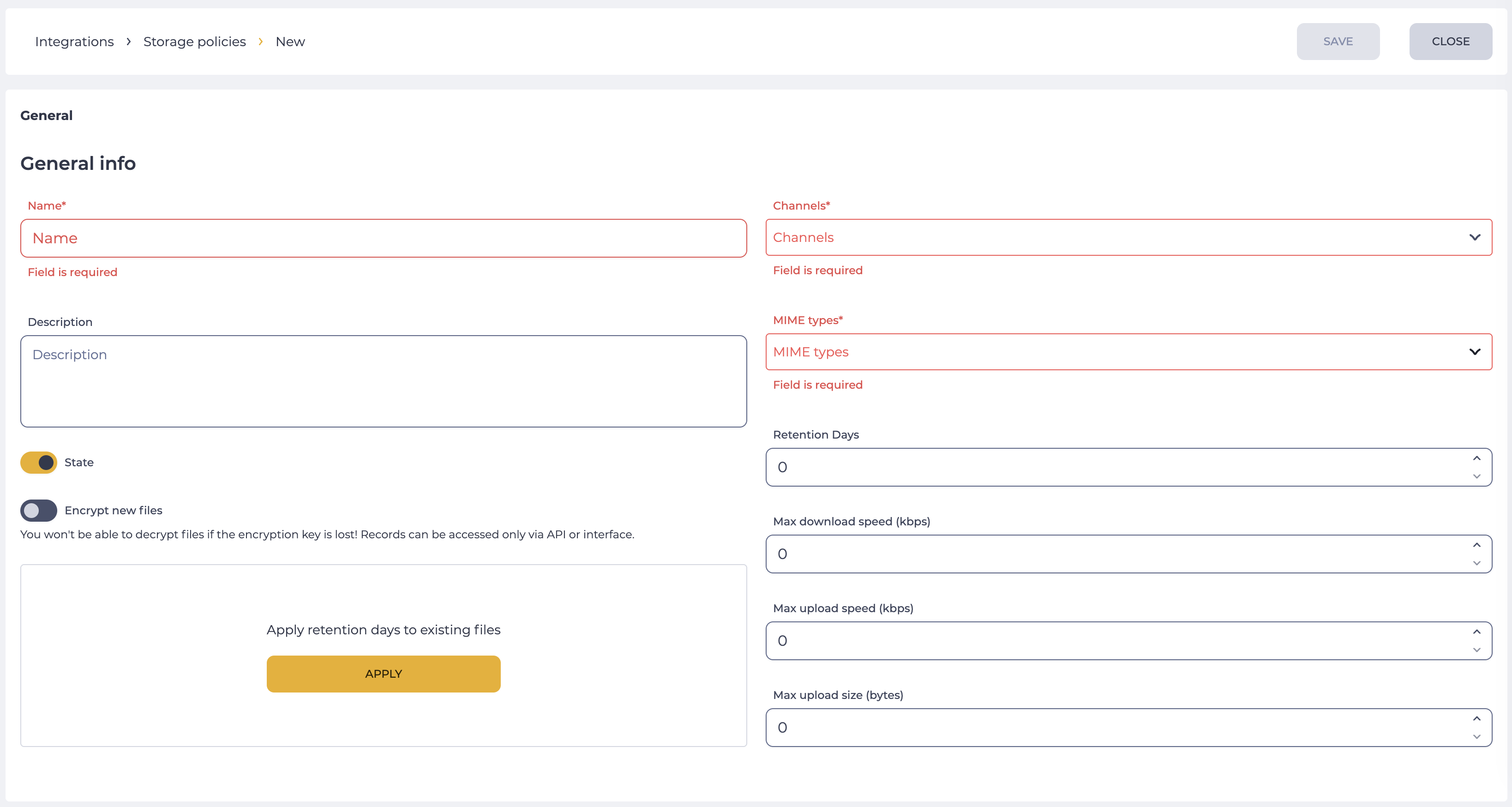
1.1. Name
This field specifies the name of the policy.
1.2. Description
The policy description that provides additional context.
1.3. State
The status of the policy indicating whether it is active. A toggle is used — enabled 

Important! Disabling the policy cancels the scheduled automatic deletion of files matching the MIME types specified for the corresponding channel in the Channels field.
If a channel falls under several policies at the same time, see the note in section 2.
1.4. Encrypt files
A toggle that determines whether files stored according to the policy will be encrypted.
If the option is enabled –
1.5. Channels
The channels to which this policy will be applied. The administrator can choose from a list of available channels (chat, email, call, log, media, screen recordings).
1.6. MIME Types
The file types that will be stored under this policy.
The user can:
-
select MIME types from the standard list;
-
add custom MIME types manually.
All selected values are displayed as chips with the option to remove them.
Important! If a user in the chat tries to upload a file that does not match the defined MIME types, the system sends a message about a forbidden or incorrect file format (see section 1.5. Forbidden file format message).
1.6.1. Standard MIME Types
The system contains a predefined list of the most common MIME types.
The user can select one or several types from this list.
1.6.1.1. Images
|
Format |
MIME-type |
|---|---|
|
JPEG |
image/jpeg |
|
PNG |
image/png |
|
GIF |
image/gif |
|
SVG |
image/svg+xml |
|
WebP |
image/webp |
1.6.1.2. Video
|
Format |
MIME-type |
|---|---|
|
MP4 |
video/mp4 |
|
WebM |
video/webm |
|
MPEG |
video/mpeg |
1.6.1.3. Audio
|
Format |
MIME-type |
|---|---|
|
MP3 |
audio/mpeg |
|
WAV |
audio/wav |
1.6.1.4. Documents
|
Format |
MIME-type |
|---|---|
|
|
application/pdf |
|
MS Word (.doc) |
application/msword |
|
Word (.docx) |
application/vnd.openxmlformats-officedocument.wordprocessingml.document |
|
Excel (.xlsx) |
application/vnd.openxmlformats-officedocument.spreadsheetml.sheet |
Standard MIME types can be combined with user-defined values.
1.6.2. Standard Policies and Behavior for Existing Users
For users who already have created policies, the system automatically adds three standard policies to the Storage Policies section:
1.6.2.1. Policy 1: media_storage
|
Field |
Value |
|---|---|
|
Name |
media_storage |
|
MIME Types |
image/jpeg, image/png, video/mp4, audio/mpeg, audio/wav, application/vnd.openxmlformats-officedocument.spreadsheetml.sheet |
|
Retention days |
365 |
|
Maximum upload speed (kbps) |
2048 |
|
Maximum download speed (kbps) |
1024 |
|
Maximum file size (bytes) |
52,428,800 |
|
Channels |
chat |
1.6.2.2. Policy 2: email_attachment
|
Field |
Value |
|---|---|
|
Name |
email_attachment |
|
MIME Types |
application/pdf, application/msword, application/vnd.openxmlformats-officedocument.wordprocessingml.document, image/*, application/vnd.openxmlformats-officedocument.spreadsheetml.sheet |
|
Retention days |
365 |
|
Maximum upload speed (kbps) |
1024 |
|
Maximum download speed (kbps) |
512 |
|
Maximum file size (bytes) |
10,485,760 |
|
Channels |
|
1.6.2.3. Policy 3: call_recordings
|
Field |
Value |
|---|---|
|
Name |
call_recordings |
|
MIME Types |
audio/mpeg, audio/wav |
|
Retention days |
365 |
|
Maximum upload speed (kbps) |
1024 |
|
Maximum download speed (kbps) |
512 |
|
Maximum file size (bytes) |
20,971,520 |
|
Channels |
call |
The standard list of MIME types is immediately available in the MIME Types field and can be used when configuring policies.
Standard policies are added in a disabled state, are not mandatory for use, and can be edited or deleted by the user. They do not affect existing settings until the user manually enables one of them.
1.7. Retention Days
The number of days the files will be stored before being automatically deleted.
The file's automatic deletion date is calculated as the file creation date + the value of the Retention days field.
The calculated date is stored separately for each file.
Important! If the field value is "0" and the changes are applied to existing files (the Apply button, section 2), the scheduled automatic deletion of files matching the MIME types of the specified channel is canceled — the files are not deleted.
If a channel falls under several policies at the same time, see the note in section 2.
1.8. Maximum Upload Speed (kbps)
The maximum upload speed in kilobits per second applied to files under this policy. If the value is 0, the restriction is not applied.
1.9. Maximum Download Speed (kbps)
The maximum download speed in kilobits per second applied to files under this policy. If the value is 0, the restriction is not applied.
1.10. Maximum File Size (bytes)
The maximum allowed file size for upload in bytes. If the value is 0, there is no file size restriction.
2. Applying the Policy to Existing Files
After creating a policy, it can be applied to already existing files. For this, the "Apply" button is used (Fig. 2).

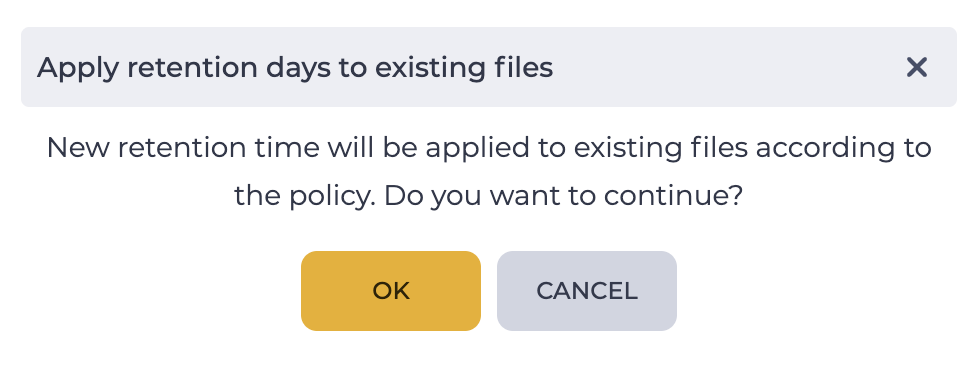
Clicking this button opens a modal window (Fig. 3) with two available buttons:
-
OK — applies the new policy to existing files:
-
the system recalculates and updates the automatic deletion date for each existing file according to the current value of the Retention days field;
-
if this value is "0", the scheduled deletion of files matching the MIME types of the specified channel from Channels is canceled.
-
-
CANCEL — closes the modal window without any changes.
Changes take effect 30 seconds after confirmation.
Note!
If several policies are applied to the same channel, the system does not check their priority. Disabling one of them or applying the value "0" cancels the scheduled deletion of files for this channel regardless of the settings of other policies.
3. Features
3.1. Modify or Set Parameters
|
Goal |
Modify or set parameters |
|---|---|
|
Preconditions |
|
|
Steps:
|
|
|
Result |
Data is saved. |