
1. Description
It is designed to configure the parameters of the Queue.
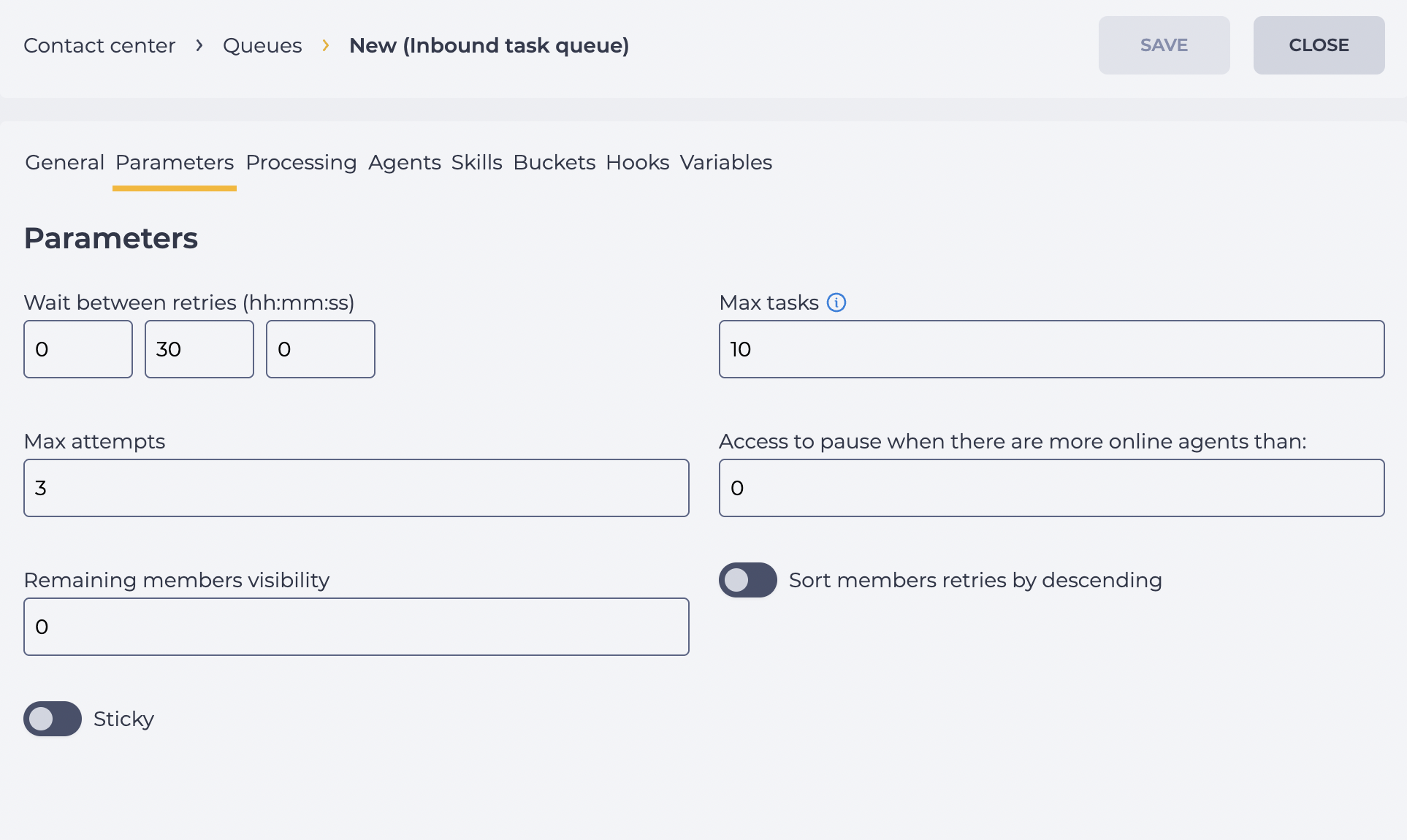
It consists of the following elements (Fig. 1):
-
Wait between retries;
-
Max tasks;
-
Max attempts;
-
Access to pause when there are more online agents than:
-
Remaining members visibility;
-
Sort members retries by descending;
-
Sticky.
1.1. Wait between retries
The time between attempts to connect is the time after which the connection will be retried.
1.2. Max tasks
The maximum allowed number of parallel outgoing tasks.
If you assign a negative value, all resources will be used.
If the value is 0, no tasks are performed.
1.3. Max attempts
Yere enters the number of attempts to connect.
1.4. Access to pause when there are more online agents than:
What the minimum number of online Agents should be for the Agent to be able to switch to pause mode is entered here.
An Agent cannot go into pause mode if the number of Agents online is equal to or less than the number entered in this field.
1.5. Remaining members visibility
This field sets the maximum number of members that are displayed to agents in Workspace.
It allows hiding the actual number of members in the queue, showing only those that fall within the specified limit.
-
If the field is set to 0, Workspace displays the actual number of all members in the queue (no restrictions).
-
If another value is specified, Workspace will display only the given number of members. The rest remain hidden. For example, if the field value is 50 and there are fewer than 50 members in the queue, the system will show their exact number (e.g., 37). If the queue contains 50 or more members, the system will display a shortened version — 50+, instead of the real number.
1.6. Sort members retries by descending
Sort the list of tasks whose connection time was missed, descending (by the amount of time thunted from the scheduled connection time to the current moment).
1.7. Sticky
The ability to assign a specific Agent.
When the “Sticky” switch is off:
-
members without a filled Agent field are routed to the queue;
-
members with a filled Agent field are also routed to the queue.
When the “Sticky” switch is on:
-
members without a filled Agent field are routed to the queue;
-
members with a filled Agent field are routed to the specific agent.
2. Opportunities
2.1. Change Queue settings
|
Goal |
Change Queue settings |
|---|---|
|
Preconditions |
|
|
Steps
|
|
|
Result |
Data saved. |
