
1. Description
It is designed to configure the processing of calls in the Queue.
It consists of the following elements (Fig.1):
-
Waiting for call result;
-
Dynamic processing schema.
.png?cb=f26c3f2f5ac83410ee58de9acfc01103)
1.1. Switcher Waiting for call result
Enables call processing — receiving the result of a call/task from the agent.
When this switcher is activated, the Dynamic processing schema field becomes available, and two parameters appear (Fig. 2):
.png?cb=8b4c15288345d3d8a731df220dee005b)
-
Postprocessing time (sec) — the amount of time required to process call results, which will be added when the add time button is clicked;
-
Allow postprocessing prolongation — a switcher that enables extended control over post-processing time. After activation, additional parameters are displayed (Fig. 3).
.png?cb=423532f1362dbdfaa3650e7d21a95fc4)
-
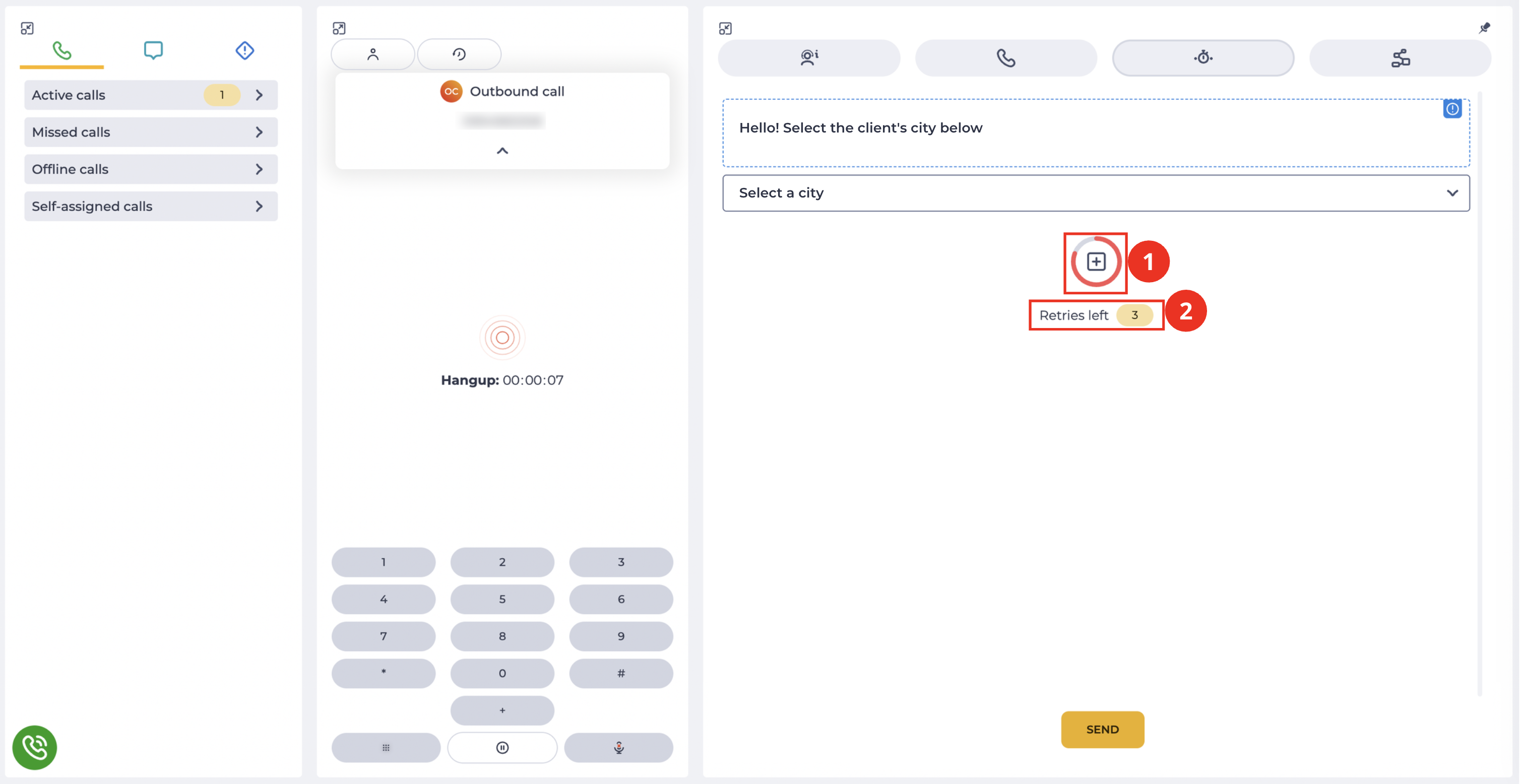
Offer postprocessing prolongation (seconds before end) — the time after which, during post-processing, the agent will see a button to extend it (Fig. 4.(1)) in Workspace. The value cannot be 0 or negative.
-
Number of repeats — the number of times the agent can extend post-processing within a single activity (call/chat/task). Default — 1. Cannot be 0 or negative. In the Workspace interface, next to the button (Fig. 4.(1)), a counter Retries left (Fig. 4.(2)) is displayed, showing the number of available extension attempts.
-
Time for prolongation (sec) — the time by which post-processing is extended after clicking the button (Fig. 4.(1)) in Workspace. By default, it equals the value of Postprocessing time (sec). Cannot be 0 or negative.
-
Retry to timeout — a switcher that defines system behavior after post-processing ends by timeout.
-
Enabled

-
Disabled

-
1.1.1 Configuring the Waiting for call result switcher
Depending on the settings, the following options are possible:
-
Waiting for call result switch is off - no processing;
-
Waiting for call result switch is on, but a Flow schema is not selected in the Dynamic processing scheme field - processing appears in the Workspace;
-
Waiting for call result switch is on, and a Flow schema is selected in the Dynamic processing scheme field - a dynamic page appears in the Workspace, which is displayed according to the chosen Flow schema.
If the Waiting for call result switch is off, the call is considered successful after the member is connected to the Agent.
If the Waiting for call result switch is on, the call is considered successful only if a positive call result is sent.
1.2. Dynamic processing schema
A field for selecting the Flow schema according to which the dynamic page will be displayed.
If the Waiting for call result switch is off, then the Dynamic processing scheme field is inactive.
When you click on the field, a drop-down list opens from which the Flow schema is selected. If the required Flow schema is not in the drop-down list, use the field as a search field.
How to create a new Flow schema can be found here.
2. Opportunities
2.1. Call processing setup
|
Goal |
Call processing setup |
|---|---|
|
Preconditions |
|
|
Steps
|
|
|
Result |

2.2. Dynamic page setup
|
Goal |
Dynamic page setup |
|---|---|
|
Preconditions |
|
|
Steps
|
|
|
Result |
|