
1. Description
The functionality enables the automated creation of activities for missed chats. Webitel identifies missed chats and transfers them to Creatio, where Activities (work tasks for processing) are generated.
Key Advantages: minimization of lost customer inquiries and streamlined control over their processing. Once a missed inquiry is recorded in Creatio, a corresponding record (task) is created for further handling.
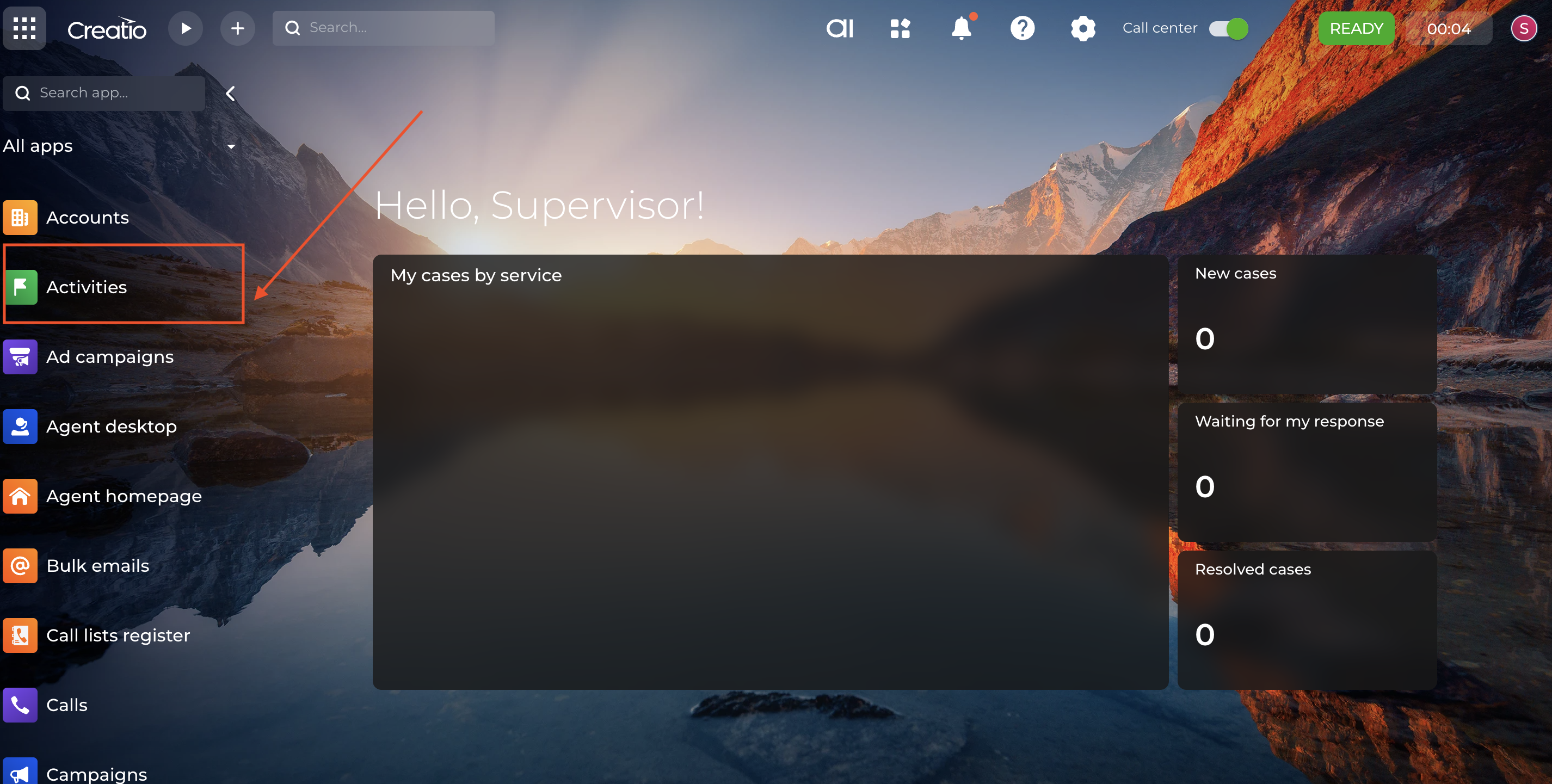
Important
This functionality is not enabled by default. The Activity feature requires project-specific configuration. Proper operation depends on the synchronization of parameters between Webitel and Creatio.
2. Functional Activation Parameters in Creatio
The activation of the missed chat processing logic within the Creatio interface is performed via System Settings:
-
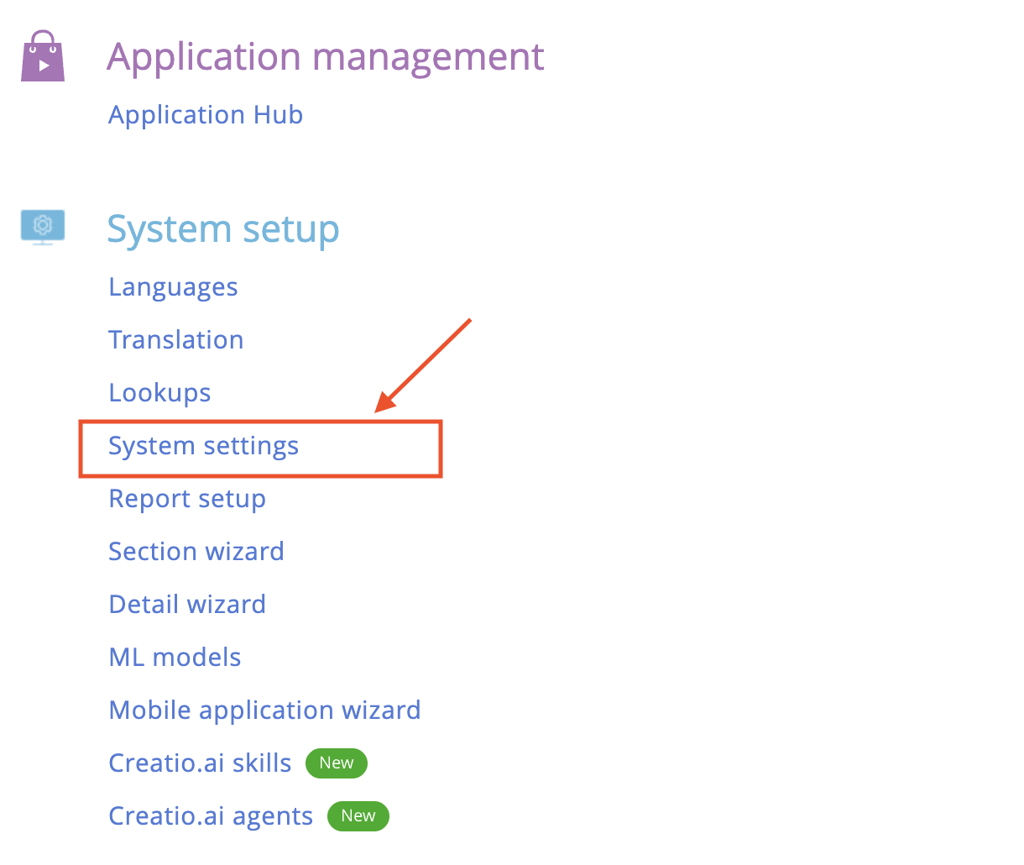
Go to the "System Settings" section (Fig. 2)
-
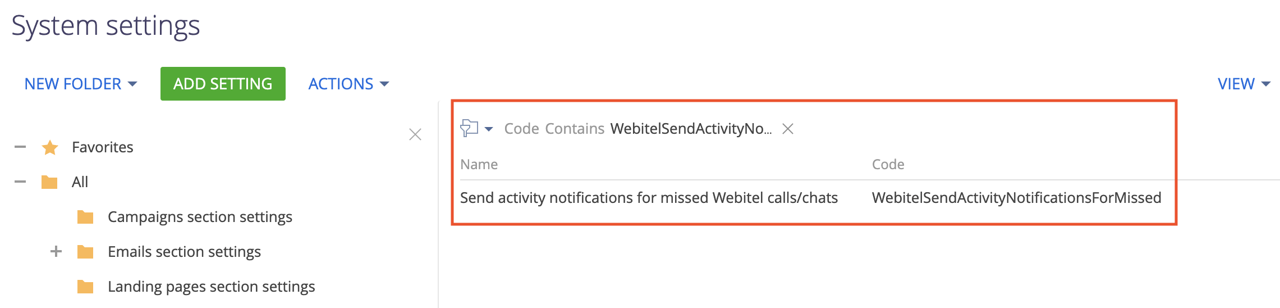
Use the filter to find the record with the code:
WebitelSendActivityNotificationsForMissed(Fig. 3)
-
Open the system setting and select the checkbox in the "Default value" field. (Fig. 4)

3. Displaying Missed Chat Activities in the Creatio Notification Center
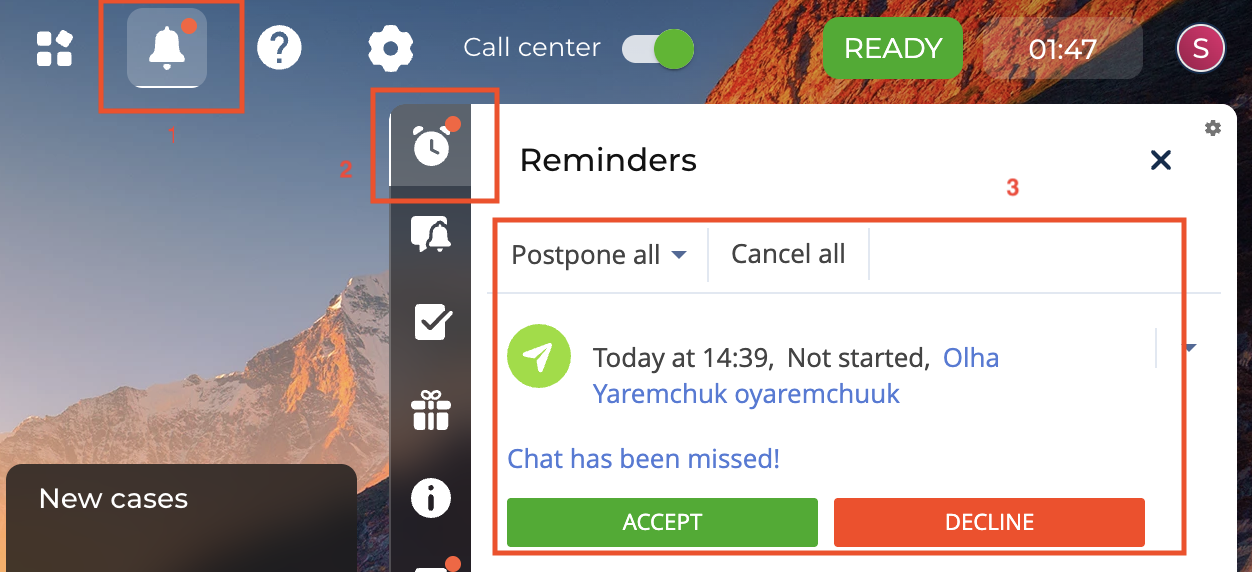
Notifications for newly created Activities for missed chats are sent to the Creatio Notification Center (Fig. 5).
Creatio interface path:
-
"Bell" icon (1) — Creatio Notification Center. A red dot on the icon indicates the presence of new notifications in the system.
-
"Alarm clock" icon (2) — "Reminders" tab in the Creatio Notification Center. This is where Activities for missed chats, assigned to the current operator for further processing, are received.
-
Activity Preview (3) — displays the title and details of the Activity (time, status, customer name) and allows the operator to "Accept" or "Decline" the Activity for processing.
4. Assignment Logic and Notification System
Depending on the routing settings, Creatio applies one of two Activity distribution scenarios:
-
Individual Activity Assignment: If a specific owner is designated in Creatio to handle the Activity, the missed chat notification will be sent only to that individual.
-
Group Activity Distribution (Shared Queue): If the Activity is assigned to a group of operators (based on skills), the notification in Creatio will be displayed simultaneously to all operators in that queue.
Real-time Synchronization: The moment an operator picks up the Activity (by clicking the "Accept" button), the notification for all other operators is automatically cancelled. This ensures a single point of contact and eliminates the risk of duplicate communication, preventing multiple operators from attempting to process the same Activity at once.
5. Filtering Missed Chat Activities in the Section
Processing of missed chat Activities is available directly from the Creatio Notification Center. Additionally, processing can be performed from the "Activities" section registry using a configured filter by activity type and status.
To do this, follow these steps:
-
Activating the search panel: In the top panel of the registry, click on the "Filters/groups" (1) menu (Fig. 6) to expand the filtration parameters.
-
Selecting the inquiry type: From the drop-down list, select the parameter "Type = Webitel missed chat" (2) (Fig. 6).


-
Additional filtering: add a filter for the "Status = Not started" field to view only those Activities that have not yet been processed by operators (Fig. 7)

6. Activity Management from the Section Registry
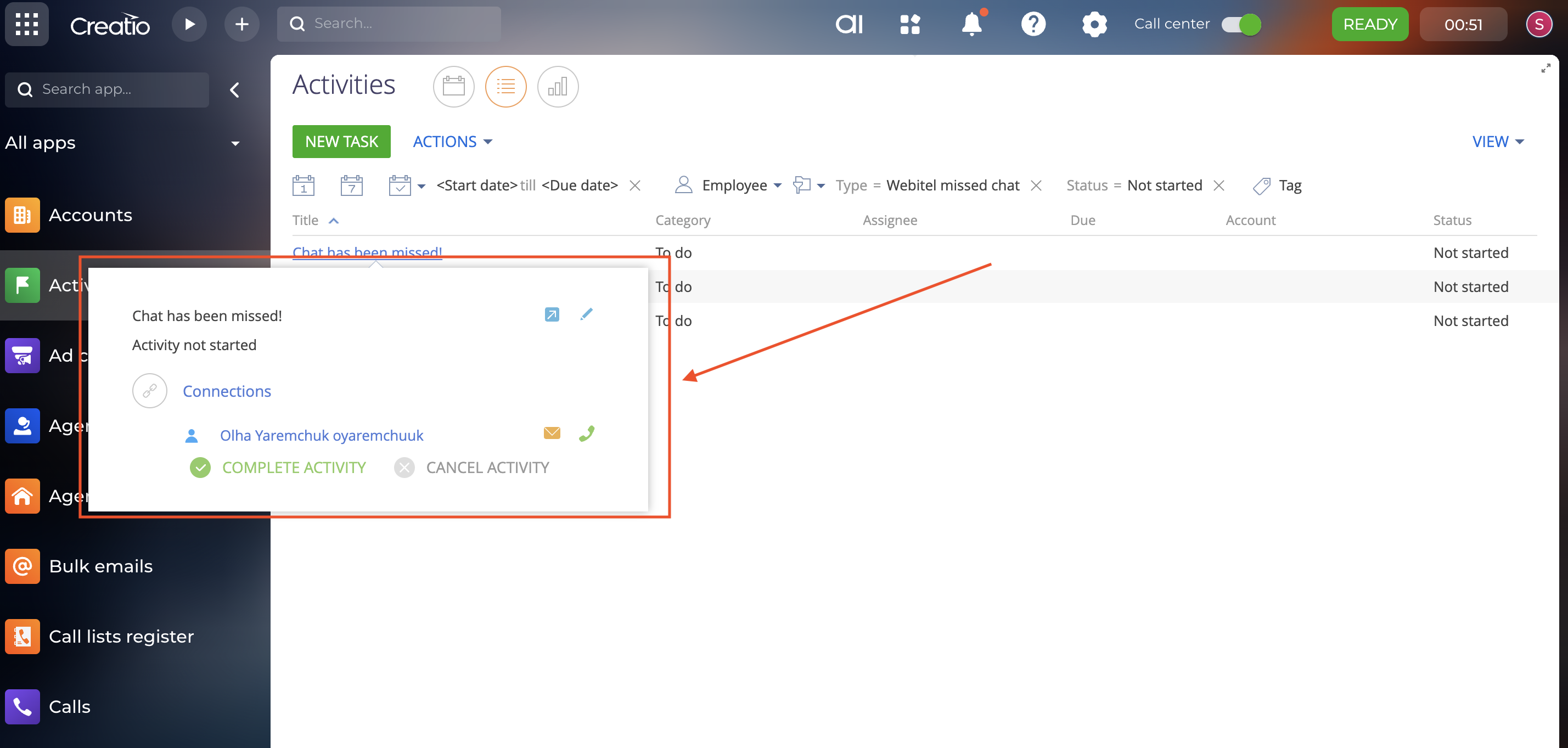
For efficient processing of Activities from the section, Creatio provides a preview mini-page. It allows the operator to view the status, title, and connections (e.g., Contact), and provides access to actions via the "Complete task" and "Cancel task" buttons.
To display the preview mini-page, hover the cursor over the record title in the Activities section registry (Fig. 8).
7. Activity Processing
The algorithm for processing activities with the "Missed Chat" type consists of the following steps:
Step 1. Receiving a Notification
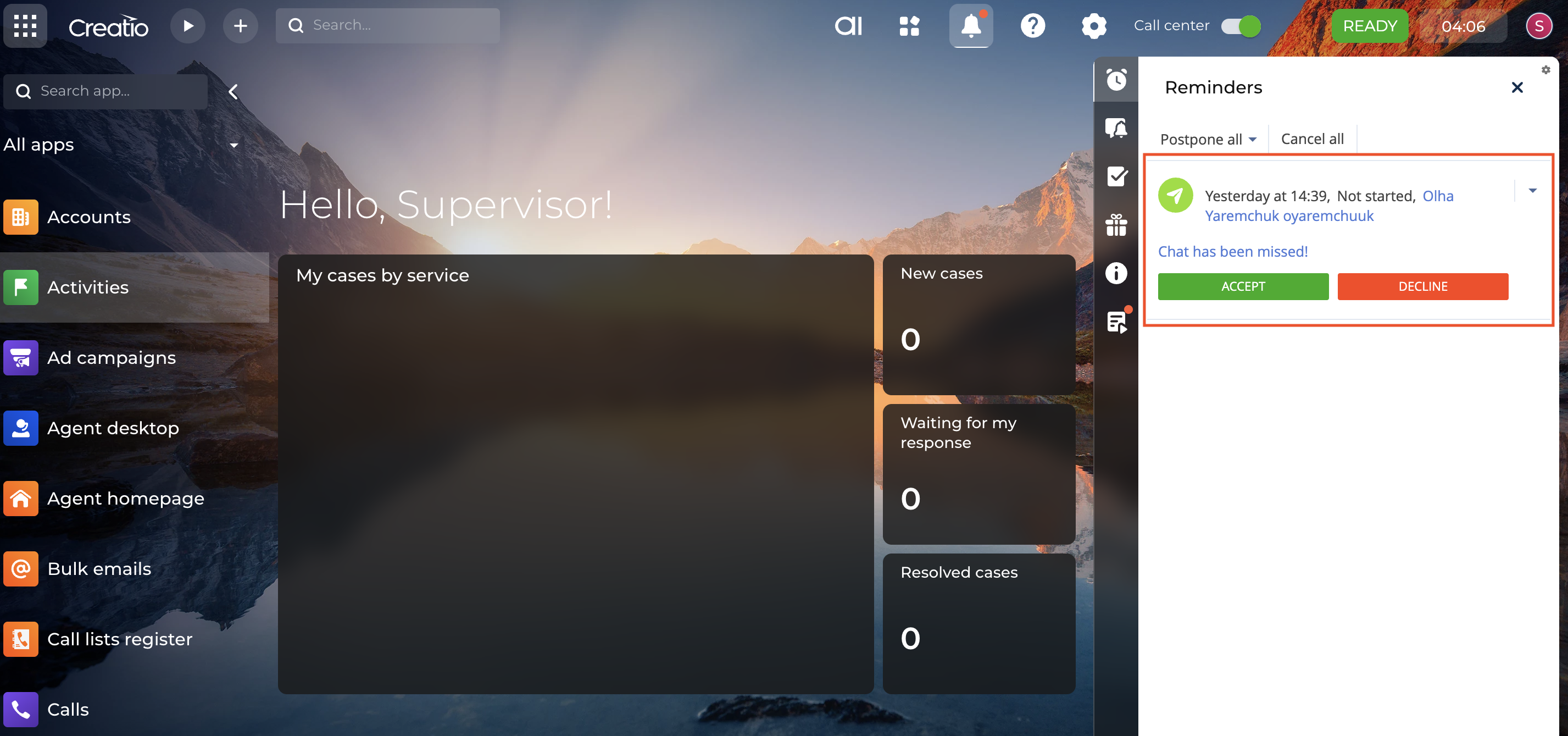
The operator receives a notification in the Creatio Notification Center regarding a new "Missed Chat" Activity (Fig. 9).
Step 2. Review and Information Analysis
From the notification, the operator opens the Activity record. Once the record is open, the operator reviews the information to prepare a further response to the customer.
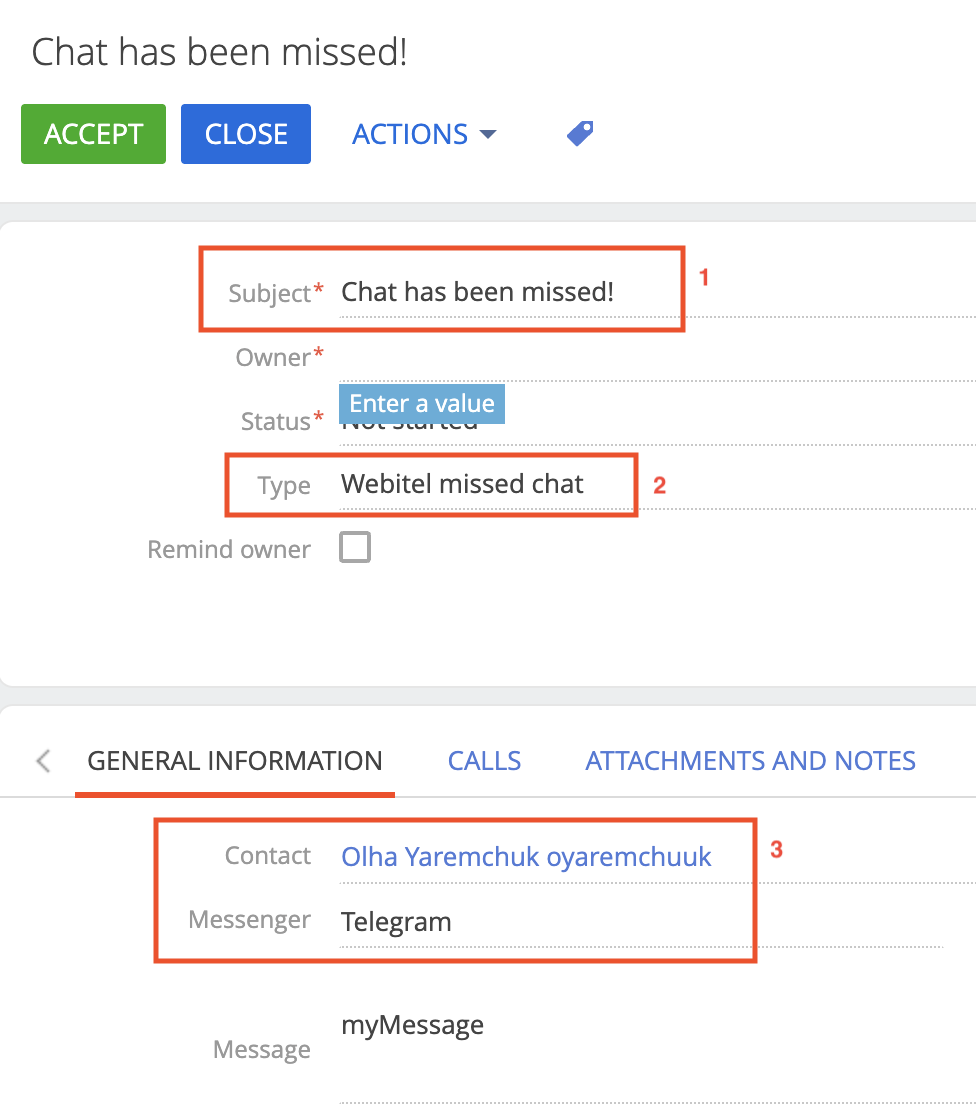
The page of the created "Missed Chat" Activity (Fig. 10):
-
Subject (1) – the activity title indicating the nature of the task (e.g., "Missed Chat").
-
Type (2) – this field is populated with the default value "Webitel missed chat".
"General Information" Tab (3):
-
Contact – the customer's full name (if identified in Creatio). This allows the operator to quickly navigate to the Contact record.
-
Messenger – indicates the channel where the missed chat was recorded and the subsequent communication channel for the customer (e.g., Telegram, Viber).
Step 3. Initiating Communication and Completing Processing
After analyzing the data, the operator proceeds to the active phase of resolving the customer's inquiry.
-
Navigating to Chat: In the top panel of the Activity record, the operator clicks the "ACCEPT" button (Fig. 11).

-
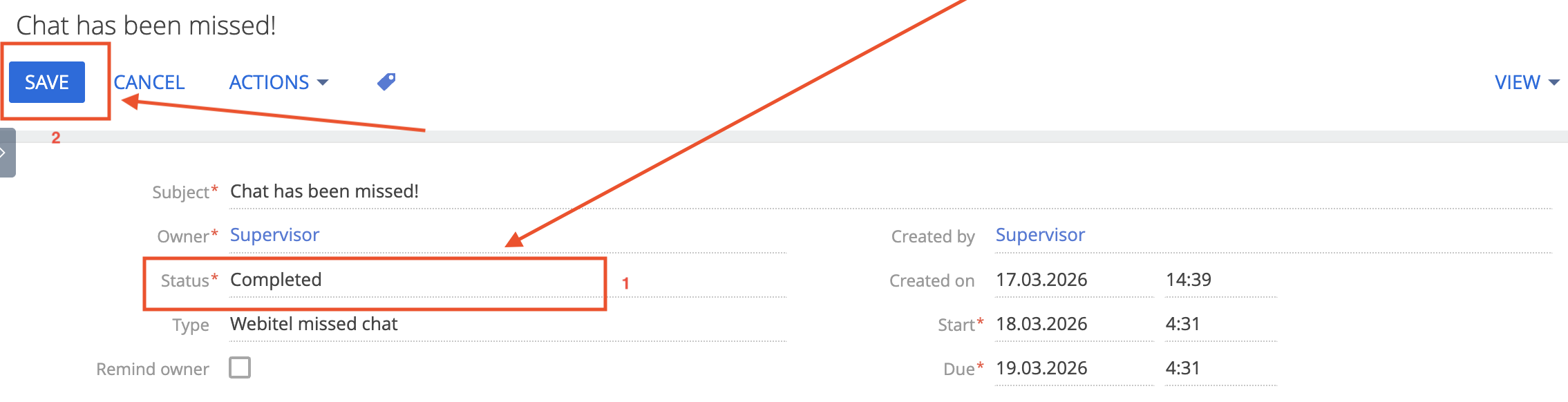
Recording the Result: After concluding the dialogue, the operator returns to the Activity record. They change the Activity status to "Completed" and click the "SAVE" button to record the changes in the system (Fig. 12).
-
Outcome: The Activity disappears from the list of current tasks, and the processing history is stored in the system for further reporting.