
Important: This functionality is available subject to active Creatio AI tokens.
1. Description
This functionality enables operators to utilize Creatio AI within Webitel chats. Key features include:
-
AI Chat Summary: Generates a conversation summary on demand when a chat is transferred to an operator.
-
Message Editing: AI assistance in correcting errors and refining the style of responses.
2. Prerequisites for Functionality Availability
AI tools become automatically available on the CTI panel in Webitel chats, provided the following conditions are met:
-
Access Rights: The user must have permission for the
CanRunCreatioAIApioperation. -
Settings: The
EnableWebitelAIChatssystem setting must be enabled. -
Version: Creatio platform version 8.3 or higher.
3. Working with the AI Assistant (Message Text Editing)
Once a chat is accepted, the operator gains access to the AI Assistant to facilitate the rapid drafting of high-quality responses.
AI Assistant Workflow:
-
Message Input Validation: To activate the AI, you must draft a response in the message input field. If the "AI Assistant" button is clicked while the field is empty, the prompt "Please enter a message first" will appear
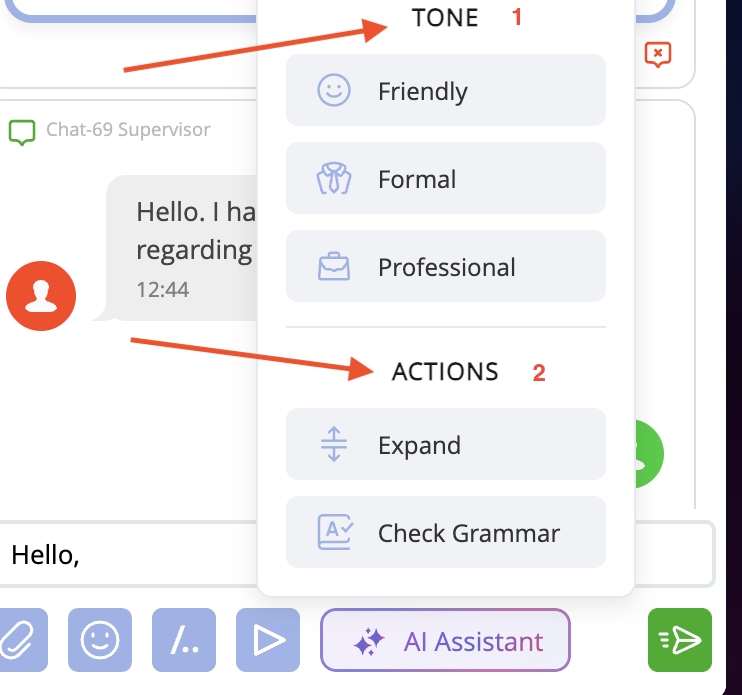
Message Tone Selection (Fig. 1): After the text has been entered, click "AI Assistant." The TONE (1) block allows you to adjust the style of your response:
-
Friendly — to create a welcoming atmosphere.
-
Formal — for reserved, official responses.
-
Professional — for clear business communication.
Intelligent Text Actions (Fig. 1): In addition to tone adjustment, the ACTIONS (2) block is available, allowing you to automatically refine your message:
-
Expand — the AI supplements your concise input with polite phrases and additional details.
-
Check Grammar — automatically corrects errors and typos before sending the message to the client.
Quick Guide for Operators:
-
Draft your response.
-
Click the "AI Assistant" button.
-
Select the desired tone or action (e.g., "Professional" + "Expand").
-
Send the generated text to the client.
4. AI-Generated Chat Summary for Transferred Chats
When a chat is transferred to another agent, the system enables the automatic generation of an AI Chat Summary. This allows the receiving agent to instantly gain context of the ongoing conversation without needing to review the entire message history.
4.1 Chat Transfer
Step-by-step transfer algorithm:
-
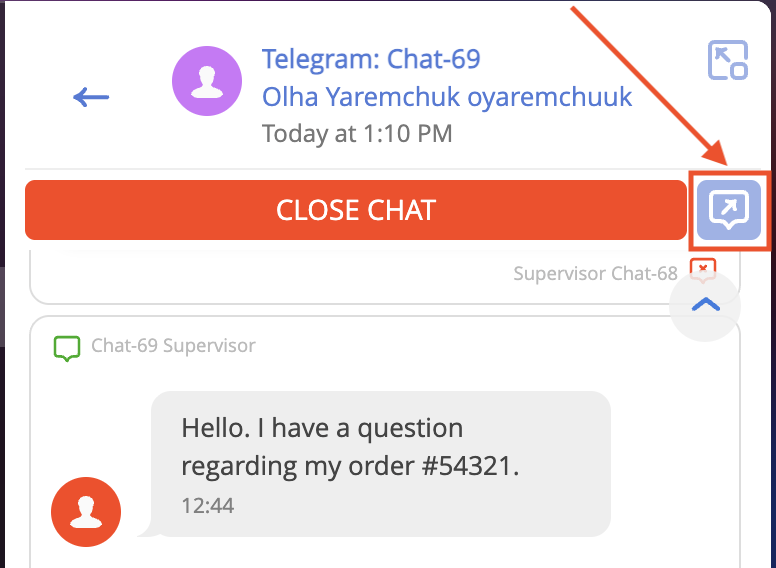
Initiation: Click the Transfer button (arrow icon) in the top panel of the active chat (Fig. 2).
-
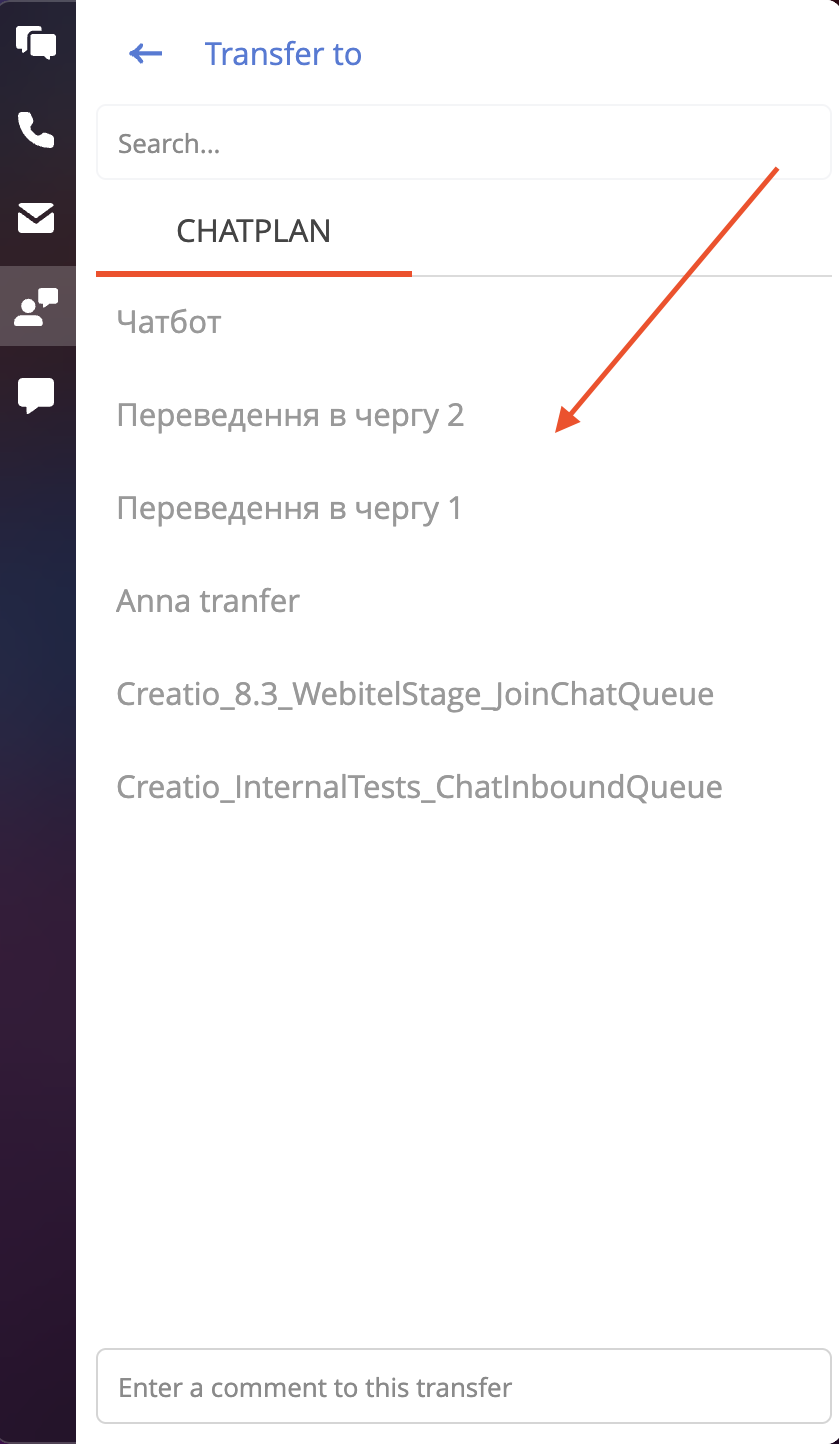
Direction Selection: In the "Transfer to" list, select the required chat plan (Fig. 3).
-
Comment (Optional): If desired, you can leave a brief note for the next agent in the "Enter a comment for this transfer" field. This helps the receiving agent quickly understand the request if there are additional details
-
Confirmation: Click the SELECT button. The chat will be transferred and will disappear from your list of active chats.
4.2 AI Chat Summary
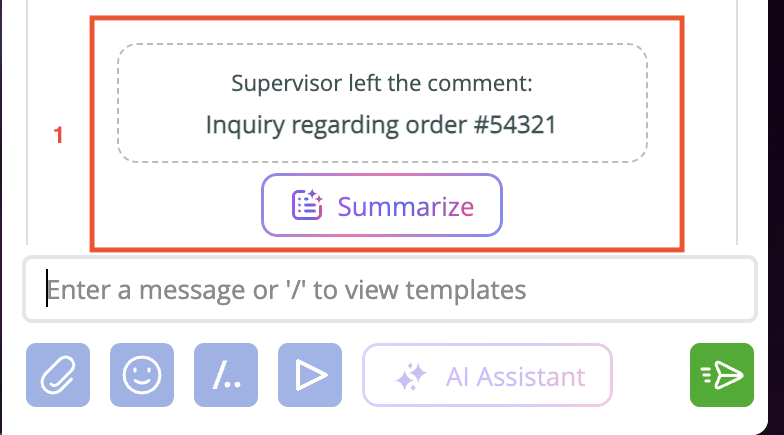
When an agent accepts a transferred chat, they see not only the message history but also an additional information block (1).
Process for obtaining the AI Summary:
-
Preview: An information block appears in the chat feed containing a "Summarize" button, along with any manual comments left by the previous agent, if applicable (Fig. 4).
-
Generation: Click the "Summarize" button to trigger the chat summary generation.
Note: The chat summary is generated only once. Once generated, the summary is saved in the history, and the "Summarize" button is hidden.
-
Result: The system generates a summary of the current active chat using AI (Fig. 5).
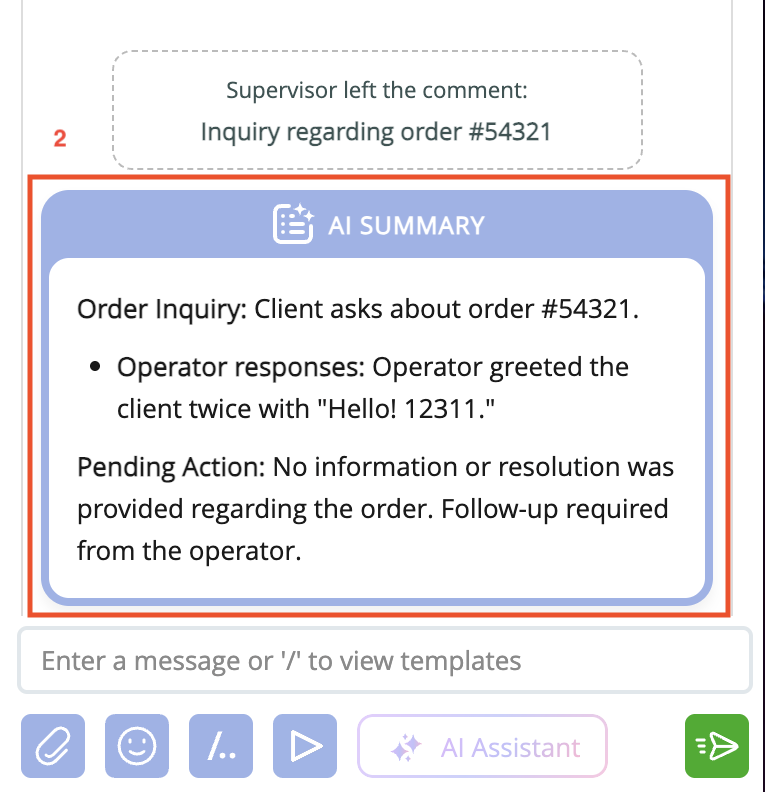
Information Block Structure for Transferred Chats:
-
Internal Comment: Displays if the previous agent left a note during the transfer (e.g., "Inquiry regarding order #54321").
-
AI Summary: A concise overview of the dialogue, covering the core request, responses provided, and any unresolved issues.
-
Chat History Logging: The generated AI summary is permanently saved and pinned within the chat history.