
1. Description
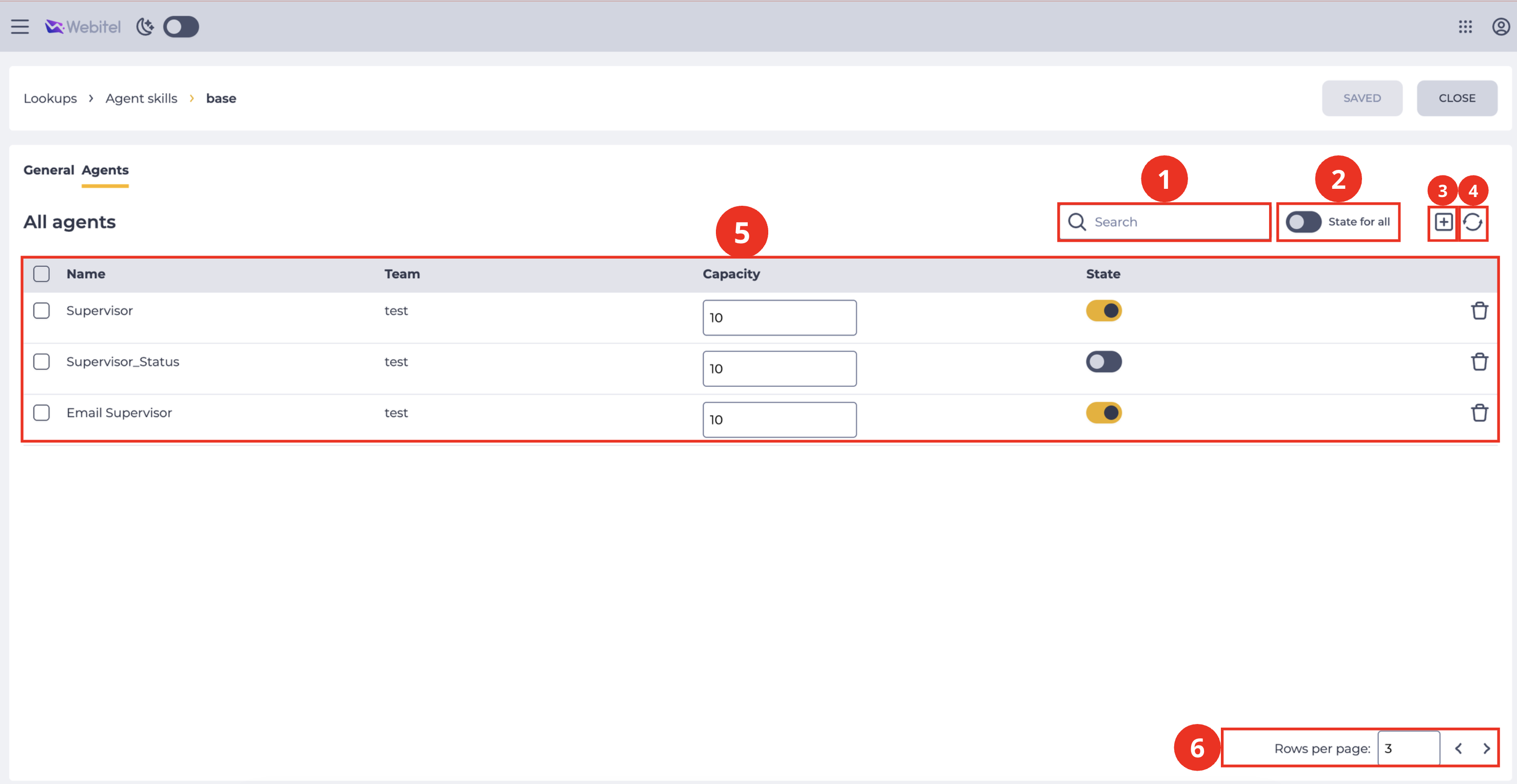
The page is designed to add this Skill to Agents.
It consists of the following elements:
-
Search field (Fig. 1.(1));
-
State for all (Fig. 1.(2));
-
Add tool (Fig. 1.(3));
-
Refresh button (Fig. 1.(4));
-
Registry (Fig. 1.(5));
-
Pagination (Fig. 1.(6)).
1.1. Search field
The search is performed on the Name column.
It consists of an input field and a close button ( 
1.2. State for all
Allows you to enable 

Toggle behavior:
-
If at least one skill is disabled
-
If all skills are enabled
-
If the administrator disables

-
If the administrator enables

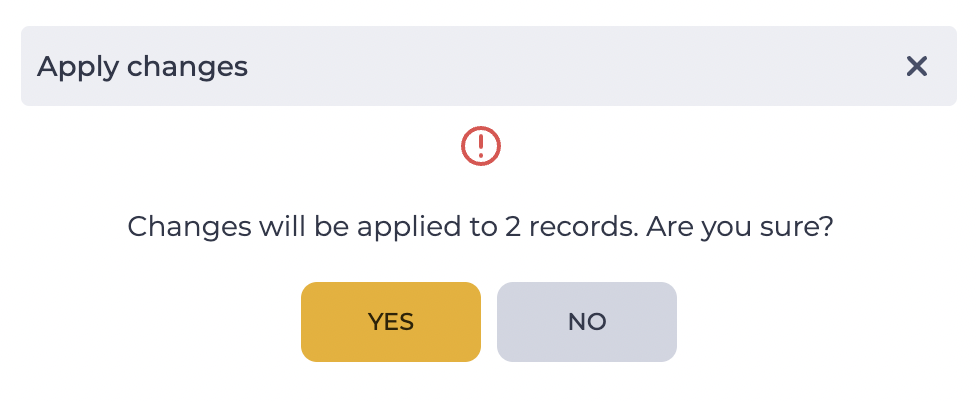
When the switch is enabled or disabled, a confirmation modal window opens (Fig. 2). The window displays the number of records to which the change will be applied.
-
If search is not applied, the changes are applied to all skills.
-
If search is used, the changes are applied only to the skills that match the search results.
After clicking the “Yes” button, the corresponding skills switch to the selected state.
Note! If all skills are enabled
1.3. Add tool
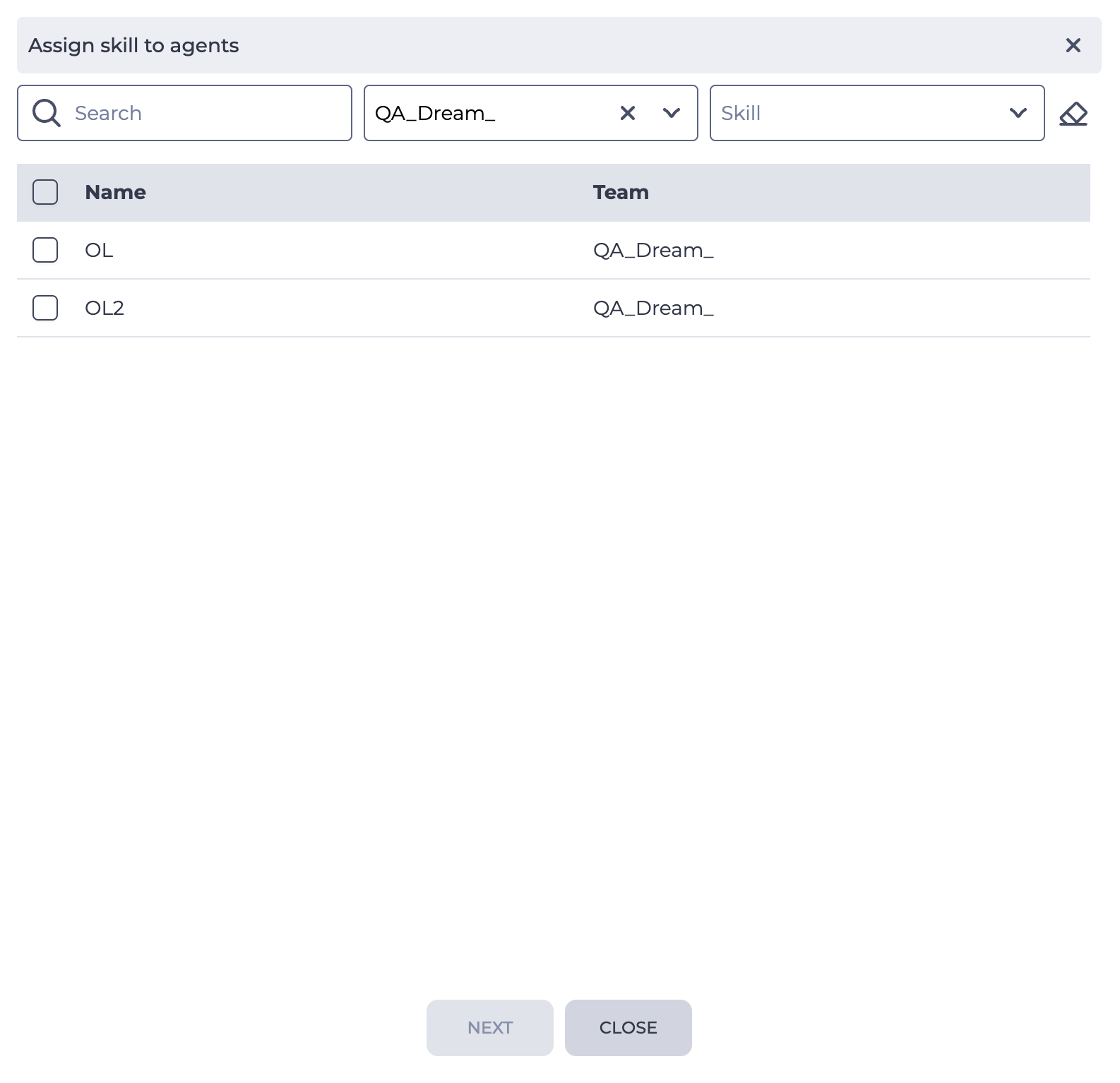
Сlick the add button to add this Skill to Agents. After clicking the add button, the Assign skill to agents modal window opens (Fig. 3).
1.3.1. Assign skill to agents modal window
The Assign skill to agents modal window consists of the following elements:
-
Filter block;
-
Register;
-
Close button;
-
Next button.
1.3.1.1. Filter block
The block of filters is used for faster search of the necessary Agents.
It consists of the following elements:
-
Search field;
-
Team field;
-
Skill field;
-
Reset filters button.
1.3.1.1.1. Search field
The search is performed on the Name column.
Use the * symbol to search by part of a word. You can also use the * character to replace any number of characters.
1.3.1.1.2. Team
A Team drop-down list to filter Agents that belong to a specific Team.
1.3.1.1.3. Skill
Skills drop-down list to filter Agents by these skills.
1.3.1.1.4. Reset filters button
Represented as a button 
1.3.1.2. Register
The registry is a list of entries of existing objects in this section, each of which consists of a set of fields:
-
Checkbox;
-
Name;
-
Team.
1.3.1.2.1. Checkbox
Used to select one or more Agents to whom the Skill chosen will be assigned.
1.3.1.2.2. Name
The name of the Agent is displayed here.
1.3.1.2.3. Team
The name of the Team to which the Agent belongs is displayed here.
1.3.1.3. Close
Clicking the Close button closes the modal window. The Skill is not assigned.
1.3.1.4. Next
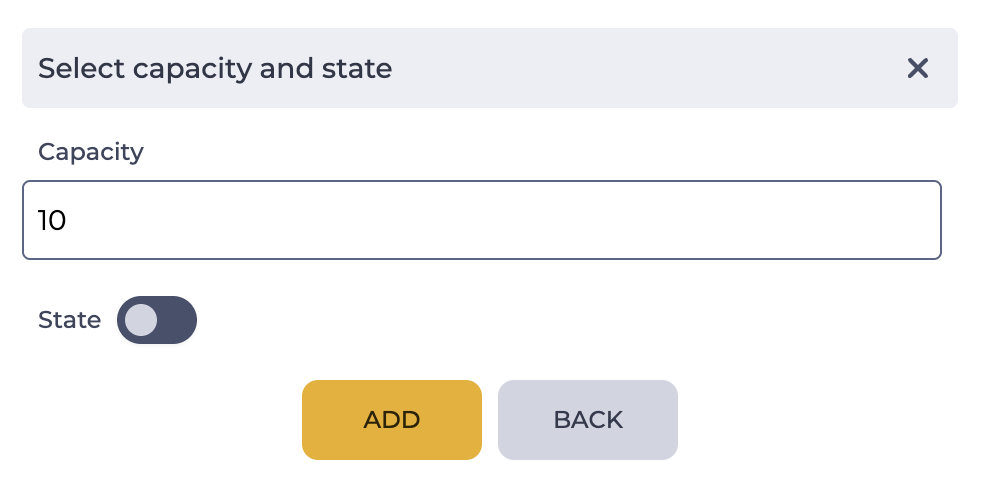
The Next button opens the Select capacity and state modal window (Fig. 4).
1.3.2. Select capacity and state modal window
The Select capacity and state modal window consists of the following elements:
-
Capacity;
-
State;
-
Add button;
-
Back button.
1.3.2.1. Capacity
Here enters the level of mastery of this Skill. It can be set from 0 to 100. The higher the number, the higher the Skill level.
1.3.2.2. State
Use the switch to turn a Skill on/off. The enabled Skills determine the Queues in which the Agent will work.
1.3.2.3. Add
Clicking the Add button adds the selected Skill to the selected Agents.
1.3.2.4. Back
Clicking on the Back button returns the Assign skill to agents modal window (Fig. 3).
1.4. Refresh button
Updating the register table is performed by clicking on the refresh button - 
(Fig. 1.(4)).
1.5. Registry
The registry is a list of entries of existing objects in this section, each of which consists of a set of fields:
-
Checkbox;
-
Name;
-
Team;
-
Capacity;
-
State;
-
Removal tool.
1.5.1. Checkbox
After selecting one or more entries with the checkbox, additional tools are displayed between the Status for All switch and the Add tool, namely:
-
Change agent`s skill;
-
Removal tool.
1.5.1.1. Change agent`s skill
When you click the 
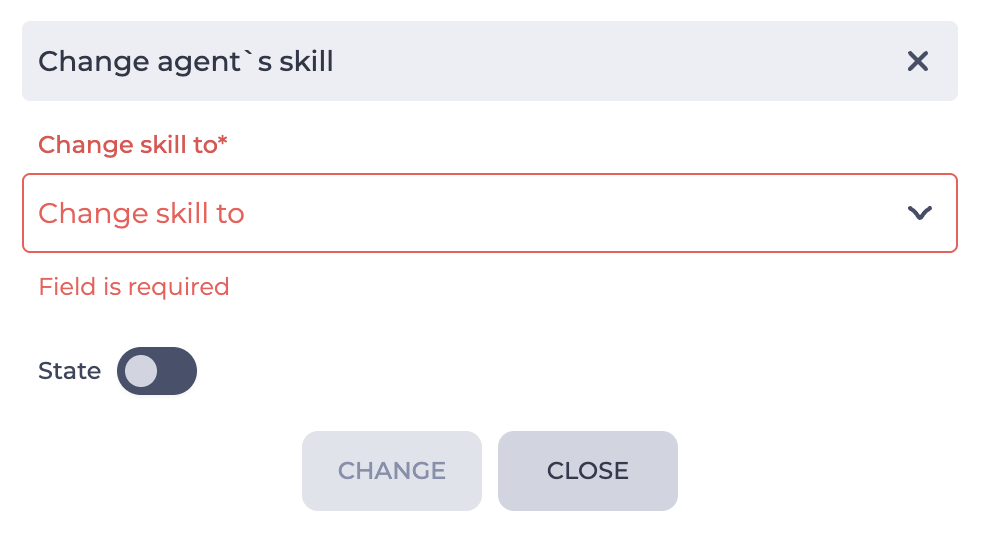
Clicking on the Change skill to field opens a dropdown list of Skills with which you can replace the Skill.
This option lets you remove a given Skill and simultaneously add another Skill to multiple Agents.
The State switch is responsible for the state of the Skill to which the change will be made.
1.5.1.2. Removal tool
Information about the number of records selected for deletion appears when you hover over this tool.
A modal confirmation window appears after clicking the 
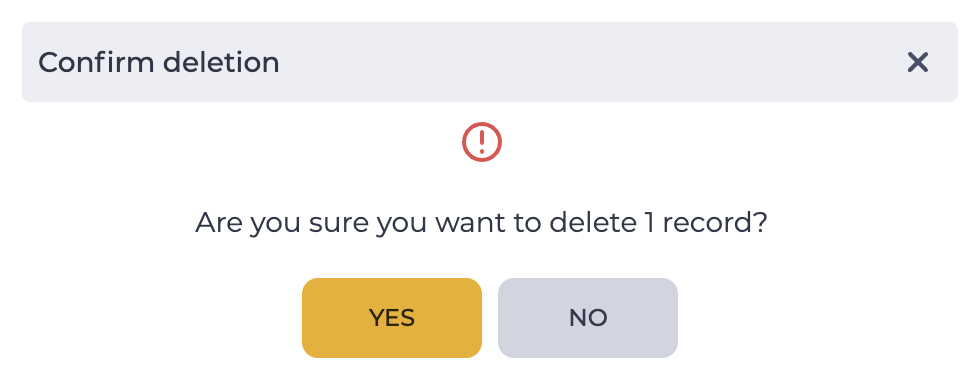
1.5.2 Name
The names of Agents are displayed here.
1.5.3. Team
The name of the Team to which the Agent belongs is displayed here.
1.5.4. Capacity
Here, you can set the level of proficiency in this Skill.
1.5.5. State
Use the switch to turn the Skill on/off. The enabled Skills determine the Queues in which the Agent will work.
1.5.6. Removal tool
Used to remove an object with confirmation through a modal window. When hovering over the delete button ( 
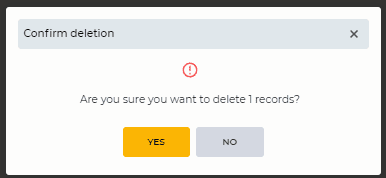
Fig. 7. Modal confirmation window
1.6. Pagination
It consists of the Rows per page field, which indicates the number of entries (it is possible to set from 1 to 1000) per page, and forward and backward buttons for switching pages.
2. Opportunities
2.1. Add a Skill to Agents
|
Goal |
Add a Skill to Agents |
|---|---|
|
Preconditions |
|
|
Steps |
|
|
Result |
Data saved. A Skill added to selected Agents. |

2.2 Remove a Skill from an Agent
|
Goal |
Remove a Skill from an Agent |
|---|---|
|
Preconditions |
|
|
Steps
|
|
|
Result |
The modal window closes. The Skill deleted for the selected Agent. |

2.3 Remove a Skill from several Agents
|
Goal |
Remove a Skill from several Agents |
|---|---|
|
Preconditions |
|
|
Steps
|
|
|
Result |
The modal window closes. Agent Skills are removed. |
2.4. Enable Agent Skill
|
Goal |
Enable Agent Skill |
|---|---|
|
Preconditions |
|
|
Steps
|
|
|
Result |
The Skill is activated. |
2.5. Enable Skills for all Agents
|
Goal |
Enable Skills for all Agents |
|---|---|
|
Preconditions |
|
|
Steps |
|
|
Result |
The Skill is activated for all Agents to whom it is assigned. |
2.6 Change the Skill
|
Goal |
Change Skill X to Skill Y |
|---|---|
|
Preconditions |
|
|
Steps |
|
|
Result |
Skill X is removed from the selected Agents. Skill Y has been added. The state of skill Y depends on the position of the State switch during replacement and can be changed on the Agents tab of skill Y or the Skills tab. |
