
1. Description
Calendars can be used in a routing and call center.
In a call center context, a calendar regulates how a dialer works.
In the context of routing, calendars determine what time an inbound call comes (weekday/weekend/) and play the corresponding audio file.
It consists of the following elements:
-
Creation tool (Fig.1(1));
-
Search field (Fig.1(2));
-
Refresh button (Fig.1(3));
-
Registry (Fig.1(4));
-
Pagination (Fig.1(5)).
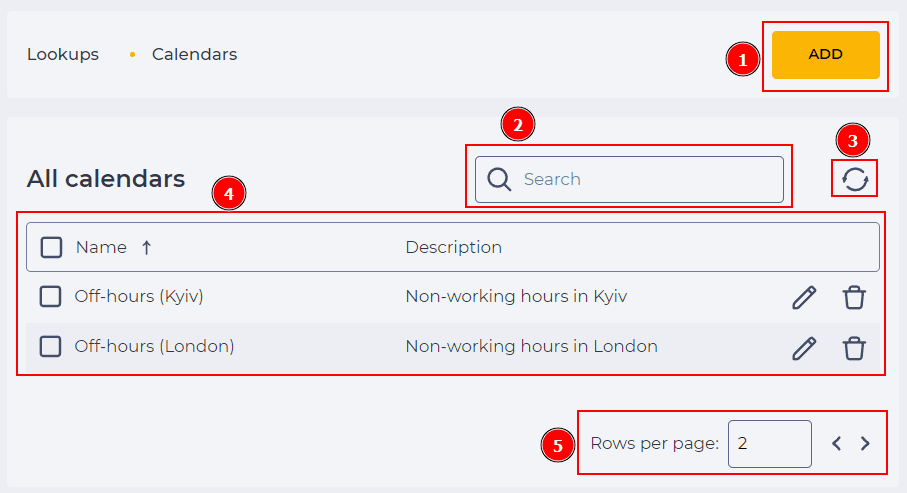
Fig. 1. Calendar page
1.1. Creation tool
Use the Add button (Fig.1(1)) to create a new object. Access to a General tab opens after clicking. You can open tabs for existing Calendars through the entries editing tool (see paragraph 1.4.4).
Tabs:
1.2. Search field
The search is performed on the Name column.
It consists of an input field and a close button ( 
1.3. Refresh button
Updating the register table is performed by clicking on the refresh button - 
(Fig.1 (3)).
1.4. Registry
The registry is a list of entries of existing objects in this section, each of which consists of a set of fields:
-
Checkbox;
-
Name;
-
Description;
-
Editing tool;
-
Removal tool.
If there is no entry on the page, then an additional Add button is displayed in the register, the functionality of which duplicates the Add button in paragraph 1.1.
1.4.1. Checkbox
Used to select one or more entries. An additional removal tool appears next to the search field after selecting one or more entries. Information about the number of entries chosen for deletion appears when you hover over this tool. When you click on it, a modal confirmation window appears.
It contains the Yes, No, and close ( 
-
Clicking the Yes button deletes the entries.
-
Clicking the No button closes the modal window, and the entries are not deleted.
All records on the page will be selected if you select the checkbox in the header.
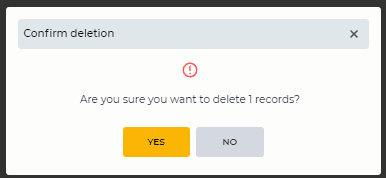
Fig. 2. Confirm deletion modal window
1.4.2. Name
The name of the Calendar is displayed here.
1.4.3. Description
Here is a description of the Calendar.
1.4.4. Editing tool
The General tab opens after clicking on this button - 
1.4.5. Removal tool
Used to remove an object with confirmation through a modal window. When hovering over the delete button ( 
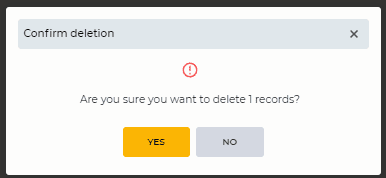
Fig. 3. Confirm deletion modal window
1.5. Pagination
It consists of the Rows per page field, which indicates the number of entries (it is possible to set from 1 to 1000) per page, and forward and backward buttons for switching pages.
2. Opportunities
2.1. Create a new Calendar
|
Goal |
Create a new Calendar |
|---|---|
|
Preconditions |
|
|
Steps
|
|
|
Result |
Data saved. Calendar is created |
2.2. Delete a Calendar
|
Goal |
Delete a Calendar |
|---|---|
|
Preconditions |
|
|
Steps
|
|
|
Result |
The modal window closes. The Calendar is removed. |

2.3. Delete several Calendars
|
Goal |
Delete several Calendars |
|---|---|
|
Preconditions |
|
|
Steps
|
|
|
Result |
The modal window closes. Calendars are removed. |
2.4. Edit a Calendar
|
Goal |
Edit a Calendar |
|---|---|
|
Preconditions |
|
|
Steps
|
|
|
Result |
Data saved. |