
1. Description
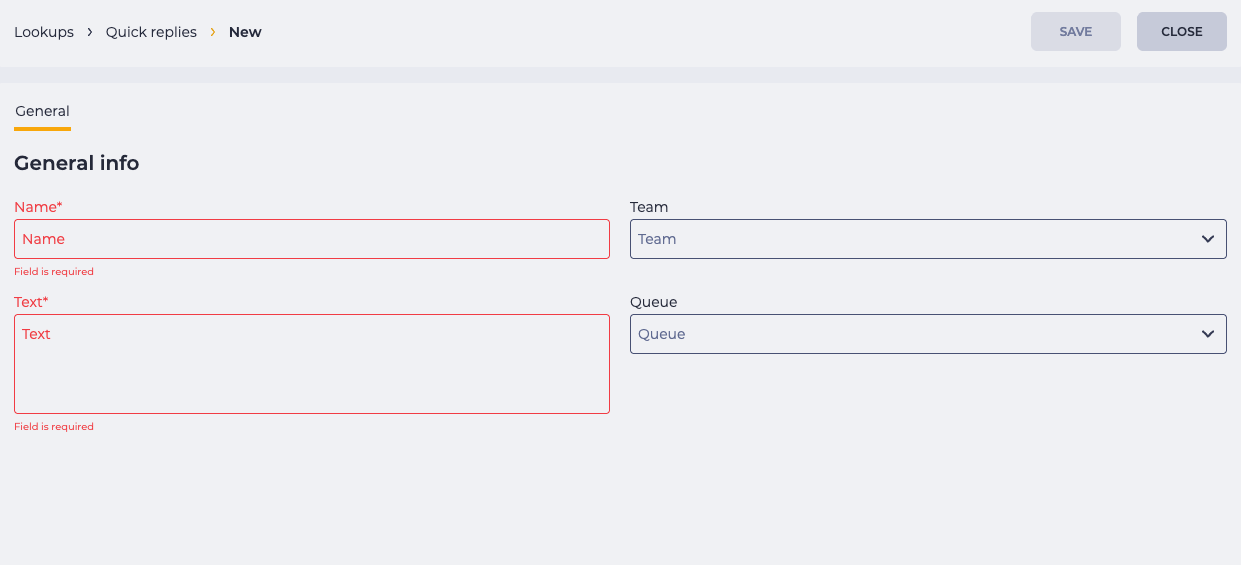
The "General" tab is designed for creating and editing the parameters of a quick reply template.
It consists of the following fields (Fig. 1):
-
Name;
-
Team;
-
Text;
-
Queue.
1.1. Field "Name"
A required, editable field for entering the name of the quick reply. This value is used to search in the templates registry.
1.2. Field "Team"
A multi-select, optional field. One or several teams for which the template will be available can be specified in the form. If multiple teams are selected, a counter with the list is displayed in the registry.
1.3. Field "Text"
A required, editable field for entering the text of the quick reply that will be inserted into the chat.
Variables in the format ${var} are supported. They are automatically replaced with relevant data from the channel. If the data is unavailable, the variable is displayed as text and can be manually edited.
1.4. Field "Queue"
A multi-select, optional field. Allows specifying one or more queues for which the template will be available. If multiple values are selected, a counter with the list is displayed in the registry.
2. Opportunities
2.1. Edit or set parameters
|
Goal |
Edit or set parameters of a quick reply template |
|---|---|
|
Preconditions |
|
|
Steps
|
|
|
Result |
Data saved. |
3. Display in Workspace
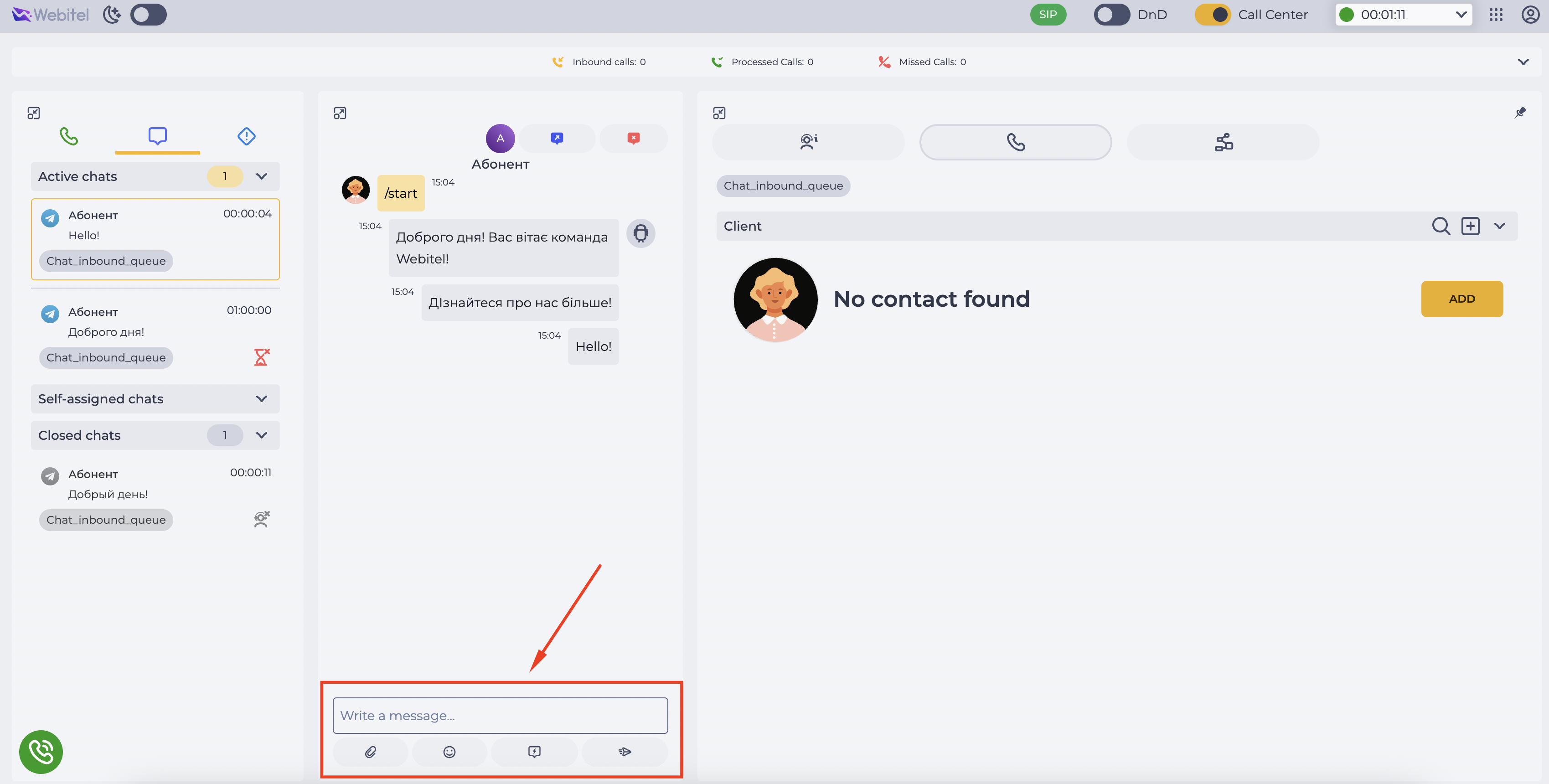
When the operator accepts a chat, a message input field appears in the central panel. The quick replies feature is available in this field.
3.1. Invoking quick replies
-
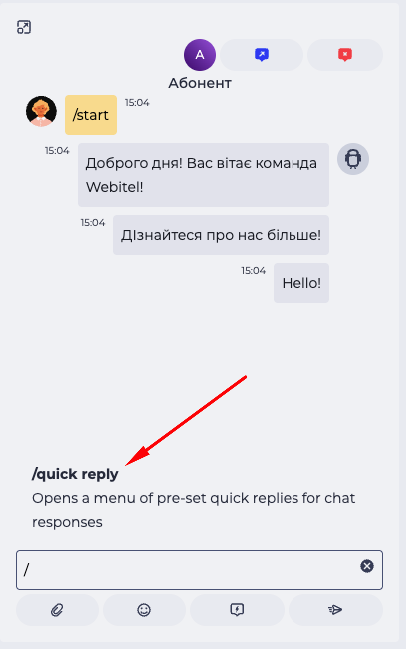
If the operator enters the symbol
/in the field, the system opens the quick commands menu with the/quick_repliesoption.
-
If the operator clicks the quick replies icon

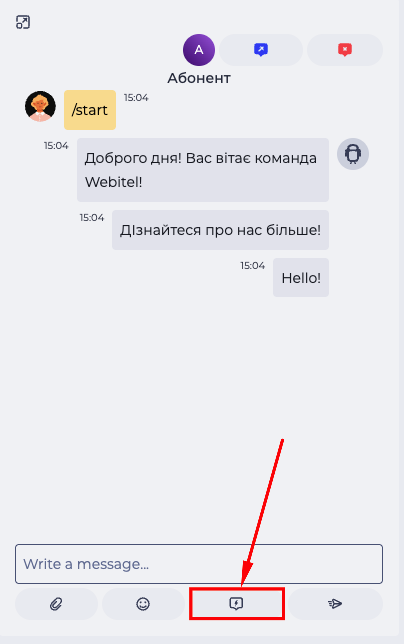
The list (Fig. 5) displays:
-
all quick replies created without team assignment;
-
and replies assigned to the operator’s team or queue.
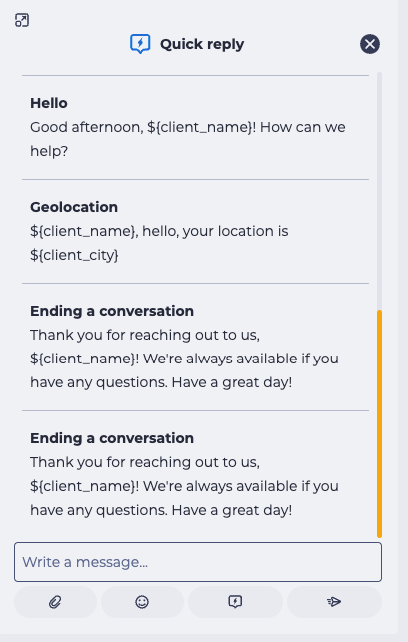
3.2. Working with quick replies
-
The operator can either find the required template in the list or type part of its name in the search field.
-
After selecting a template, its text is automatically inserted into the message input field. The text can be edited before sending.
To clear the input field, use the keyboard shortcut Alt + d.
3.2.1. Variables in templates
If a quick reply contains variables (for example, ${customer_name}), they are automatically replaced with real data from the current channel when inserted into the chat.
If the variable is unavailable, the operator will see it as plain text and can edit it manually.
To personalize the template, the following agent-related variables are available:
-
${wbt_agent_name}— inserts the name of the agent who accepted the chat (name from the user account). -
${wbt_agent_chat_name}— inserts the agent's name from the Display name in chat field in the General section (Users). If the field is not filled in — the name from the user account is used.
3.2.2. Closing the list
The quick replies list closes either by:
-
clicking the quick replies icon again
-
or pressing the close button in the menu
