
1. Description
Here you can enter general information about the User.
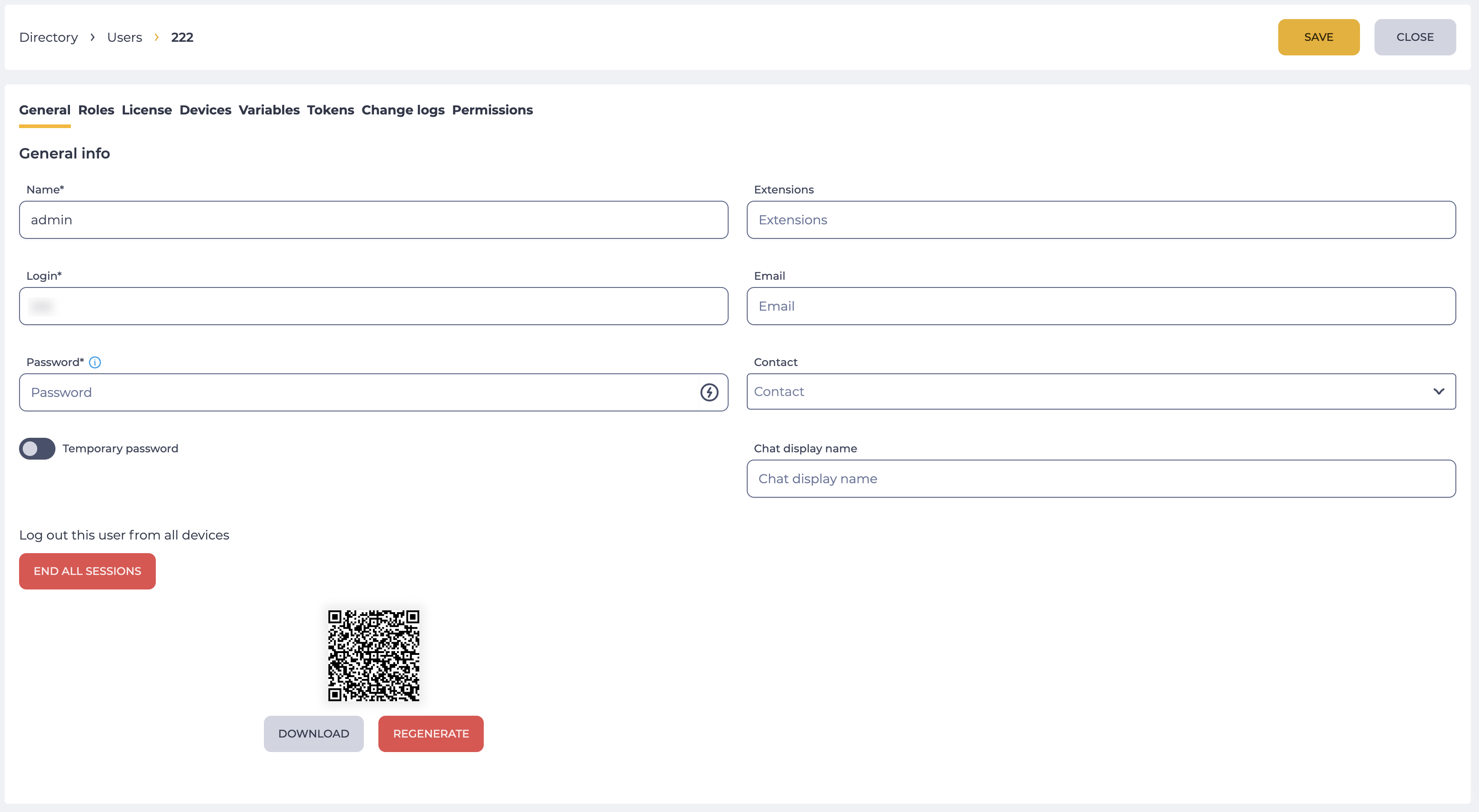
Consists of fields (Fig. 1):
-
Name;
-
Extensions;
-
Login;
-
Email address;
-
Password;
-
Temporary password switch;
-
Contact;
-
Chat display name;
-
End all sessions button;
-
Two-factor authentication.
Click the Save button to save.
The Save button becomes active:
-
after entering data in the required fields, if created;
-
after a change in any of the fields, in the case of editing.
Required fields are marked with *.
The Permissions tab becomes available after saving the data of the General tab during creation.
1.1. Name
Required field. The name of the User is entered here.
1.2. Extensions
The extension number of the User of the Webitel system must be unique for each User. If you do not set the number, then such a User will not be able to register a SIP phone and will not be able to make a call.
The field accepts only numeric values.
When an incorrect value is entered, an error message is displayed below the field (Fig. 2):

1.3. Login
Required field. The User will use the value of this field to log in. The login must be unique for each User. When creating a login, you can use Latin letters, numbers, dashes (-), underscores (_), and dots (.). The @ sign and space in the login are not allowed.
1.4. Email address
The User's email address is entered here. This email is used to connect with OAuth2 authentication.
1.5. Password
The field for creating a password.
When you hover over the icon 
You can create a password by yourself or use a password generator ( 

Attention!
The password must be saved or remembered because it will not be available for viewing after creating the User.
When changing a password, its value is validated according to the parameters configured in the Configuration section.
If the password_regular_expression parameter is set, the password must match the specified regular expression (this parameter has priority over other settings).
If the password_regular_expression parameter is not set, the following restrictions apply:
-
password_min_length — defines the minimum allowed password length;
-
password_categories — defines the required character categories (uppercase letters, lowercase letters, digits, special characters);
-
password_contains_login — defines whether the password can contain the username.
If the password does not meet the specified requirements:
-
if password_regular_expression and password_validation_text parameters are set in the configuration, then when entering a value in the Password field that does not fall under the specified regular expression (see password_regular_expression), the text specified in the password_validation_text parameter value will be displayed.
-
if the password_validation_text parameter is not set, a default error message will be displayed.
1.6. Temporary password switch
The switch is used to define the type of the user’s password.
-
If the switch is enabled –

-
If the switch is disabled –

After the user changes the password самостоятельно, the switch is automatically disabled –
1.7. Contact
This field is used to link the User with the Contact.
One User can be linked to only one Contact.
For a User who does not have a CUSTOMER_SERVICE licence, the Contact field is disabled.
1.8. Display name in chat
An optional field where you can specify an operator's alias to be displayed in the chat.
The client sees this name during communication, but only if the corresponding templates are configured in the text gateways.
If the field is not filled in, the main User Name is used.
The value of this field is available in quick reply templates via the variable ${wbt_agent_chat_name}.
1.9. End all sessions button
The button is used to end all active user sessions on all devices.
If the user is on their own record card and clicks the button, their sessions will be ended on all devices, including the current one.
It is displayed for users who have permissions to manage users.
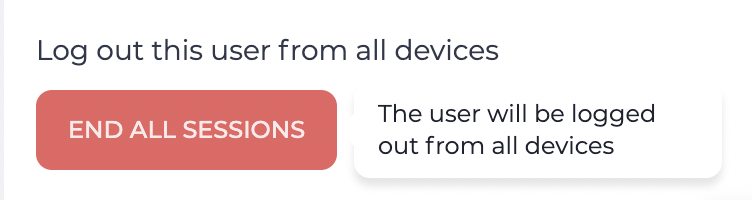
When hovering over the button, a tooltip is displayed: The user will be logged out from all devices (Fig. 3).
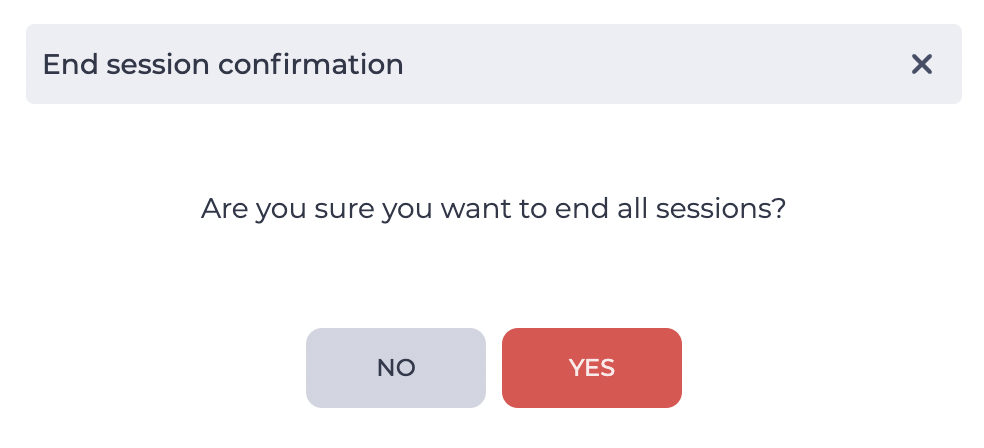
When clicking the button, a confirmation modal window for ending sessions opens (Fig. 4), which contains:
-
the close icon

-
the No button — closes the modal window without changes;
-
the Yes button — terminates all user sessions.
1.10. Two-factor authentication
It is displayed if two-factor authentication is enabled for Users with the Change User Password permission.
The enable_2FA parameter must be set to true on the Configuration page to enable two-factor authentication.
It is presented as a QR code and Download and Regenerate buttons.
The QR code is scanned using an authenticator app.
The applications that are recommended for scanning are:
-
Google Authentificator;
-
Microsoft Authentificator.
This User enters the received code when logging into the system — Step 3.
-
Download button — downloads the image of the QR code.
-
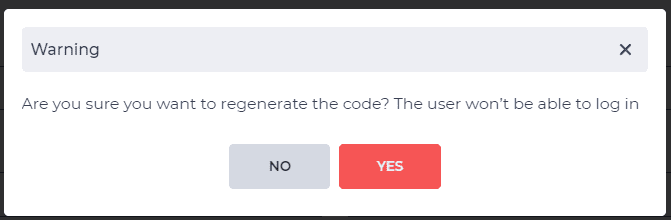
Regenerate button — resensitises the QR code, and the User needs to enter a new code to log in (scan a new QR code). The Warning modal window opens (Fig. 5) after you click the Regenerate button.
-
The Yes button — regenerates the code, displays the new one.
-
The No button — closes the modal window.
2. Opportunities
2.1. Change the Name/Login/Password/Extensions
|
Goal |
Change the Name/Login/Password/Extensions |
|---|---|
|
Preconditions |
|
|
Steps
|
|
|
Result |
Data saved. |