
1. Description
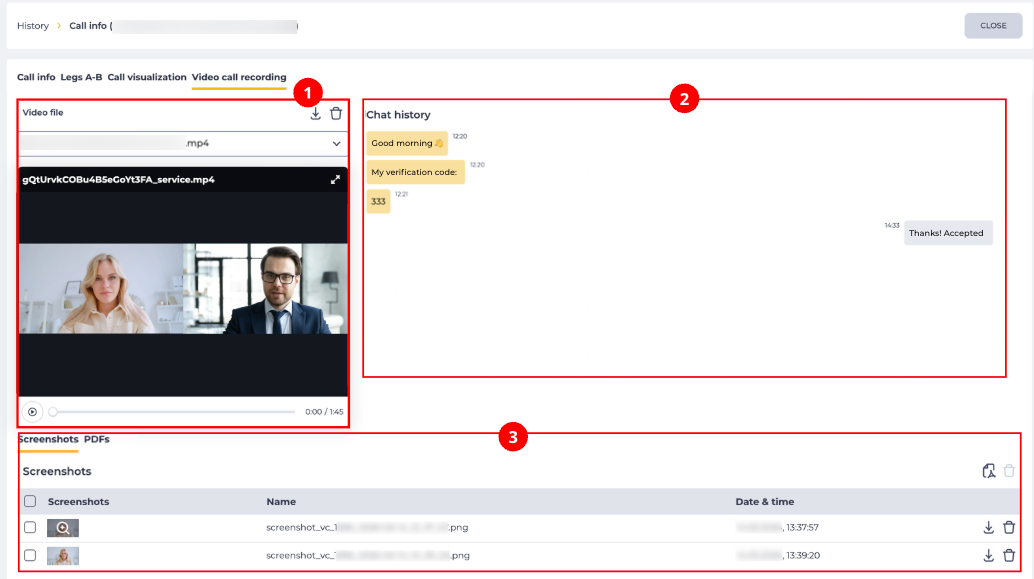
The Video Call Recording tab is designed for reviewing materials created during a video call.
It consists of the following elements (Fig. 1):
-
Video file (Fig. 1.(1));
-
Chat history (Fig. 1.(2));
-
Screenshots and PDFs tabs (Fig. 1.(3)).
1.1. Video File
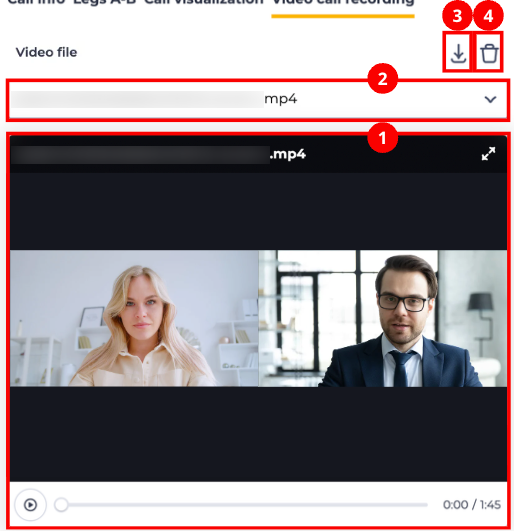
Consists of the following elements (Fig. 2):
-
Video call player (Fig. 2.(1));
-
Video file selection list (Fig. 2.(2));
-
Download tool (Fig. 2.(3));
-
Delete tool (Fig. 2.(4)).
1.1.1. Video Player
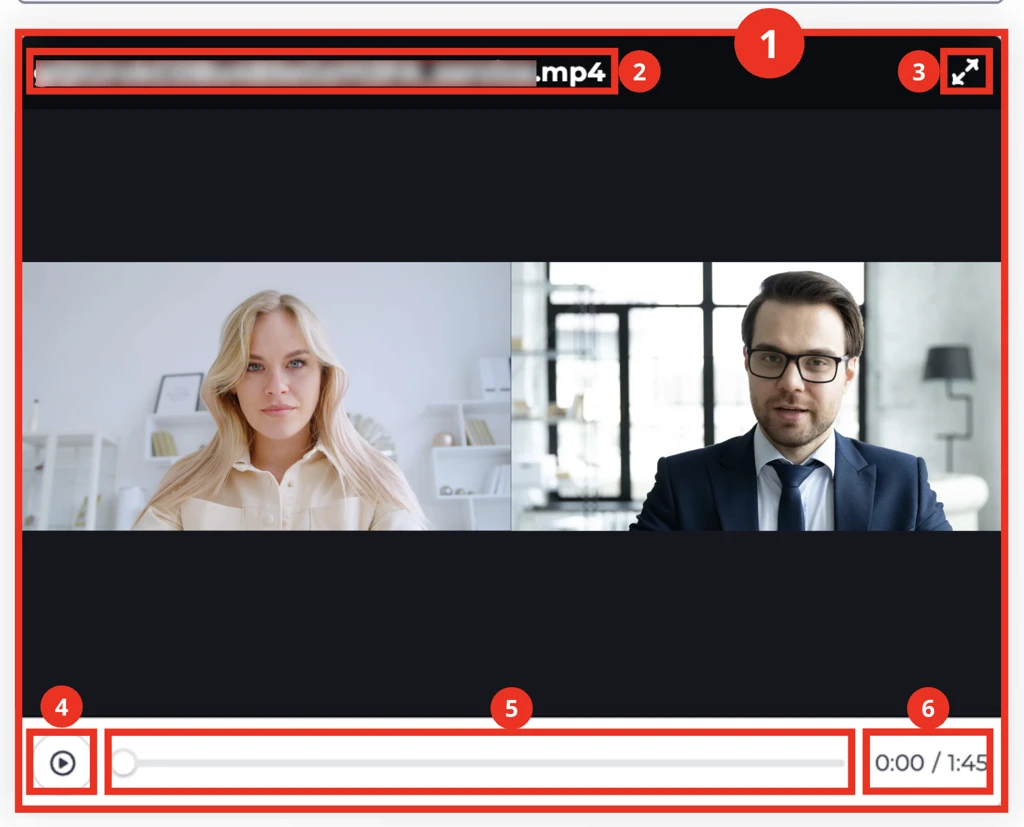
Consists of the following elements (Fig. 3.(1)):
-
Recording name (Fig. 3.(2));
-
Expand tool (Fig. 3.(3));
-
Play/Pause button (Fig. 3.(4));
-
Playback slider (Fig. 3.(5));
-
Video duration timer (Fig. 3.(6)).
1.2. Chat History
Displays messages sent during the video call.
Each message contains:
-
message text from the client and the agent;
-
time of sending.
1.3. Screenshots Tab
The tab is designed for viewing and managing screenshots captured during the call (Fig. 4).

Consists of the following elements:
-
Records registry (Fig. 4.(1));
-
PDF generation tool (Fig. 4.(2));
-
Bulk delete tool (Fig. 4.(3)).
1.3.1. Records Registry
Contains the following columns:
-
Checkbox;
-
Screenshot;
-
Name;
-
Date and time;
-
Download tool;
-
Delete tool.
1.3.1.1. Checkbox
Used to select one or more records.
1.3.1.2. Screenshot
Displays the image preview.
1.3.1.3. Name
Displays the file name.
1.3.1.4. Date and Time
Displays the date and time the screenshot was created.
1.3.1.5. Download Tool
Downloads the screenshot to the device.
1.3.1.6. Download Tool
Used to download one or more selected screenshots.
Becomes active after selecting records in the registry.
When clicked, the selected files are downloaded to the user's device.
1.3.1.7. Delete Tool
Used to remove an object with confirmation through a modal window. When hovering over the delete button ( 
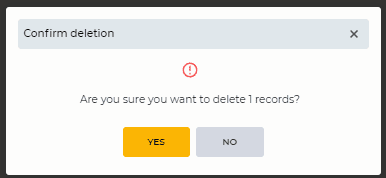
Fig. 5. Delete confirmation modal window
1.3.2. PDF Generation Tool
Clicking the icon generates a PDF file from the screenshots.
1.3.3. Bulk Delete Tool
Deletes the selected screenshots after confirmation.
1.4. PDFs Tab
The tab is designed for viewing PDF files generated from screenshots (Fig. 6).

Consists of the following elements:
-
Records registry (Fig. 6.(1));
-
Refresh button (Fig. 6.(2));
-
Bulk delete tool (Fig. 6.(3));
-
Pagination (Fig. 6.(4)).
1.4.1. Records Registry
Contains the following columns:
-
Checkbox;
-
PDF;
-
Name;
-
Status;
-
Created on;
-
Created by;
-
Download tool for the selected PDF file;
-
Delete tool for the selected PDF file.
1.4.1.1. Checkbox
Used to select one or more records.
Selecting the checkbox in the table header selects all records on the page.
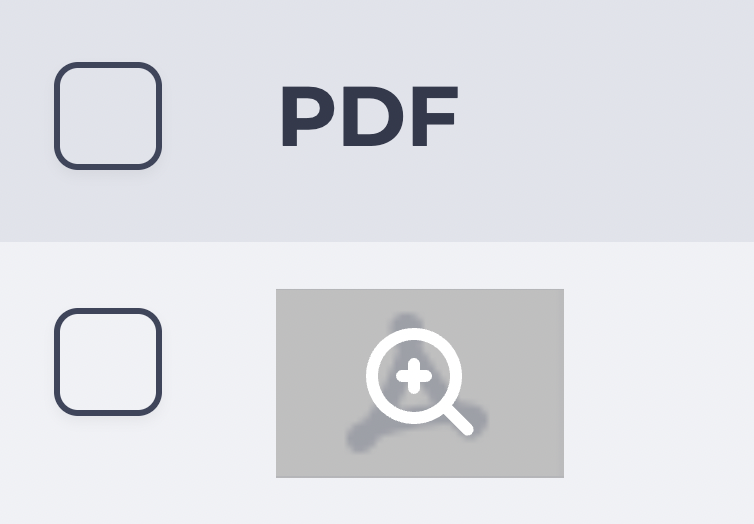
1.4.1.2. PDF
Displays the PDF file icon.
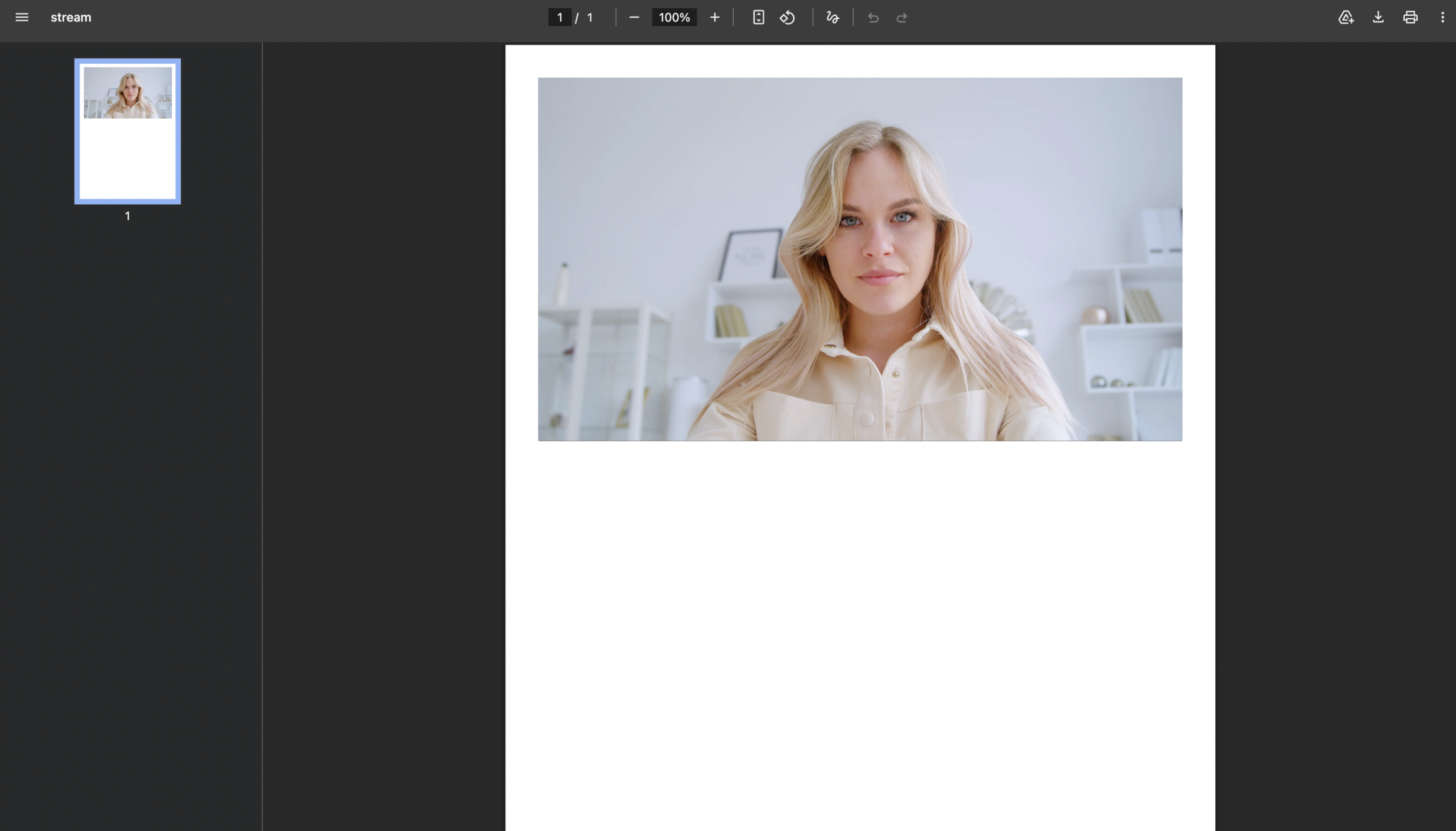
When hovering over the file preview, the view icon appears (Fig. 7).
Clicking the icon 
Each screenshot is displayed on a separate page in the PDF file.
1.4.1.3. Name
Displays the PDF file name.
1.4.1.4. Status
Displays the generation status of the PDF file.
Possible values:
-
Pending

-
Generating

-
Completed

-
Error

1.4.1.5. Created on
Displays the date and time the PDF file was created.
1.4.1.6. Created By
Displays the user who created the PDF file.
1.4.1.7. Download Tool for the Selected PDF File
Used to download one or more selected PDF files.
Becomes active after selecting records in the registry.
When clicked, the selected files are downloaded to the user's device.
1.4.1.8. Delete Tool
Used to remove an object with confirmation through a modal window. When hovering over the delete button (
Fig. 9. Delete confirmation modal window
1.4.2. Refresh button
Updating the register table is performed by clicking on the refresh button - 
1.4.3. Bulk Delete Tool for PDF Files
Used to delete one or more selected PDF files. Becomes active after selecting records in the registry.
When clicked, a delete confirmation dialog opens (Fig. 9).
After confirmation, the selected PDF file is permanently deleted.
1.4.4. Pagination
It consists of the Rows per page field, which indicates the number of entries (it is possible to set from 1 to 1000) per page, and forward and backward buttons for switching pages.