
1. Description
Contains links and all files that were shared within the case.
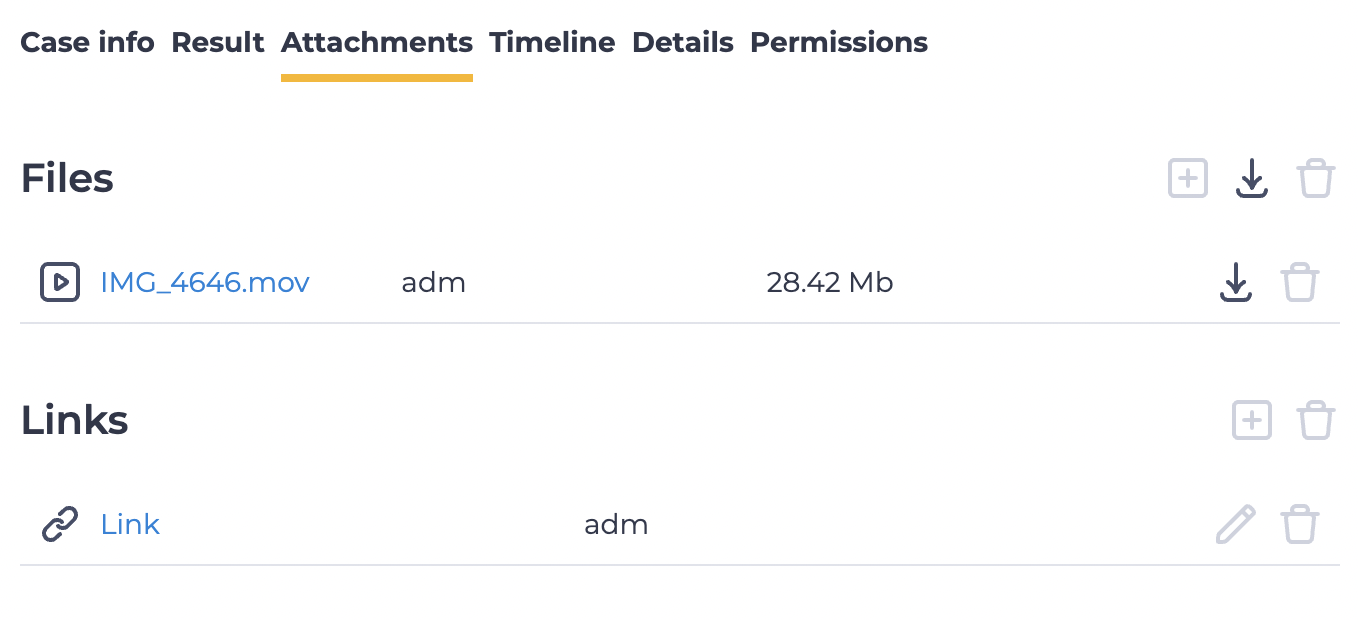
The tab consists of the “Files” and “Links” sections (Fig. 1).
1.1. Files
-


-

files.ziparchive containing all attachments is downloaded. -

1.1.1. Files automatically added from chat
If a chat is linked to the case, all files sent within that chat are automatically displayed in the “Files” section of the “Attachments” tab.
Features:
-
Automatically added files appear in the general list of attachments.
-
Such files cannot be deleted — the delete icon

-
The file list displays the sender’s name (operator, customer, or bot).
-
Automatic attachments are added without any action required from the operator.
This feature ensures that all files received in the chat are stored as part of the case.
1.2. Links
-

-