
1. Description
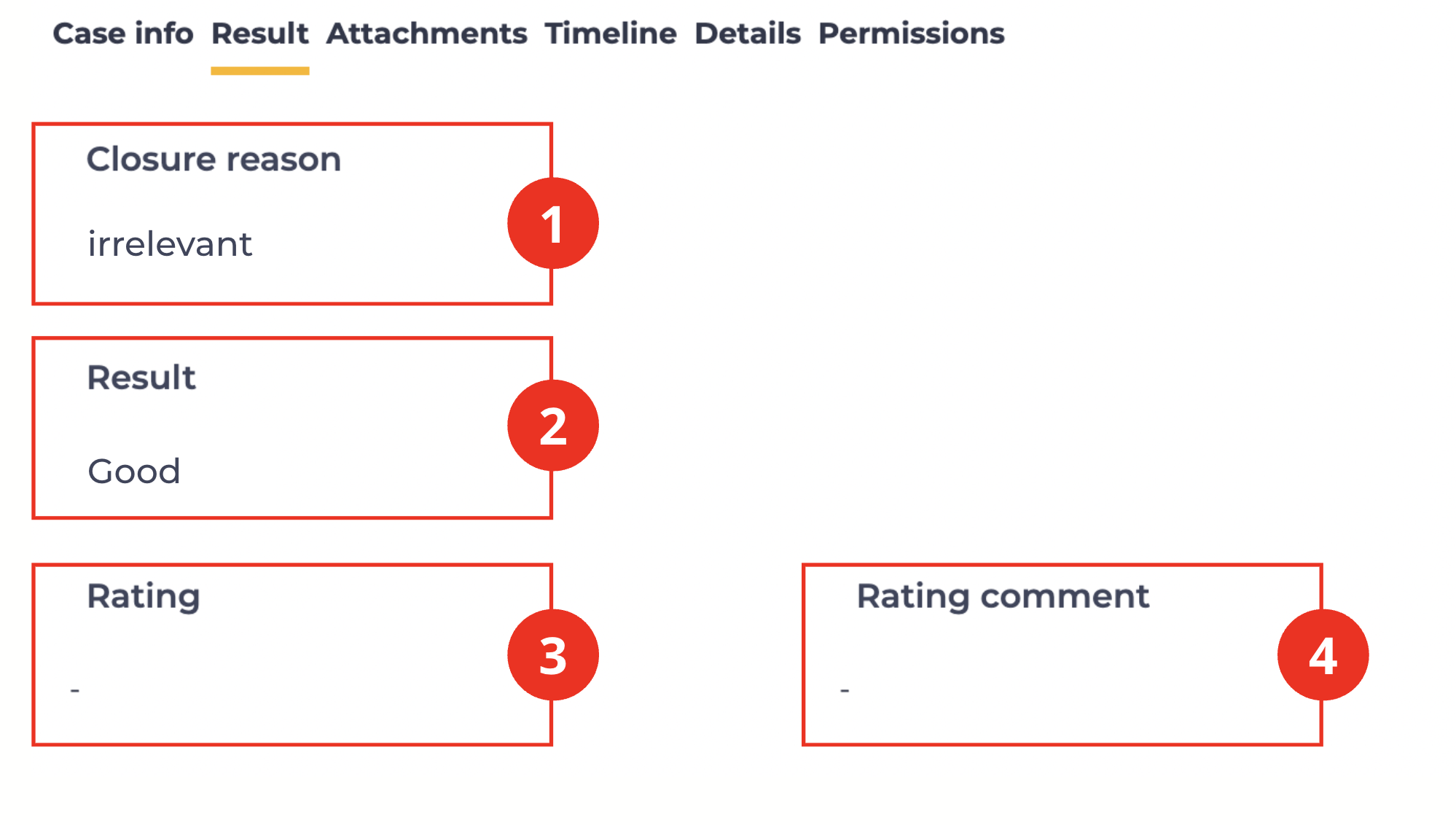
Displays information about the result of case processing and also allows viewing customer feedback (if available) (Fig. 1).
2. Navigation
To view the customer rating and comment, follow these steps:
-
Go to CRM → Cases.
-
Open the required case.
-
Go to the Result tab.
-
In the central section of the tab (Fig. 1), the following fields are displayed:
-
Reason — the reason for closing the case (Fig. 1.(1));
-
Result — a textual description of the result (Fig. 1.(2));
-
Rating — a numerical rating (Fig. 1.(3)), displayed depending on the system settings and data availability;
-
Rating comment — a text comment from the customer (if available) (Fig. 1.(4)).
-
3. Editing the tab
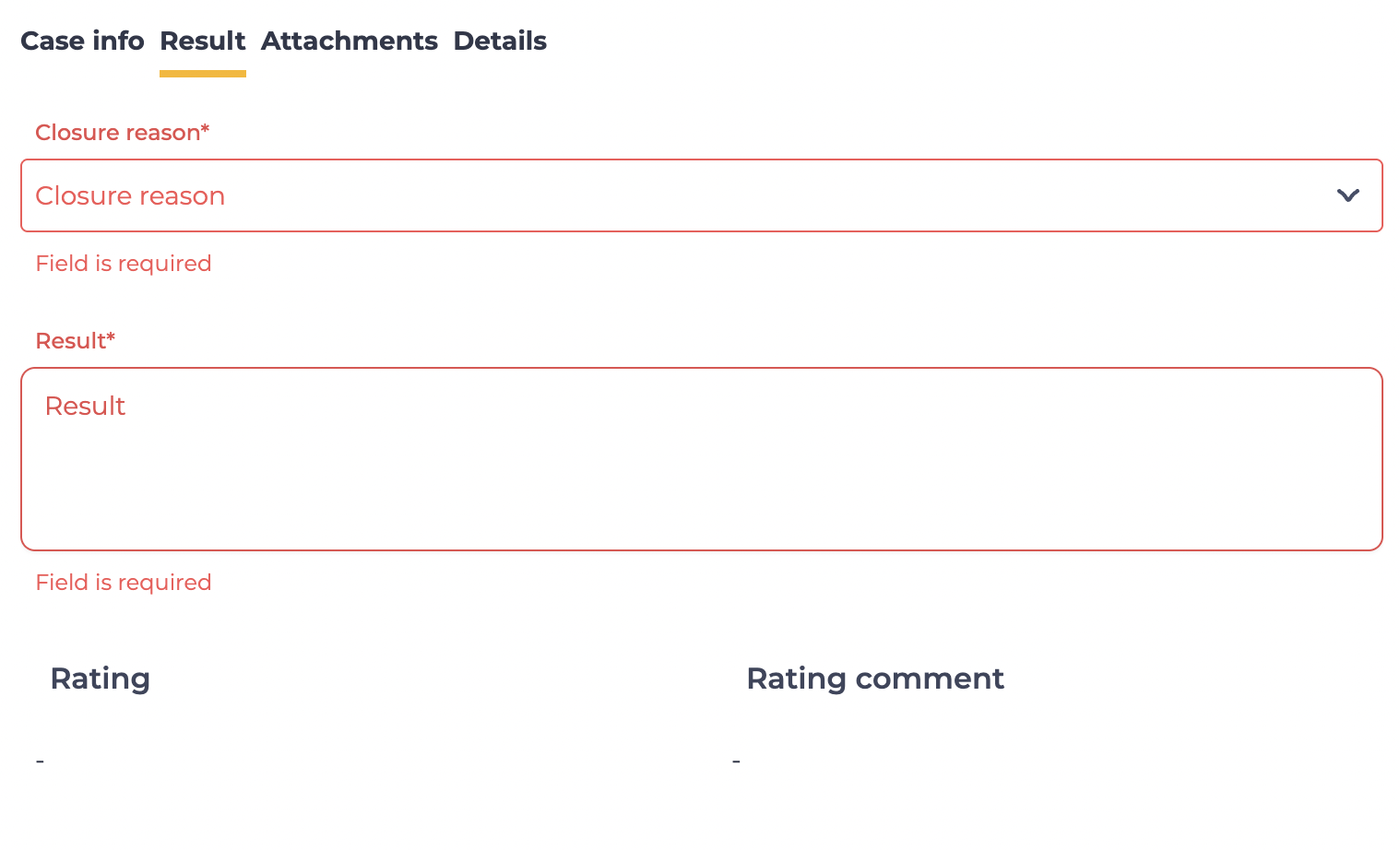
In edit mode (Fig. 2), the user can manually enter or modify data in the following fields, but only for cases in a final status:
-
Reason — the reason for closing the case;
-
Result — a textual description of the work performed or the outcome of the case.
If the case is in an initial or intermediate status, these fields are not available for editing.
4. Display specifics
-
The Reason and Result fields are available for editing during case processing.
-
The Rating and Rating comment fields are read-only — the user cannot modify them manually. The data in these fields is automatically filled by the system if the customer leaves feedback through a configured process (after a call or chat). If the customer does not leave a rating or a comment, only the field titles are displayed without values.