
1. Description
It is designed to set the calendar special time relative to a week.
The Special time tab is available if you have a WFM licence.
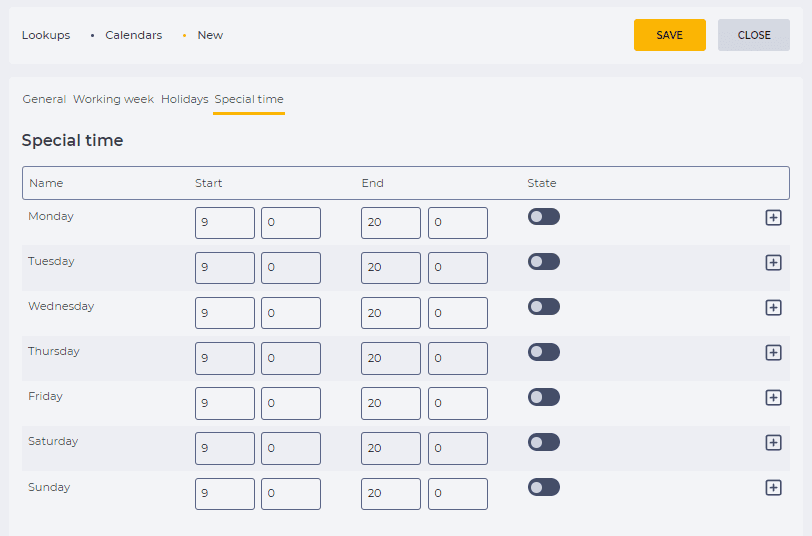
The table on the Special time tab consists of entries for each day of the week.
Consists of columns (Fig. 1):
-
Name;
-
Start;
-
End;
-
State;
-
Tools for action.
1.1. Name
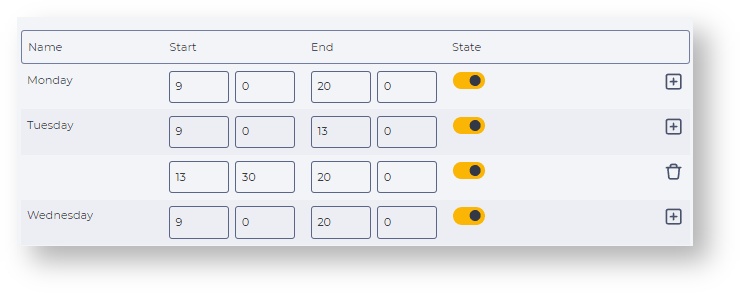
The name of the day of the week is displayed here. If the day is not shown, then the entry is relevant for the day indicated above (Fig.2).
1.2. Start
The Start column consists of two fields that indicate the interval's start time. In the first field, enter hours; in the second field, enter minutes.
1.3. End
The End column consists of two fields that indicate the interval's end time. In the first field, enter hours; in the second field, enter minutes.
1.4. State
The switch is responsible for enabling and disabling the special time in this time interval.


1.5. Tools for action
There are two tools:
-

-

1.5.1. Add tool
It appears for main records that have a day's name.
When you click on the add 
The added entry must have a time interval that does not include the time entered for the other entries for that day.
1.5.2. Removal tool
It is displayed for additional entries. The additional entries do not have a day's name (Fig. 2). Clicking the button deletes the entry.
2. Opportunities
2.1. Set calendar special hours by day
|
Goal |
Set the special time of the calendar by day: Mon-Fri from 10:00 to 21:00; Sat from 10:30 to 14:00 |
|---|---|
|
Preconditions |
|
|
Steps
|
|
|
Result |
Data saved. |
2.2. Set several time intervals for one day of the week
|
Goal |
Set special hours for the day shift (from 8:00 to 19:45) and night shift (from 20:00 to 7:45) on Monday |
|---|---|
|
Preconditions |
|
|
Steps
|
|
|
Result |
Data saved. |

2.3. Remove an additional timeslot
|
Goal |
Remove an additional timeslot |
|---|---|
|
Preconditions |
|
|
Steps
|
|
|
Result |
Data saved. |
