
1. Description
The tab displays all Cases in which the Contact acts as either the initiator or the assignee.
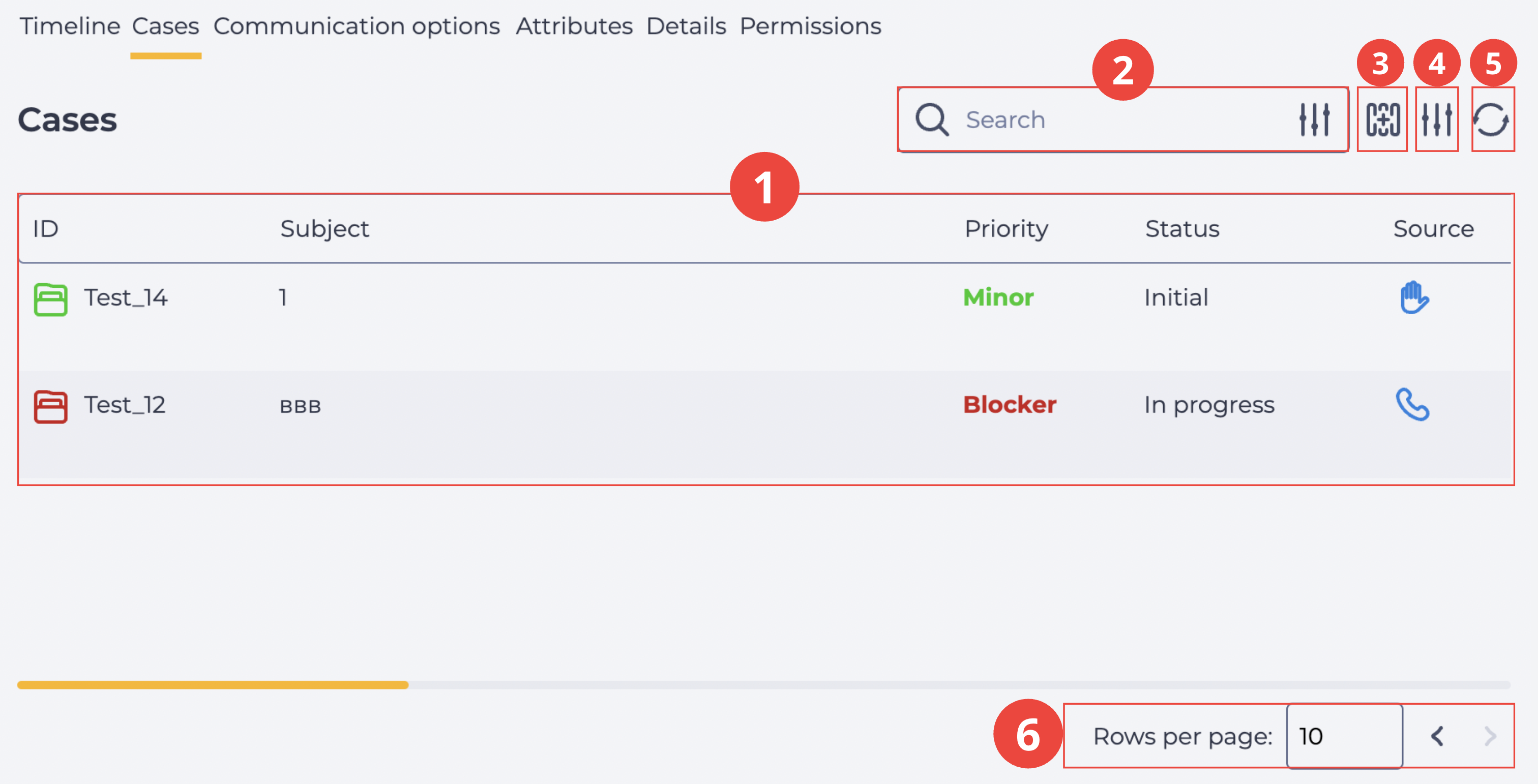
The tab contains (Fig. 1):
-
Records registry (Fig. 1.(1));
-
Search field (Fig. 1.(2));
-
Column selection tool (Fig. 1.(3));
-
Filter panel toggle (Fig. 1.(4));
-
Refresh tool (Fig. 1.(5));
-
Pagination (Fig. 1.(6)).
1.1. Records registry
The registry represents a list of records of existing objects in this section. Each record consists of a set of fields:
Basic (by default):
-
ID;
-
Subject;
-
Priority;
-
Status;
-
Created on;
-
Service;
-
Assignee group;
-
Assignee;
-
Resolution time.
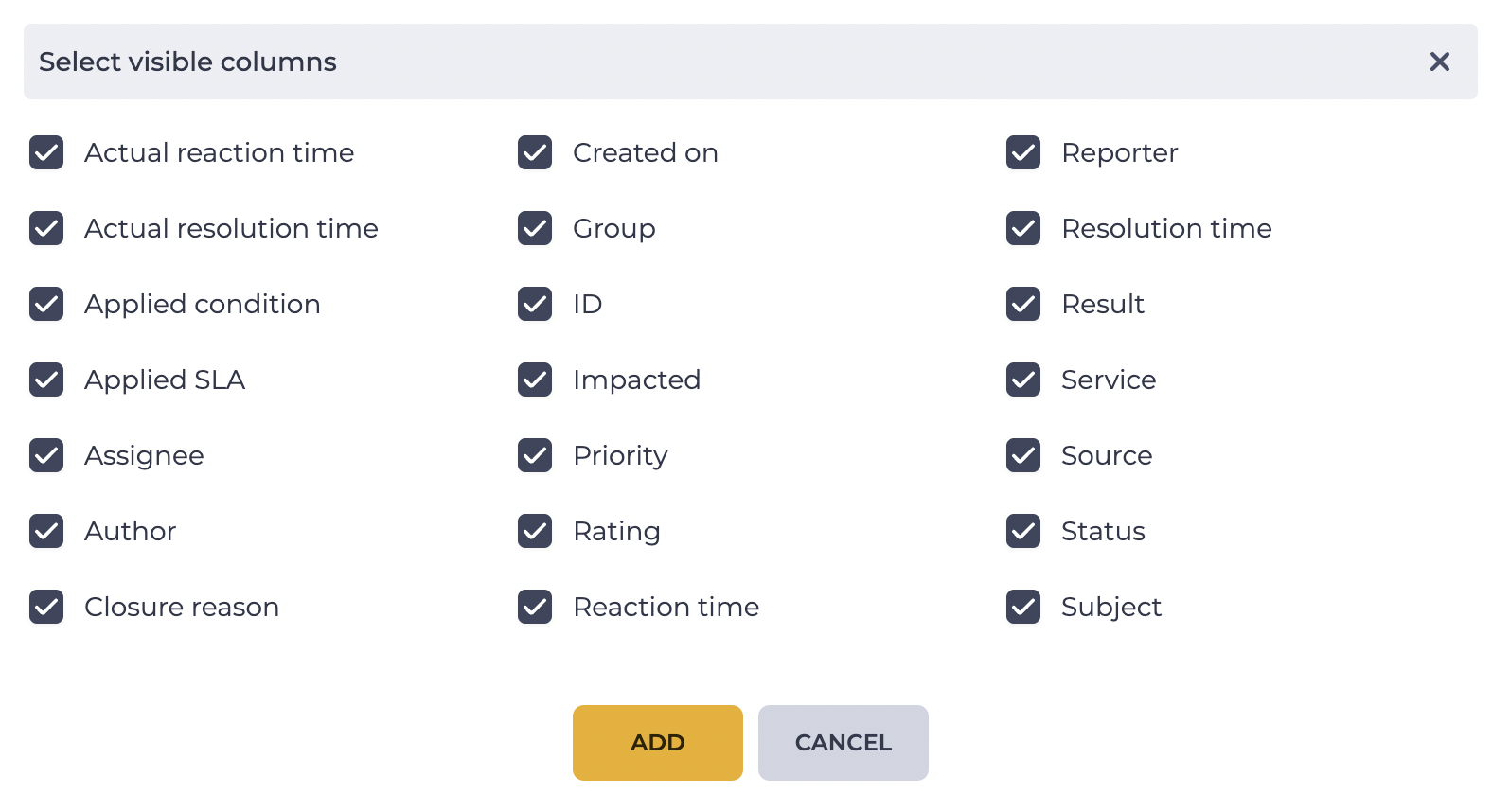
Additional (configured in the modal window by clicking the icon (Fig. 1.(3))):
-
Source;
-
Author;
-
Reporter;
-
Impacted;
-
Applied SLA;
-
Planned resolution time;
-
Actual resolution time;
-
Planned reaction time;
-
Actual reaction time;
-
Closure reason;
-
Result;
-
Rating.
1.1.1. ID
The Case identifier. It consists of a prefix and an ID specified in the Prefix field of the Service Catalogs directory to which the Case belongs. Example: FS_1.
Next to the ID, an icon is displayed, the color of which corresponds to the Case priority.
Clicking on ID opens the Case card in a new browser tab.
1.1.2. Subject
The subject of the Case.
Up to two lines of text are displayed in the registry. It is generated either by the agent or automatically by the system (for example, via API or Flow).
Clicking on Subject opens the Case card in a new browser tab.
1.1.3. Priority
The priority of the Case.
The text is highlighted in a color depending on the value configured in the Priorities directory.
1.1.4. Status
The current status of the Case.
It is set automatically by the system upon creation, but can also be changed by the User during Case processing.
1.1.5. Created on
The date and time when the Case was created in the system.
1.1.6. Service
The full path to the service from the Service Catalogs directory specified in the Case is displayed.
The path includes all levels — from the main catalog to the selected service.
1.1.7. Assignee group
The group of Contacts to which the Case is assigned.
1.1.8. Assignee
The User who is currently responsible for handling the Case.
1.1.9. Resolution time
The planned resolution time for the Case in accordance with the SLA.
1.1.10. Source
The type of source from which the Case was created.
Possible values:
-

-

-

-

-

-

1.1.11. Author
The Webitel User who created the Case.
1.1.12. Reporter
The requesting client. The Webitel Contact linked to the Case.
1.1.13. Impacted
The Webitel Contact that may be impacted by this Case. It can be used to link to a Contact who should be informed.
1.1.14. Applied SLA
The SLA rule that was applied to the Case according to the selected service, based on which the planned reaction and resolution times were calculated.
1.1.15. Planned reaction time
The planned time to react to the Case. The date and time are calculated automatically depending on the Case creation time, the applied SLA, and the condition (calendar and reaction time).
Example:
-
Reaction time in the SLA directory — 2 hours;
-
Creation date/time — 12:00, 25.04.2024;
Planned reaction time — 14:00, 25.04.2024.
1.1.16. Actual reaction time
The actual time taken to provide the first response to the Case.
This value is set automatically at the moment when the Case status is changed from the initial one to any other.
1.1.17. Planned resolution time
The planned completion time of the Case. The date and time are calculated automatically depending on the Case creation time, the applied SLA, and the condition (calendar and resolution time).
1.1.18. Actual resolution time
The time when the Case transitioned to its final status.
1.1.19. Closure reason
The reason for closing the Case. Selected after the request is moved to the final status. The value is chosen from the Closure reasons directory linked to the catalog.
1.1.20. Result
A textual description of the outcome or an explanation of the Case closure reason.
1.1.21. Rating
A rating from the client, which they left after the Case was closed.
1.2. Search field
The field is used to search for Cases by keywords.
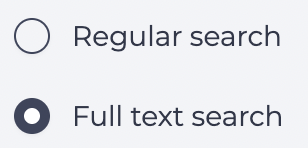
Clicking the filter icon 
-
Standard search — searches by the main Case parameters:
-
ID — Case identifier;
-
Subject — Case subject;
-
Reporter — applicant’s contact information (phone, messenger name, email, etc.).
-
-
Full-text search — searches within the content of specific text fields. It is an additional option and requires separate configuration. The search is performed only in the following fields:
-
Case description;
-
Internal comments;
-
Case closure result, resolution;
-
Rating comment.
-
1.3. Column selection tool
The icon 
1.4. Filter tool
The icon 
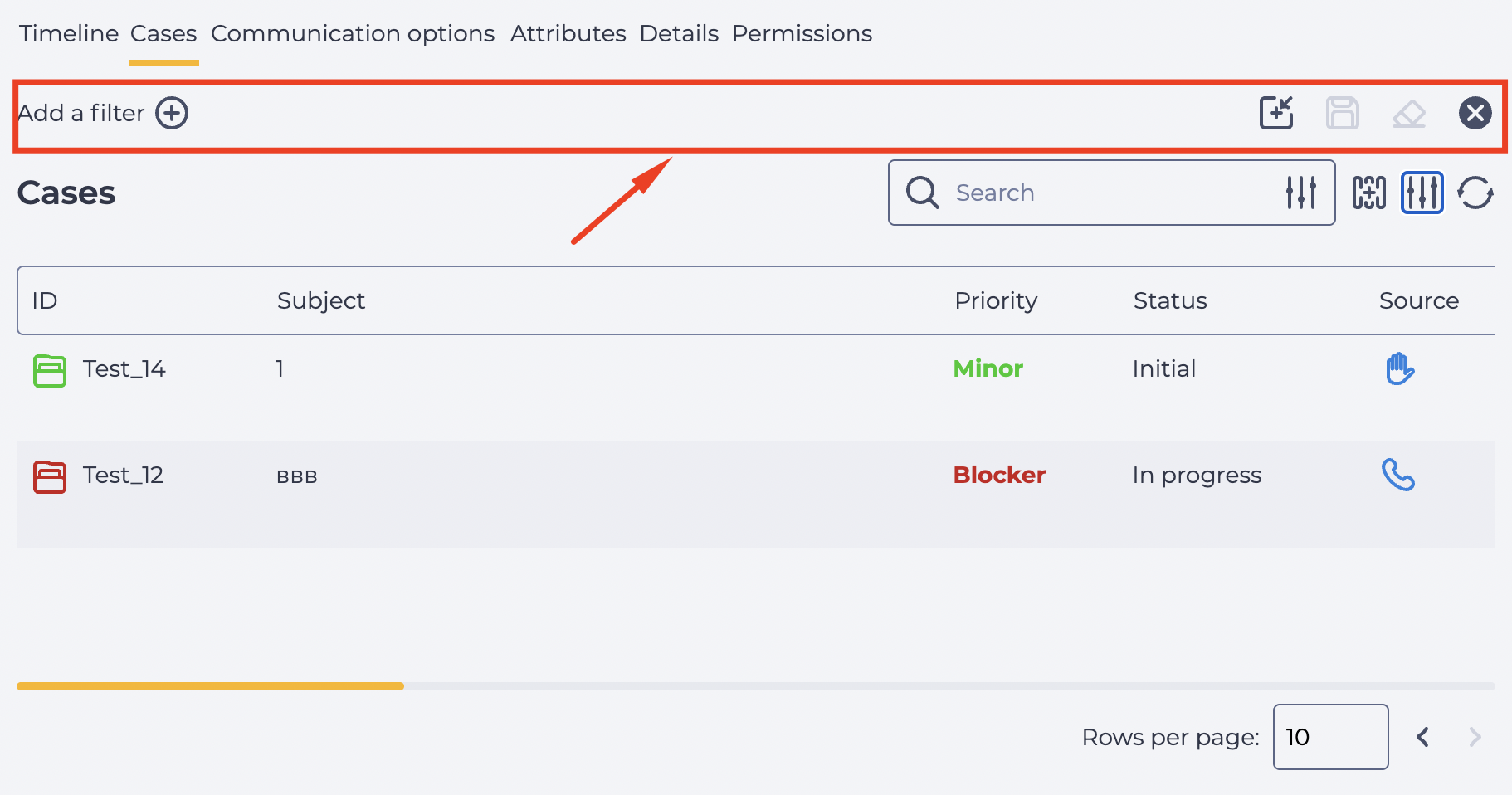
1.4.1. Filter block
The icon 
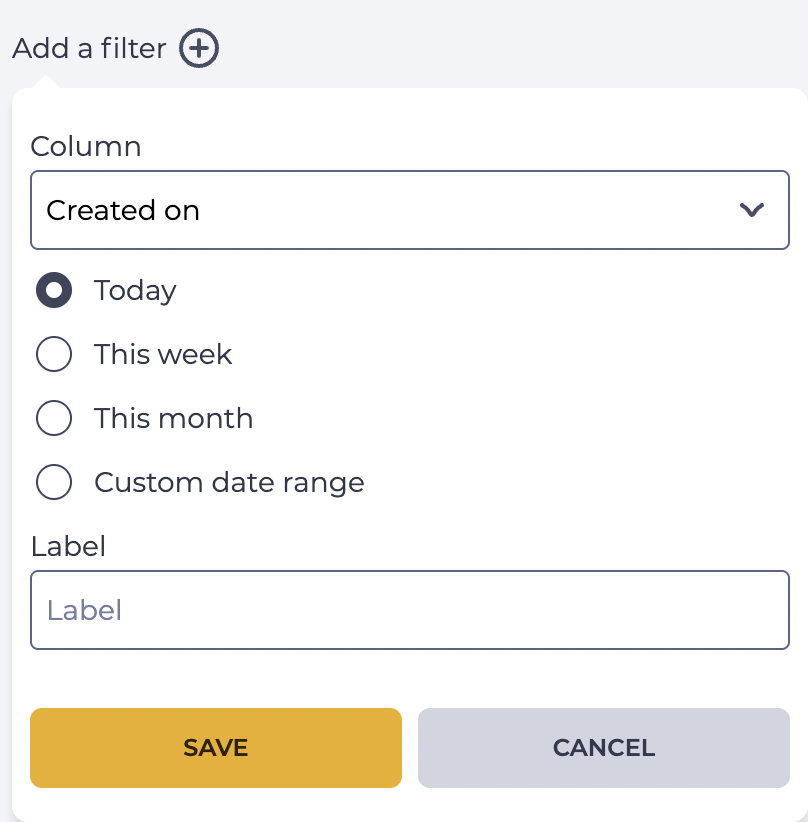
Buttons in the filtering interface:
-
Apply preset

-
Save preset

-
Reset filters

-
Close

1.5. Refresh tool
Updating the registry records table is performed by clicking the Refresh button — 
1.6. Pagination
It consists of the Rows per page field (Fig. 1.(6)), where the number of records per page is specified, and the forward 
