
If the current user's role does not have the "Control agent screen" permission, this page is not displayed.
1. Description
The tab is designed to view PDF files generated from the agent's screenshots.
It consists of the following parts:
-
Top bar (Fig. 1.(1));
-
Records registry (Fig. 1.(2));
-
Pagination (Fig. 1.(3)).
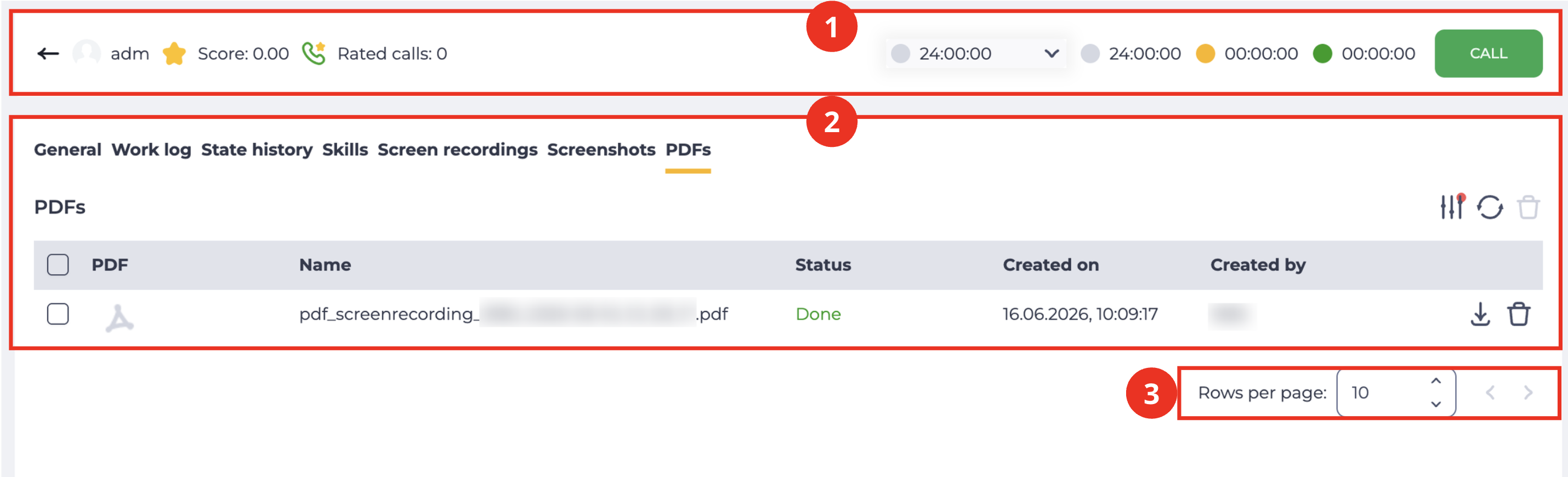
1.1. Top bar
The top bar contains the agent’s key indicators and control tools. For a detailed description of its elements and logic, refer to the dedicated documentation.
1.2. Records registry
Displays PDF files generated from the agent's screenshots.
It consists of the following parts:
-
Expand/collapse filter panel tool (Fig. 2.(1));
-
Refresh button (Fig. 2.(2));
-
Records removal tool (Fig. 2.(3));
-
Records registry table (Fig. 2.(4)).

1.2.1. Expand/collapse filter panel tool
Designed to expand and collapse the filter panel (Fig. 3).
1.2.1.1. Filter panel
Designed to filter the data displayed in the records registry.
It consists of the following parts:
-
Filter fields (Fig. 3.(1));
-
Reset filters button (Fig. 3.(2)).

1.2.1.1.1. Filter fields
Available fields:
-
From — sets the start time of the period for which PDF files should be displayed;
-
To — sets the end time of the period for which PDF files should be displayed.
1.2.1.1.2. Reset filters button
Represented as a button 
1.2.2. Refresh button
Updating the register table is performed by clicking on the refresh button - 
1.2.3. Delete tool
Used to remove an object with confirmation through a modal window. When hovering over the delete button ( 
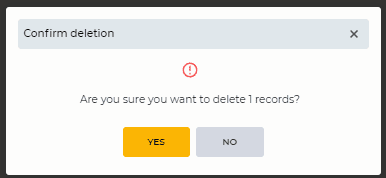
Fig. 4. “Confirm deletion” modal window
1.2.4. Records registry table
Contains the following columns:
-
Checkbox;
-
PDF;
-
Name;
-
Status;
-
Created;
-
Created by;
-
Download tool;
-
Delete tool.
If no PDF files are available, the following text is displayed: "Unfortunately, no record matches your criteria".
1.2.4.1. Checkbox
Used to select one or more entries. An additional removal tool appears next to the search field after selecting one or more entries. Information about the number of entries chosen for deletion appears when you hover over this tool. When you click on it, a modal confirmation window appears.
It contains the Yes, No, and close ( 
-
Clicking the Yes button deletes the entries.
-
Clicking the No button closes the modal window, and the entries are not deleted.
All records on the page will be selected if you select the checkbox in the header.
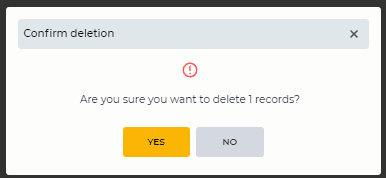
Fig. 5. "Confirm deletion" modal window
1.2.4.2. PDF
Displays the PDF file icon. When hovering over it, a view icon appears. Clicking it opens the file in a new browser tab. Each screenshot is displayed on a separate page in the file.
1.2.4.3. Name
Displays the name of the PDF file.
1.2.4.4. Status
Displays the generation status of the PDF file.
Possible values:
-
Pending

-
Generating

-
Completed

-
Error

1.2.4.5. Created
Displays the date and time the PDF file was created. Format: DD.MM.YYYY, hh:mm:ss.
1.2.4.6. Created by
Displays the user who initiated the file generation.
1.2.4.7. Download tool
Clicking downloads the corresponding PDF file to the device.
1.2.4.8. Delete tool
Clicking opens a confirmation modal window (Fig. 5). After confirmation, the file is permanently deleted from the registry.
1.3. Pagination
It consists of the Rows per page field, which indicates the number of entries (it is possible to set from 1 to 1000) per page, and forward and backward buttons for switching pages.