Webitel: Documentation

Add missed call to outgoing dialer

1. Description

Task of the flow:

Each incoming call, if it was not answered by the operator, should be included in the dialer's outgoing campaign.

1.1. Flow example

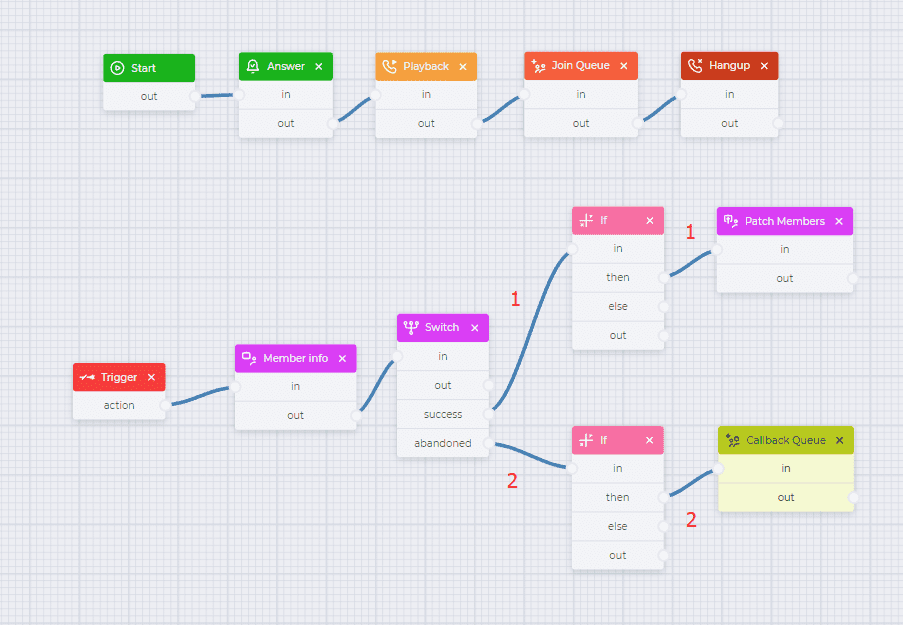
An example flow can be seen in Figure 1.
Add missed call to outgoing dialer.png

Fig. 1. Flow for adding a missed call to an outgoing dialer

For convenience, you can download the completed JSON file, which is attached below, and import it. 

Add missed call to outgoing dialer.json

1.1.1. Flow description

Component  

Block of component

 Component parameters

Description

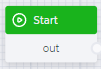
Start

image2024-2-29_18-14-18.png


Start component

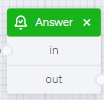
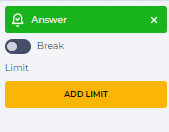
Answer

image2024-2-29_18-14-40.png
image2024-2-29_18-17-6.png

Connect subscriber to the system

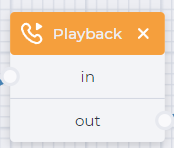
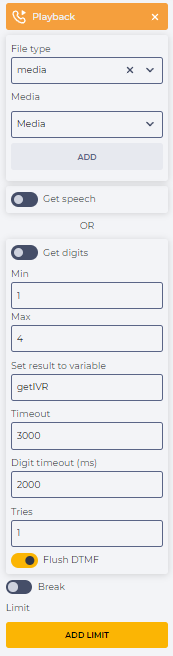
Playback

image2024-2-29_18-14-56.png
image2024-2-29_18-16-47.png

Play audio file at the start of a conversation. For example, with information that all operators are busy.

This requires:

  • select "media" in the "File type" field;

  • in the "Media" field that appears, select a file that will be played to the subscriber;

  • press the "Add" button.

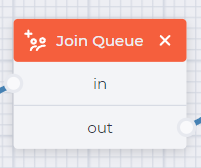
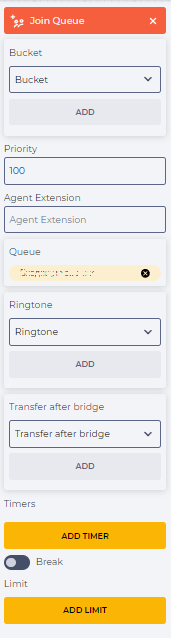
Join Queue

image2024-2-29_18-15-5.png
image2024-2-29_18-16-26.png

Redirect to a queue to wait for a connection to an operator.

This requires:

  • select the incoming queue in the "Queue" field.

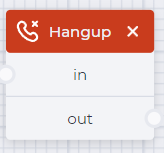
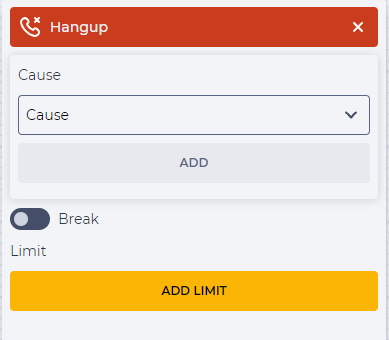
Hangup

image2024-2-29_18-15-34.png
image2024-2-29_18-15-53.png

End the call


Trigger

image2024-2-29_18-17-39.png
image2024-2-29_18-18-0.png

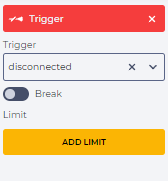
Trigger to execute the flow after the end of the call

Member info

image2024-2-29_18-18-25.png
image2024-2-29_18-18-54.png

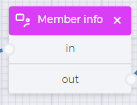
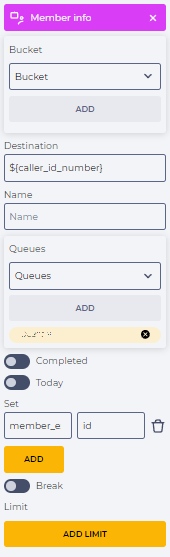
Designed to search for information on the subscriber.

This requires:

  • enter a variable in the "Destination" field - ${caller_id_number} ;

  • enter the queue for which the check is made in the "Queues" field. 

  • enter in the "Set" field  
    member_exists  - id

Switch

image2024-2-29_18-19-15.png
image2024-2-29_18-19-30.png

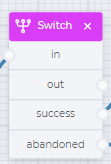
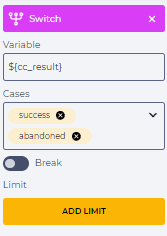
Branch the flow into options for a successful call (success) or missed (abandoned)

This requires:

  • enter in the "Variable" field  - ${cc_result}

  • enter "successful" and "abandoned" in the "Cases" field.

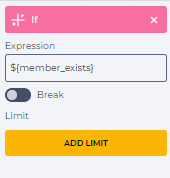
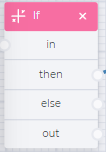
If

(branch 1)

image2024-2-29_18-19-48.png
image2024-2-29_18-20-13.png

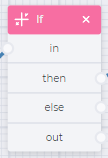
Check if the call was successful.

This requires:

  • enter in the "Expression" field - ${member_exists}

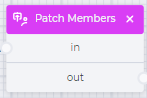
Patch Members

(branch 1)

image2024-2-29_18-20-30.png
image2024-2-29_18-20-51.png

Cancel the call for this subscriber.

This requires:

  • enter in the field "Destination" - ${caller_id_number}

  •  enter the queue for which the check is being made in the "Queues" field;

  • switch "Today" to the off position;

  • check the "Stop cause" checkbox and enter "success" in the same field in the "Patch member" element.

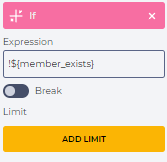
If

(branch 2)

image2024-2-29_18-21-13.png
image2024-2-29_18-21-31.png

Check if the subscriber is not in the queue.

This requires:

  •  enter in the field "Expression"  - !${member_exists} 

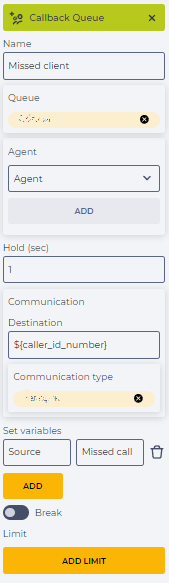
Callback Queue

(branch 2)

image2024-2-29_18-21-47.png
image2024-2-29_18-22-4.png

If the subscriber is not in the queue - add to the queue.

This requires:

  •  enter  the name of the subscriber in the "Name" field. In this example - Missed client;

  • select the queue to which you want to add the subscriber in the "Queue" field. In this example - Offline queue;

  • enter the amount of time after which you need to call back in the "Hold (sec)" field, ;

  • enter in the "Communication" element, in the "Destination" field ${caller_id_number}

  •  select the required type of communication in the "Communication type" field. In the example - "Mobile";

  • enter in the "Set variables" fields :

Source - Missed call from inbound queue