Webitel: Documentation

Request a call back from the queue

1. Description

Task of the flow:

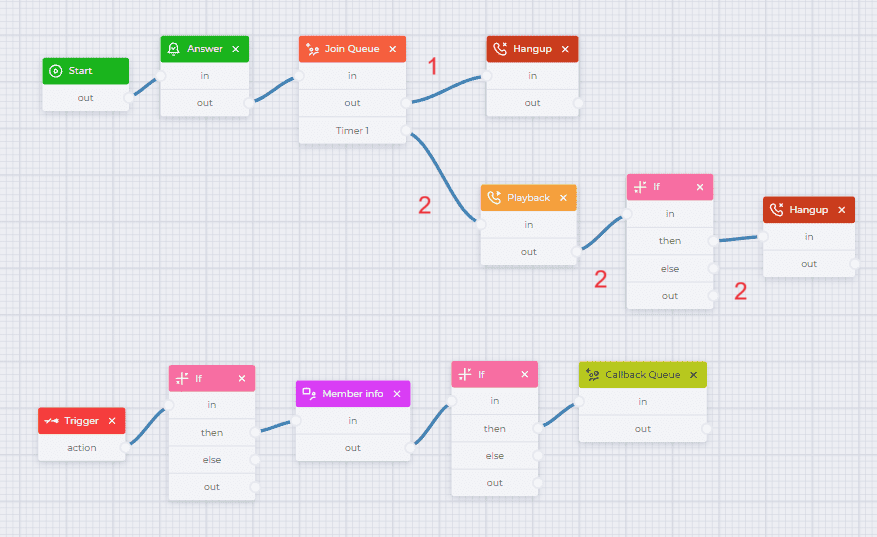
The subscriber is standing in queue. You need to invite him to press "1" to request a call back.

1.1. Flow example

An example flow can be seen in Figure 1.
Request a call back from the queue.png

Fig. 1. Flow of  request a call back from the queue

For convenience, you can download the completed JSON file, which is attached below, and import it. 

Request a call back from the queue-schema.json

1.1.1. Flow description

Component 

Block of component

 Component parameters

Description

Start

image2024-3-1_13-5-27.png


Start component

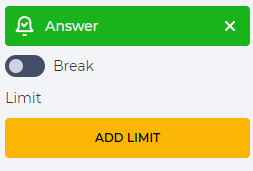
Answer

image2024-3-1_13-5-44.png

image2024-3-1_13-19-47.png

Connect subscriber to the system

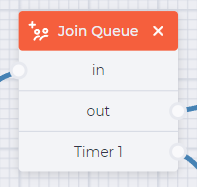
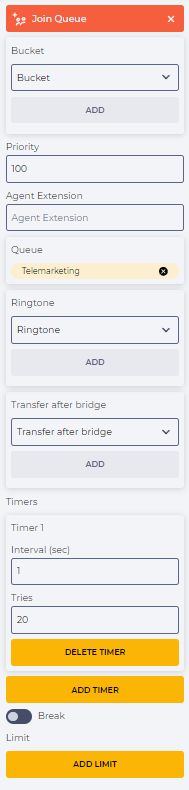
Join Queue

image2024-3-1_13-6-4.png

image2024-3-18_22-28-16.png

Redirect the subscriber to the "Telemarketing" queue.

Select the required queue in the "Queue" field.

Set a timer to play an offer to request a call back (Timer1):

  • press the "Add Timer" button;

  • in the "Interval (sec)" field, enter the time (in seconds). After this time, the record selected using the “Playback” component will be played;

  • enter the number of playback repetitions, in the "Tries" field.

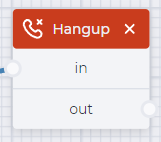
Hangup

(branch 1)

image2024-3-1_13-6-27.png

image2024-3-1_13-20-59.png

End the call

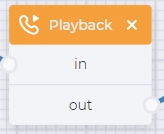
Playback

(branch 2)

image2024-3-1_13-6-43.png

image2024-3-1_13-21-26.png

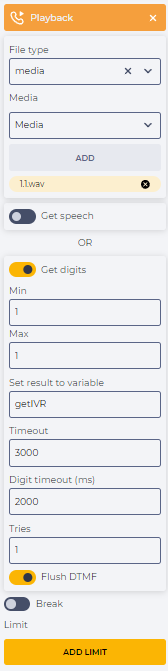
Play a file with a suggestion to press "1" to order a  call back.

This requires:

  • select "media" in the "File type" field;

  • select the file that contains the offer to order a back call by pressing "1" in the "Media" field that appears, 

  • switch "Get digits" to the active position;

  •  value - 1 in the fields "Min" and "Max";

  • Set the name of the variable in which the value selected by the subscriber will be written  in the "Set result to variable" field . In this example, getIVR

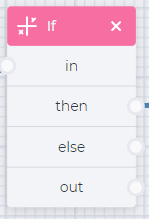
If

(branch 2)

image2024-3-1_13-7-0.png

image2024-3-1_13-22-11.png

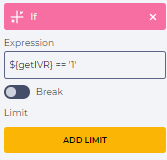
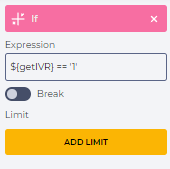
Check if the subscriber pressed the number 1.

This requires:

  • enter the condition in the "Expression" field:

${getIVR} == '1'


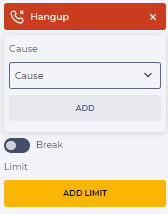
Hangup

(branch 2)

image2024-3-1_13-6-27.png

image2024-3-1_13-22-51.png

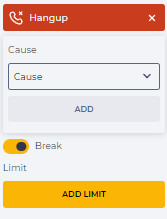
End the call

It is necessary to move the "Break" switch to the active position.


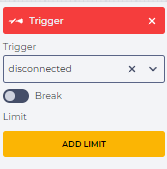
Trigger

image2024-3-1_13-7-27.png

image2024-3-1_13-23-16.png

Trigger to execute the flow after the end of the call

If

image2024-3-1_13-8-34.png

image2024-3-1_13-24-15.png

Check if the subscriber pressed the number 1.

This requires:

  • enter the condition in the "Expression" field:

${getIVR} == '1'

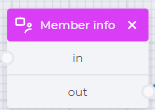
Member info

image2024-3-1_13-8-50.png

image2024-3-18_22-33-40.png

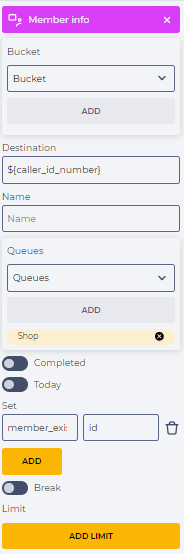
Search for information on the subscriber.

This requires:

  • Enter the subscriber's number in the "Destination" field. In the example, it is taken from the variable - ${caller_id_number} ;

  • select the queue in the "Queues" field in which the scan will be performed;

  • enter in the "Set" element:

 member_exists - id

If

image2024-3-1_13-8-34.png

image2024-3-1_13-25-12.png

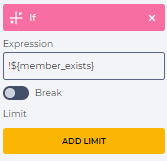
Check if this subscriber has a callback issued earlier.

This requires:

  • enter the condition in the "Expression" field:

!${member_exists}

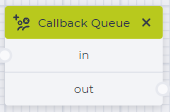
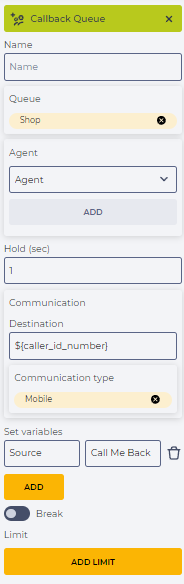
Callback Queue

image2024-3-1_13-9-11.png

image2024-3-18_22-39-38.png

Create a call back.

This requires:

  • select the queue from which the call back  will be made in the "Queue" field,

  • in the "Hold (sec)" field, enter the number of seconds after which you want to call back;

  •  enter the subscriber's number in the "Destination" field. In the example it is passed to the "${caller_id_number}" variable

  • select the type of communication in the field "Communication type" . In the example, "Mobile" is selected;

  • enter the next data in the "Set variables" element to display to the operator information that the subscriber has left a request for a call back :

Source - Call Me Back