Webitel: Documentation

Route an incoming call to the responsible agent in Creatio

1. Description

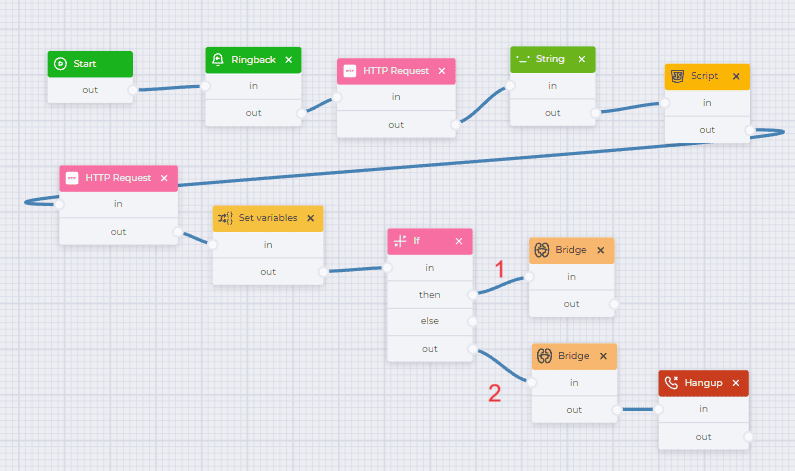
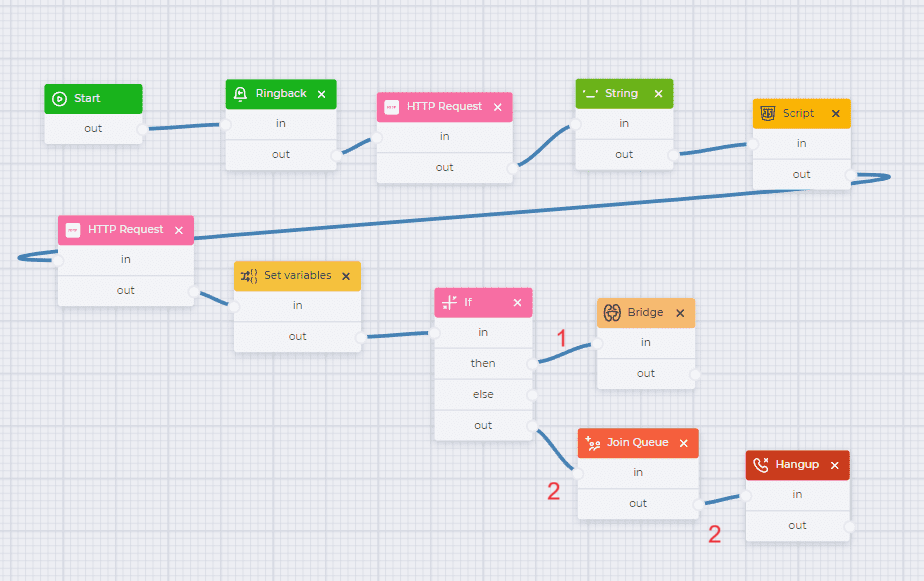
The task of the flow:

 Get the extension of the responsible agent in Creatio on an incoming call,

 Route the call to the responsible agent (for 10 seconds). 
If there is no answer, redirect the call to the default number or the queue.

1.1. Route to the extension

An example flow can be seen in Figure 1.
Route an incoming call to the responsible agent in Creatio.png

Fig. 1. Flow to route an incoming call to the responsible agent in Creatio

For convenience, download the completed json file, which is attached below, and import it. 

Route an incoming call to the responsible agent in Creatio-schema.json

1.1.1 Flow description

Component

Block of component

 Component parameters

Description

Start

Снимок экрана 2024-02-28 142236.png


Start component

Ringback

image2024-2-29_10-24-22.png

image2024-2-29_10-24-41.png

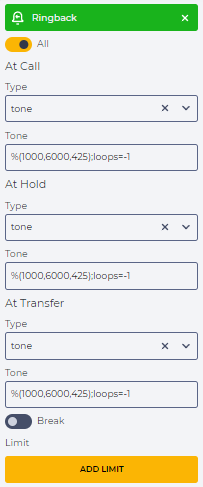
Set the beeps.

Selected tone - %(1000,6000,425);loops=-1

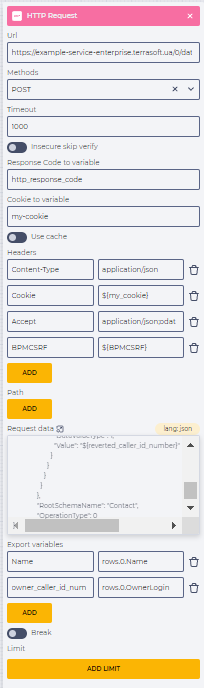
HTTP Request

image2024-2-29_10-25-2.png

image2024-2-29_10-25-22.png

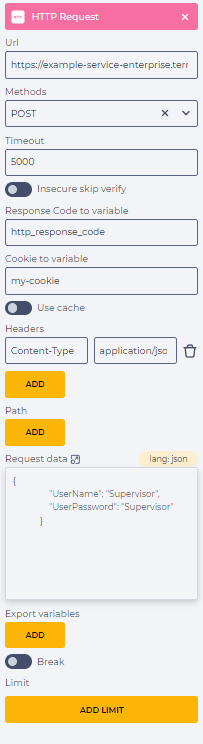
Execute an HTTP REST request for authorization.

This requires:

It is necessary to replace the link with a link to your site;

  • in the "Methods" field, select the "POST" method;

  • in the "Cookie to variable" field, enter the name of the variable - "my_cookie", in which cookies from the service response will be saved;

  • in the "Request data" field, enter the username and password. As an example:

{
                "UserName": "Supervisor",
                "UserPassword": "Supervisor"
            }

String

image2024-2-29_10-25-56.png

image2024-2-29_17-6-8.png

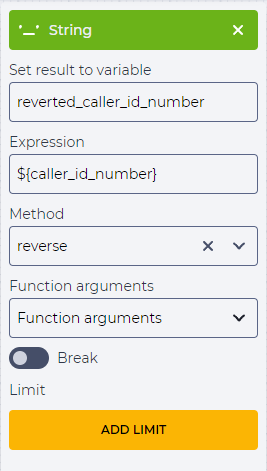
Bring the number to the form by which the search will be performed in Creatio, which means, to revert the number.
This requires:

  • in the "Set result to variable" field, enter the name of the variable in which the result will be written. For example: reverted_caller_id_number;

  • in the "Expression" field, enter a variable in which the id number of the subscriber is indicated - ${caller_id_number};

  • in the "Method" field, select the "reverse" method.

Script

image2024-2-29_10-26-42.png

image2024-2-29_10-26-22.png

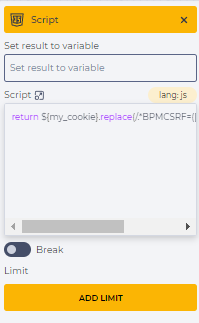
Truncate the Creatio BPMCSRF token from the received cookies into the "BPMCSRF" variable to authorize the following requests.

This requires:

  • in the field "Set result to variable" enter the name of the variable to which the code value is passed - BPMCSRF;

  • in the field "Script" enter the code -

return ${my_cookie}.replace(/.*BPMCSRF=([-._A-Za-z0-9/]{22});.*/, '$1')

HTTP Request

image2024-2-29_10-27-14.png

image2024-2-29_17-19-14.png

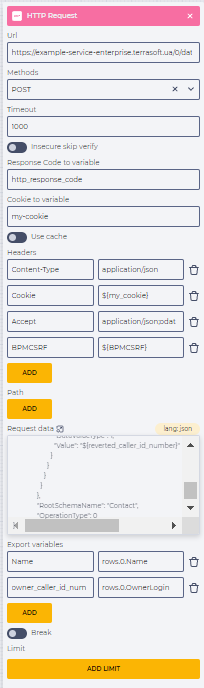
Search by the subscriber number for the responsible agent in Creatio (Fig. 2) and get the exstension of this agent (Fig. 3).

This requires:

It is necessary to replace the link with a link to your site;

  • in the "Methods" field, select the "POST" method;

  • in the "Headers" element, according to the requirements of the server, add:

Cookie - ${my_cookie}

Accept - application/json;odata=verbose

BPMCSRF - ${BPMCSRF}

  • in the "Request data" field enter the search code:

{
              "QueryType": 0,
              "Columns": {
                "Items": {
                  "Name": {
                    "OrderDirection": 0,
                    "OrderPosition": 0,
                    "Caption": null,
                    "Expression": {
                      "ExpressionType": 0,
                      "ColumnPath": "Name"
                    }
                  },
                  "AccountName": {
                    "OrderDirection": 0,
                    "OrderPosition": 0,
                    "Caption": null,
                    "Expression": {
                      "ExpressionType": 0,
                      "ColumnPath": "[Account:Id:Account].Name"
                    }
                  },
                  "OwnerLogin": {
                    "OrderDirection": 0,
                    "OrderPosition": 0,
                    "Caption": null,
                    "Expression": {
                      "ExpressionType": 0,
                      "ColumnPath": "[WebitelUserData:WtelContact:Owner].Extension"
                    }
                  },
                  "OwnerId": {
                    "OrderDirection": 0,
                    "OrderPosition": 0,
                    "Caption": null,
                    "Expression": {
                      "ExpressionType": 0,
                      "ColumnPath": "Owner.Id"
                    }
                  }
                }
              },
              "AllColumns": false,
              "IsDistinct": false,
              "RowCount": 1,
              "Filters": {
                "FilterType": 6,
                "ComparisonType": 0,
                "LogicalOperation": 0,
                "IsNull": true,
                "IsEnabled": true,
                "IsNot": false,
                "Items": {
                  "FilterByPhone": {
                    "FilterType": 1,
                    "ComparisonType": 9,
                    "LogicalOperation": 0,
                    "IsNull": true,
                    "IsEnabled": true,
                    "IsNot": false,
                    "LeftExpression": {
                      "ExpressionType": 0,
                      "ColumnPath": "[ContactCommunication:Contact].SearchNumber"
                    },
                    "RightExpression": {
                      "ExpressionType": 2,
                      "ColumnPath": null,
                      "Parameter": {
                        "DataValueType": 1,
                        "Value": "${reverted_caller_id_number}"
                      }
                    }
                  }
                }
              },
              "RootSchemaName": "Contact",
              "OperationType": 0
}

  • in the "Export Variables" element add:

Name - rows.0.Name

owner_caller_id_number - rows.0.OwnerLogin

Set variables

image2024-2-29_10-29-15.png

image2024-2-29_10-29-31.png

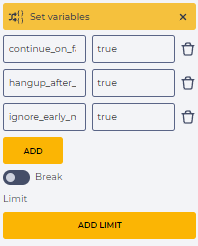
Assign variables to be used later.

Add:

  • hangup_after_bridge - true 

  • continue_on_fail - true

  • ignore_early_media - true 


If

image2024-2-29_10-35-0.png

image2024-2-29_10-42-14.png

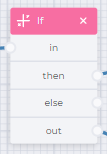
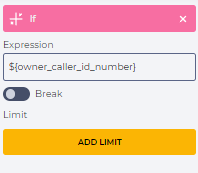
Check if the "owner_caller_id_number" variable has a value.

By the number of the caller, you can find out if there is a responsible agent in Creatio

Bridge

(branch 1)

image2024-2-29_10-42-33.png

image2024-2-29_10-43-2.png

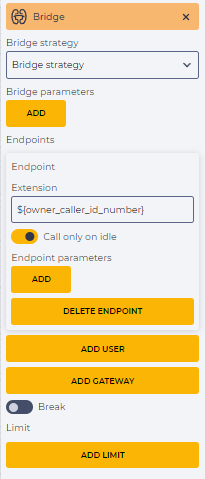
Connect to the responsible agent in Creatio.

This requires:

  • the "Bridge strategy" field is left empty;

  • in the "Endpoints" element, click the "Add user" button and in the "Extension" field enter the ${owner_caller_id_number} variable

Bridge

(branch 2)

image2024-2-29_10-42-33.png

image2024-2-29_10-43-21.png

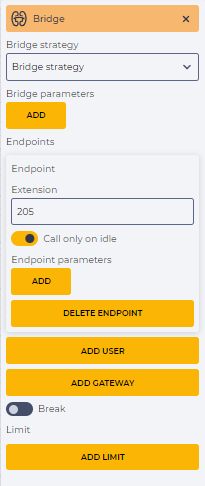
Route a call to a default number.

This requires:

  • the "Bridge strategy" field is left empty;

  • in the "Endpoints" element, click the "Add user" button and in the "Extension" field enter the default number, for exemple, 205

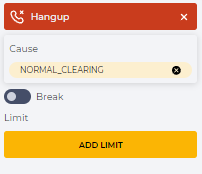
Hangup

(branch 2)

image2024-2-29_10-43-46.png

image2024-2-29_10-44-1.png

End the call

1.2. Redirect to the queue

An example flow can be seen in Figure 2.
Flow to route an incoming call to the responsible agent in Creatio with the possibility of redirect to the queue.png

Fig. 2. Flow to route an incoming call to the responsible agent in Creatio with the possibility of redirect to the queue

For convenience, download the completed json file, which is attached below, and import it. 

Route an incoming call to the responsible agent in Creatio-schema.json

1.2.1.Flow description

Component

Block of component

 Component parameters

Description

Start

Снимок экрана 2024-02-28 142236.png


Start component

Ringback

image2024-2-29_10-24-22.png

image2024-2-29_10-24-41.png

Set the beeps.

Selected tone - %(1000,6000,425);loops=-1

HTTP Request

image2024-2-29_10-25-2.png

image2024-2-29_10-25-22.png

Execute an HTTP REST request for authorization.

This requires:

It is necessary to replace the link with a link to your site;

  • in the "Methods" field, select the "POST" method;

  • in the "Cookie to variable" field, enter the name of the variable - "my_cookie", in which cookies from the service response will be saved;

  • in the "Request data" field, enter the username and password. As an example:

{
                "UserName": "Supervisor",
                "UserPassword": "Supervisor"
            }

String

image2024-2-29_10-25-56.png

image2024-2-29_17-6-8.png

Bring the number to the form by which the search will be performed in Creatio, which means, to revert the number.
This requires:

  • in the "Set result to variable" field, enter the name of the variable in which the result will be written. For example: reverted_caller_id_number;

  • in the "Expression" field, enter a variable in which the id number of the subscriber is indicated - ${caller_id_number};

  • in the "Method" field, select the "reverse" method.

Script

image2024-2-29_10-26-42.png

image2024-2-29_10-26-22.png

Truncate the Creatio BPMCSRF token from the received cookies into the "BPMCSRF" variable to authorize the following requests.

This requires:

  • in the field "Set result to variable" enter the name of the variable to which the code value is passed - BPMCSRF;

  • in the field "Script" enter the code -

return ${my_cookie}.replace(/.*BPMCSRF=([-._A-Za-z0-9/]{22});.*/, '$1')


HTTP Request

image2024-2-29_10-27-14.png

image2024-2-29_17-18-49.png

Search by the subscriber number for the responsible agent in Creatio (Fig. 2) and get the extension of this agent (Fig. 3).

This requires:

It is necessary to replace the link with a link to your site;

  • in the "Methods" field, select the "POST" method;

  • in the "Headers" element, according to the requirements of the server, add:

Cookie - ${my_cookie}

Accept - application/json;odata=verbose

BPMCSRF - ${BPMCSRF}

  • in the "Request data" field enter the search code:

{
              "QueryType": 0,
              "Columns": {
                "Items": {
                  "Name": {
                    "OrderDirection": 0,
                    "OrderPosition": 0,
                    "Caption": null,
                    "Expression": {
                      "ExpressionType": 0,
                      "ColumnPath": "Name"
                    }
                  },
                  "AccountName": {
                    "OrderDirection": 0,
                    "OrderPosition": 0,
                    "Caption": null,
                    "Expression": {
                      "ExpressionType": 0,
                      "ColumnPath": "[Account:Id:Account].Name"
                    }
                  },
                  "OwnerLogin": {
                    "OrderDirection": 0,
                    "OrderPosition": 0,
                    "Caption": null,
                    "Expression": {
                      "ExpressionType": 0,
                      "ColumnPath": "[WebitelUserData:WtelContact:Owner].Extension"
                    }
                  },
                  "OwnerId": {
                    "OrderDirection": 0,
                    "OrderPosition": 0,
                    "Caption": null,
                    "Expression": {
                      "ExpressionType": 0,
                      "ColumnPath": "Owner.Id"
                    }
                  }
                }
              },
              "AllColumns": false,
              "IsDistinct": false,
              "RowCount": 1,
              "Filters": {
                "FilterType": 6,
                "ComparisonType": 0,
                "LogicalOperation": 0,
                "IsNull": true,
                "IsEnabled": true,
                "IsNot": false,
                "Items": {
                  "FilterByPhone": {
                    "FilterType": 1,
                    "ComparisonType": 9,
                    "LogicalOperation": 0,
                    "IsNull": true,
                    "IsEnabled": true,
                    "IsNot": false,
                    "LeftExpression": {
                      "ExpressionType": 0,
                      "ColumnPath": "[ContactCommunication:Contact].SearchNumber"
                    },
                    "RightExpression": {
                      "ExpressionType": 2,
                      "ColumnPath": null,
                      "Parameter": {
                        "DataValueType": 1,
                        "Value": "${reverted_caller_id_number}"
                      }
                    }
                  }
                }
              },
              "RootSchemaName": "Contact",
              "OperationType": 0
}

  • in the "Export Variables" element add:

Name - rows.0.Name

owner_caller_id_number - rows.0.OwnerLogin

Set variables

image2024-2-29_10-29-15.png

image2024-2-29_10-29-31.png

Assign variables to be used later.

Add:

  • continue_on_fail - true

  • hangup_after_bridge - true 

  • ignore_early_media - true 

A list of possible options can be found here.

If

image2024-2-29_10-35-0.png

image2024-2-29_10-42-14.png

Check if the "owner_caller_id_number" variable has a value.

By the number of the caller, you can find out if there is a responsible person in Creatio.

In the "Expression" field enter the ${owner_caller_id_number} 


Bridge

(branch 1)

image2024-2-29_10-42-33.png

image2024-2-29_10-43-2.png

Connect to the responsible agent in Creatio.

This requires:

  • the "Bridge strategy" field is left empty;

  • in the "Endpoints" element, click the "Add user" button and in the "Extension" field enter the ${owner_caller_id_number} variable

Join Queue

(branch 2)

image2024-3-19_0-26-57.png

image2024-3-19_0-26-36.png

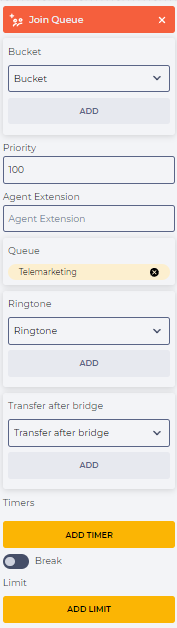
Redirect a call to the "Telemarketing" queue.

In the "Queue" field, select the "Telemarketing".

Hangup

image2024-2-29_10-43-46.png

image2024-2-29_10-44-1.png

End the call