1. Description
Task of the flow:
After the call is accepted by the subscriber, play him a greeting file with a suggestion to select a number to continue the conversation. Depending on the choice, redirect to an operator, or queue, who is competent on the selected matter.
1.1. Flow example
An example flow can be seen in Figure 1.
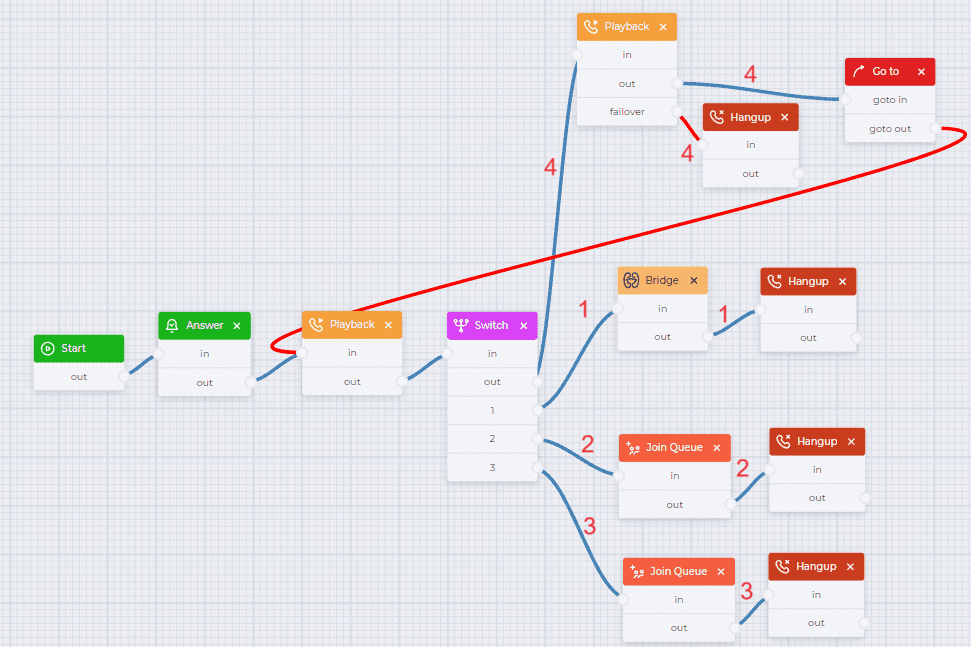
Fig. 1. The flow of a simple IVR menu
For convenience, you can download the completed json file, which is attached below, and import it.
1.1.1. Flow description
|
Component |
Block of component |
Component parameters |
Description |
|---|---|---|---|
|
Start |
|
|
Start component |
|
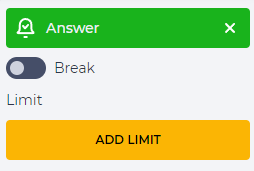
Answer |
|
|
Connect subscriber to the system |
|
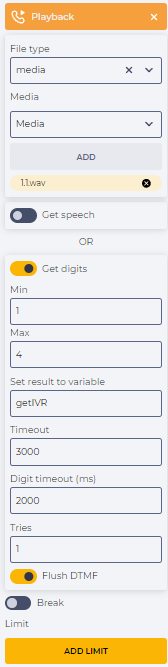
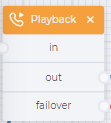
Playback |
|
|
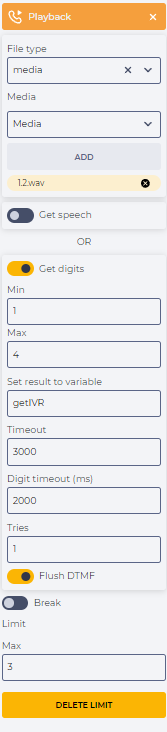
Play audio file at the start of a conversation. This requires:
|
|
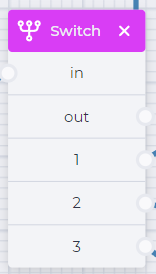
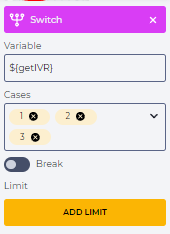
Switch |
|
|
Branch to multiple options. This requires:
|
|
Bridge (branch 1) |
|
|
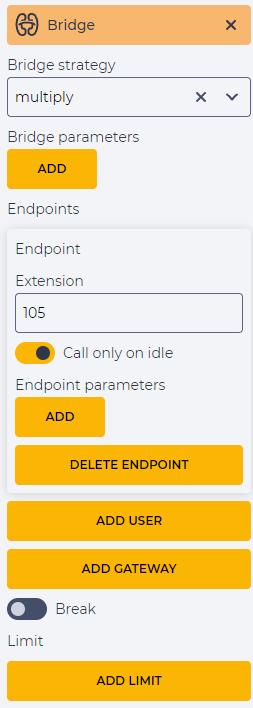
Branch 1 is executed when the subscriber has pressed 1. Connect to the number specified in the "Extension" field - 105. |
|
Hangup (branch 1) |
|
|
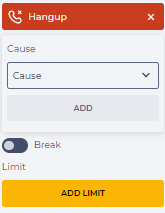
End the call |
|
Join Queue (branch 2)
|
|
|
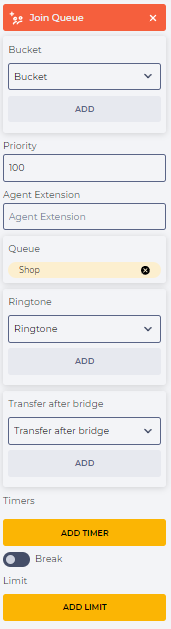
Branch 2 is executed when the subscriber has pressed 2. Redirect the subscriber to the "Shop" queue. Select the desired queue in the "Queue" field and click the "Add" button. |
|
Hangup (branch 2) |
|
|
End the call |
|
Join Queue (branch 3)
|
|
|
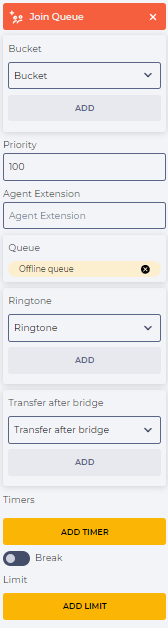
Branch 3 is executed when the subscriber has pressed 3. Redirect the subscriber to the "Offline queue" queue. Select the desired queue in the "Queue" field and click the "Add" button. |
|
Hangup (branch 3) |
|
|
End the call |
|
Playback (branch 4) |
|
|
Branch 4 is executed when the subscriber has not made a choice within the time specified in the previous "Playback" component ("Timeout" field). Play a file, for example, "make your choice". This requires:
|
|
Go to (branch 4) |
|
|
Optional transition to the "Playback" component |
|
"Hangup (branch 4) |
|
|
End the call |