
1. Description
This section defines the conditions based on which a static contact group and/or contact will be assigned to a case.
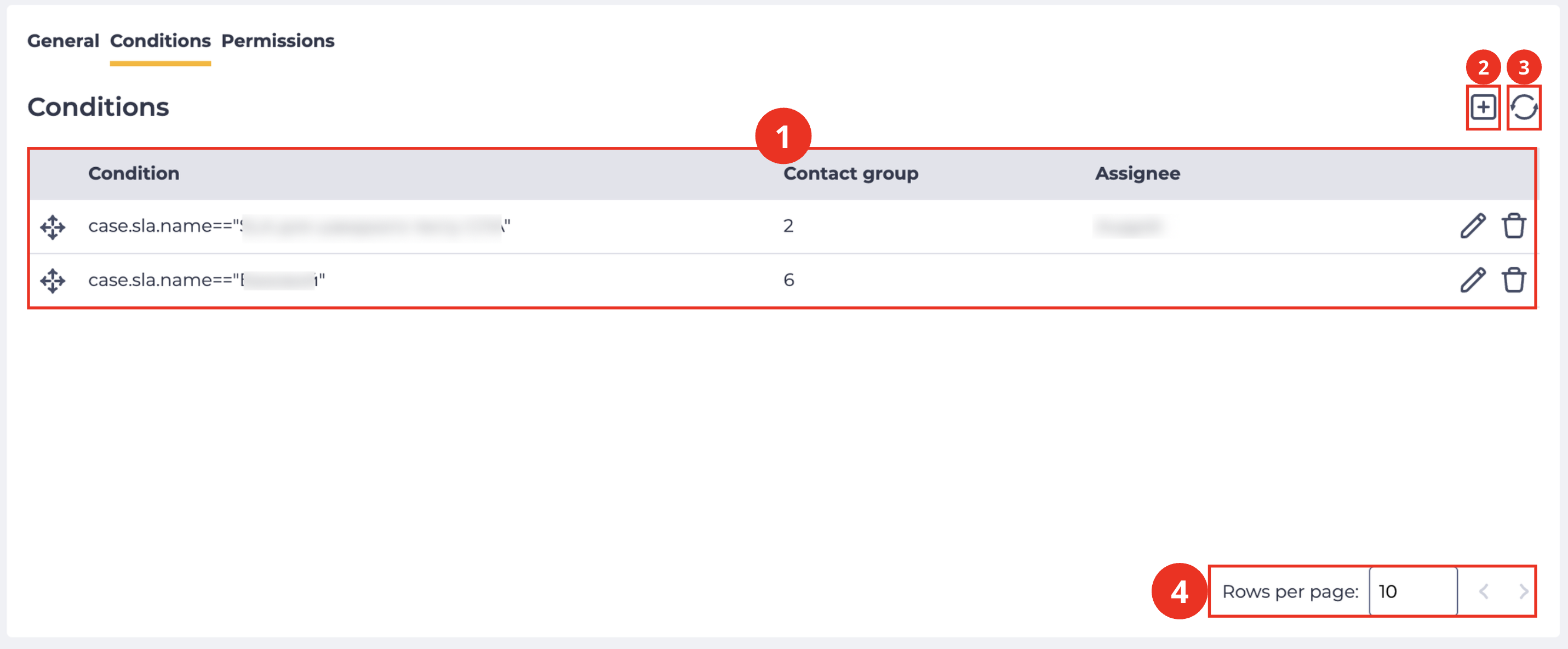
The section includes the following elements:
-
Records registry (Fig. 1.(1));
-
Add tool (Fig. 1.(2));
-
Refresh registry list tool (Fig. 1.(3));
-
Pagination (Fig. 1.(4)).
1.1. Records registry
The registry is a list of records of existing objects in this section. Each record consists of the following fields:
-
Checkbox;
-
Condition column;
-
Contact group column;
-
Assignee column;
-
Move tool;
-
Edit tool;
-
Removal tool.
1.1.1. Checkbox
Used to select one or more records.
If the checkbox in the header is selected, all records on the page are selected.
1.1.2. Condition column
This column displays conditions.
1.1.3. Contact group column
This column displays contact groups.
1.1.4. Assignee column
This column displays the assignee.
1.1.5. Move tool
Clicking and holding the icon 
1.1.6. Edit tool
When hovering over the button, a tooltip with the tool name is displayed. After clicking the button
1.1.7. Removal tool
Used to remove an object with confirmation through a modal window. When hovering over the delete button ( 
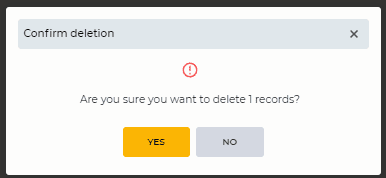
Fig. 2. Deletion confirmation modal window
1.2. Add tool
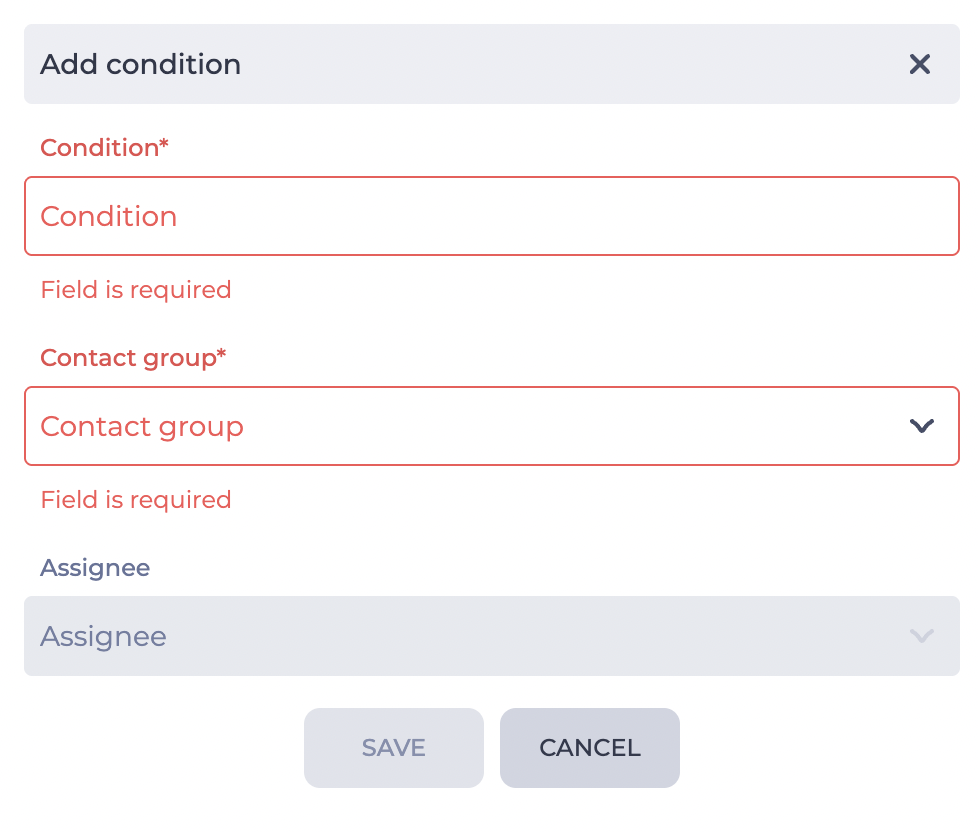
To add a new condition, click the add button –
-
Condition field;
-
Contact group field;
-
Assignee field;
-
Save button;
-
Cancel button.
1.2.1. Condition field
This is a required field. It is used to enter a query in query language format, which allows checking the value of a specific field in a case or related objects. An example of the format:
Case.Location.Name = "Lviv_10",
where:
-
Case— the case object; -
Location— the Location field of the case; -
Lviv_10— the field value based on which the selected static group is assigned to the case.
1.2.2. Contact group field
A field for selecting a contact group.
1.2.3. Assignee field
A field for selecting an assignee. This field is optional. It becomes active after selecting a contact group.
1.2.4. Save button
Clicking the Save button adds the condition.
1.2.5. Cancel button
Clicking the Cancel button discards the condition.
1.3. Refresh registry list tool
Updating the register table is performed by clicking on the refresh button - 
1.4. Pagination
It consists of the Rows per page field, which indicates the number of entries (it is possible to set from 1 to 1000) per page, and forward and backward buttons for switching pages.
2. Opportunities
2.1. Add a condition
|
Goal |
Add a condition |
|---|---|
|
Preconditions |
|
|
Scenario |
|
|
Result |
The modal window is closed. The data is saved. The record is added to the registry. |

2.2. Delete a condition
|
Goal |
Delete a condition |
|---|---|
|
Preconditions |
|
|
Scenario |
|
|
Result |
The modal window is closed. The record is deleted. |

2.3. Modify condition parameters
|
Goal |
Modify condition parameters |
|---|---|
|
Preconditions |
|
|
Scenario |
|
|
Result |
The data is saved. |