
1. Description
The functionality allows you to restrict the display of Service Catalogs in the CRM → Cases section or when working with catalogs in the post-processing form in Workspace, depending on the team and skills specified in the catalog settings.
Thus, agents see only those catalogs that are available to them according to their team and skills defined in the catalog settings.
2. How to configure access
-
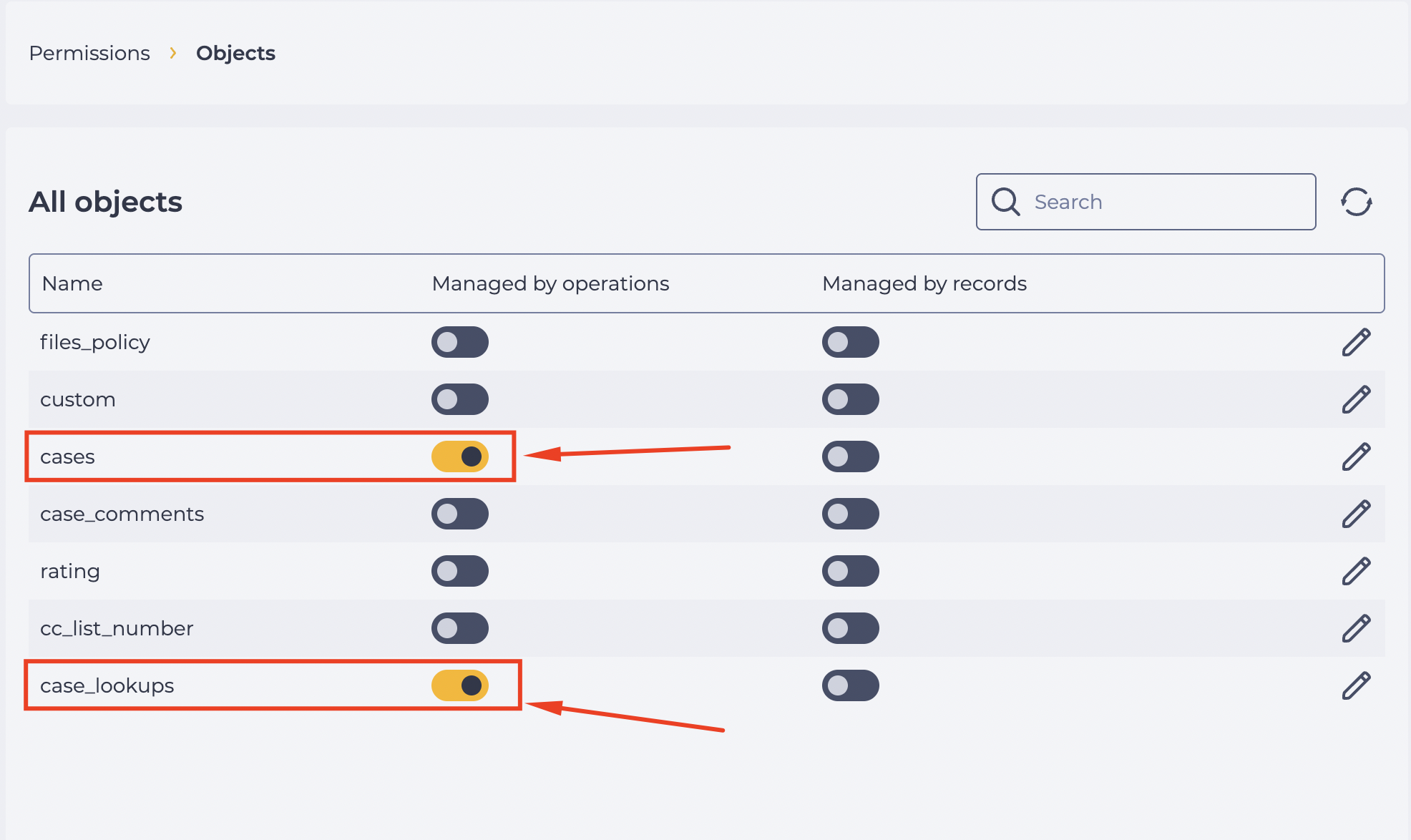
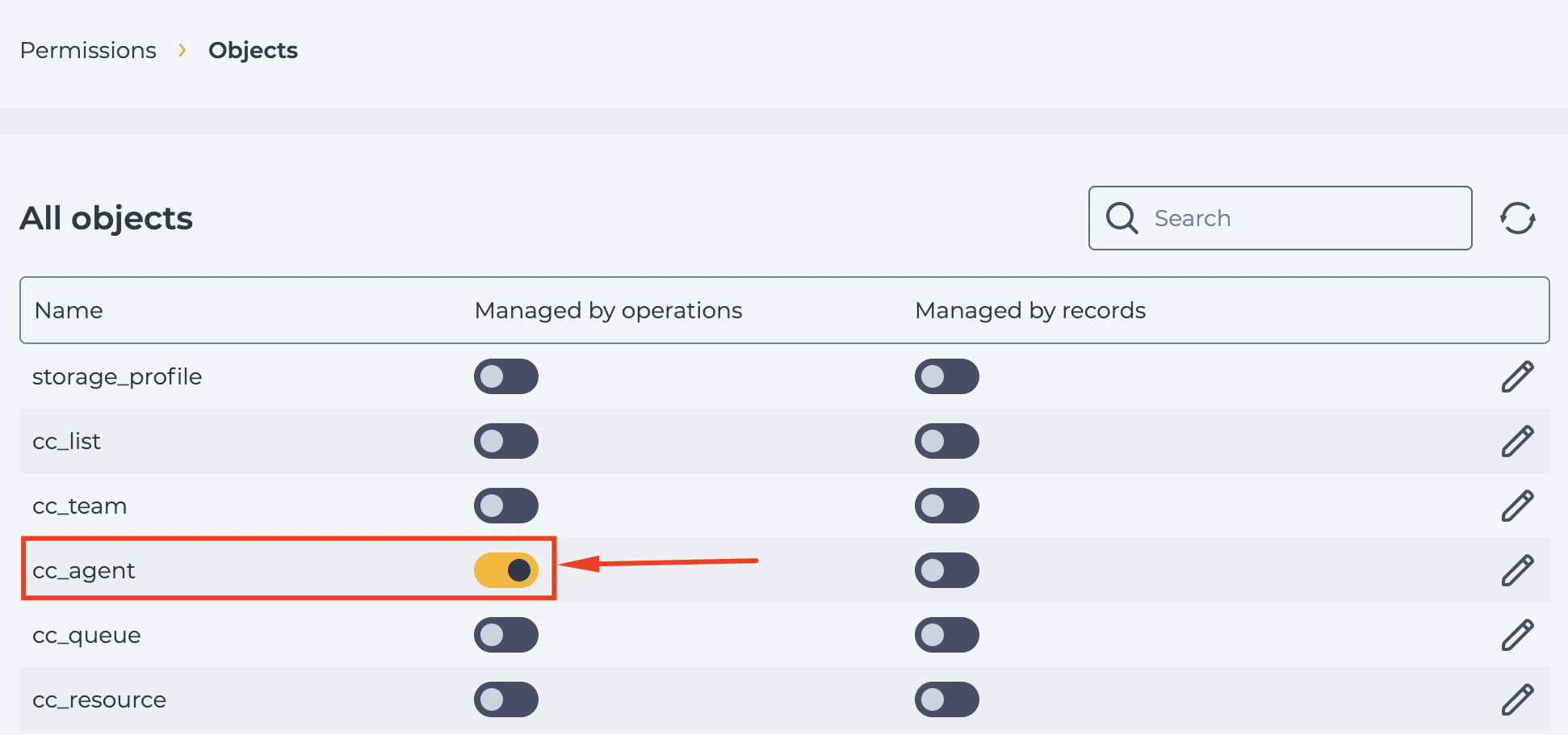
Go to "Admin" → "Permissions" → "Objects".
-
Enable the "Managed by operations" toggle for the cases, case_lookups (Fig. 1), and cc_agent (Fig. 2) objects.
-
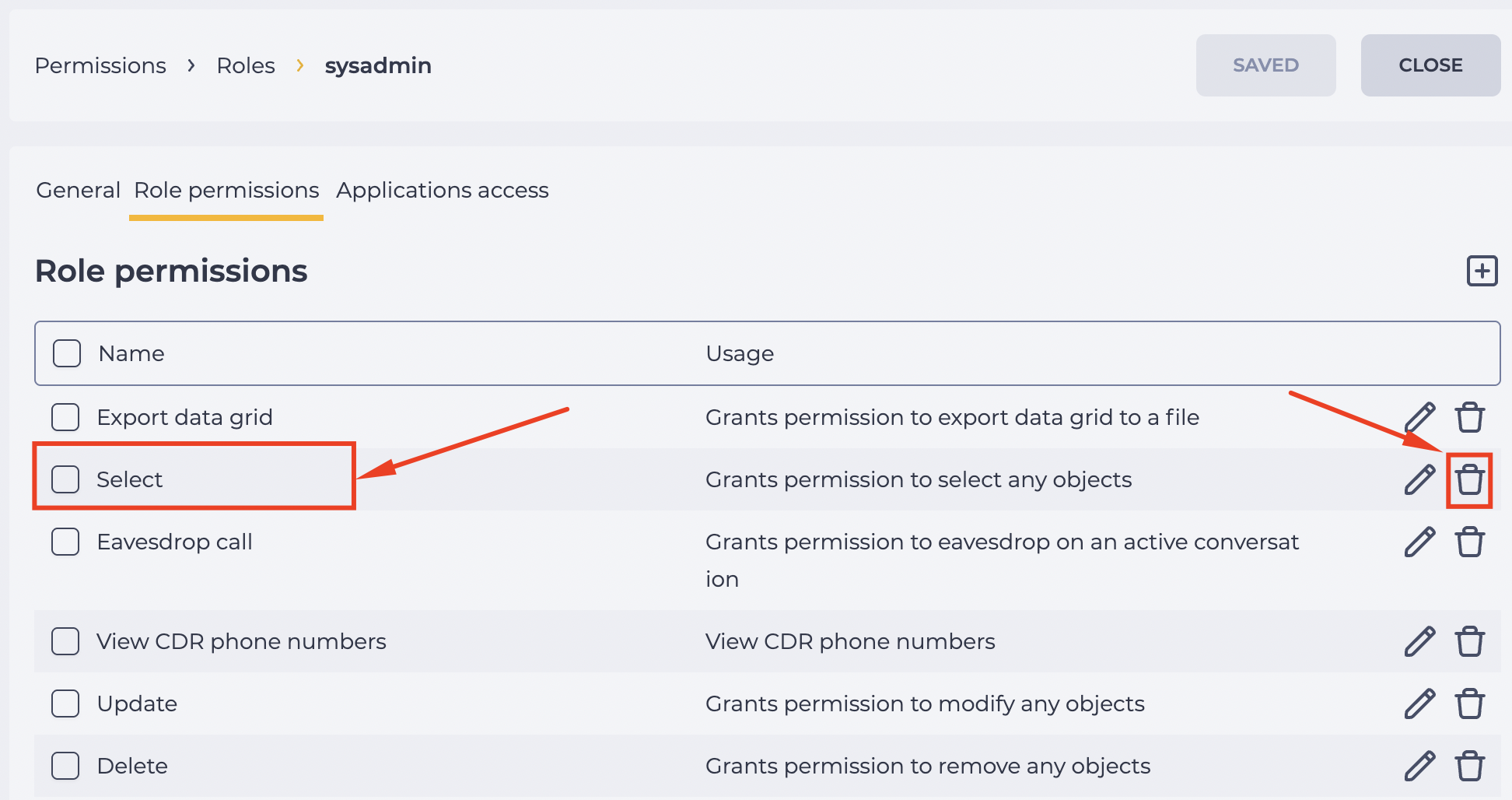
For the role that needs restricted access, remove the global "Select" permission ("Admin" → "Permissions" → "Roles" → required role → "Role permissions" tab).
To ensure that catalog restrictions by teams and skills work correctly, grant the role the necessary access rights to system objects.
-
Open "Admin" → "Permissions" → "Objects".
-
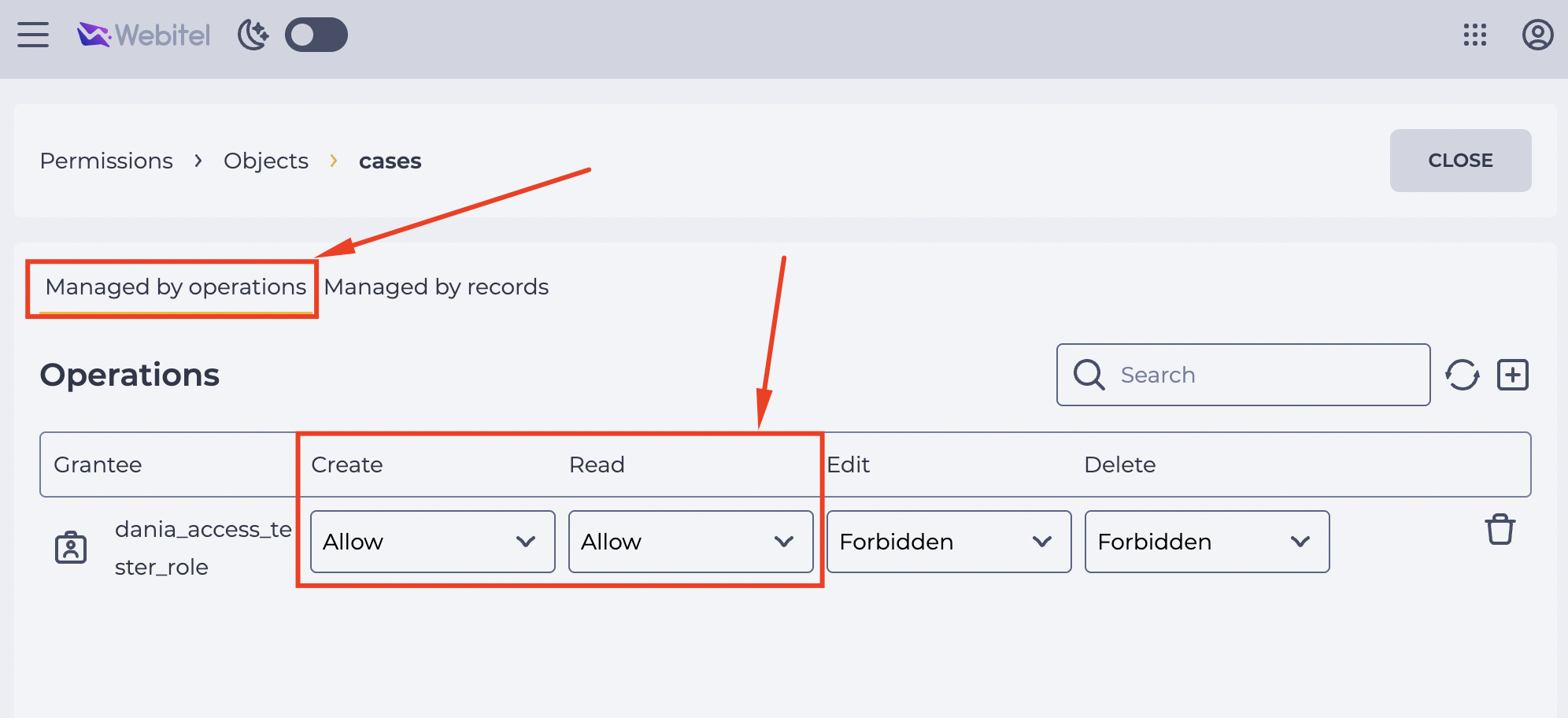
On the "Managed by operations" tab, assign the following permissions to the role:
-
For the cases and case_lookups objects — grant "Create" and "Read" permissions.
-
For cc_agent — grant only "Read", if the "Managed by operations" toggle is enabled.
2.1. Additional configuration for cc_agent
If the cc_agent object has access control mode enabled, users must be explicitly granted permission to view or edit their own record.
-
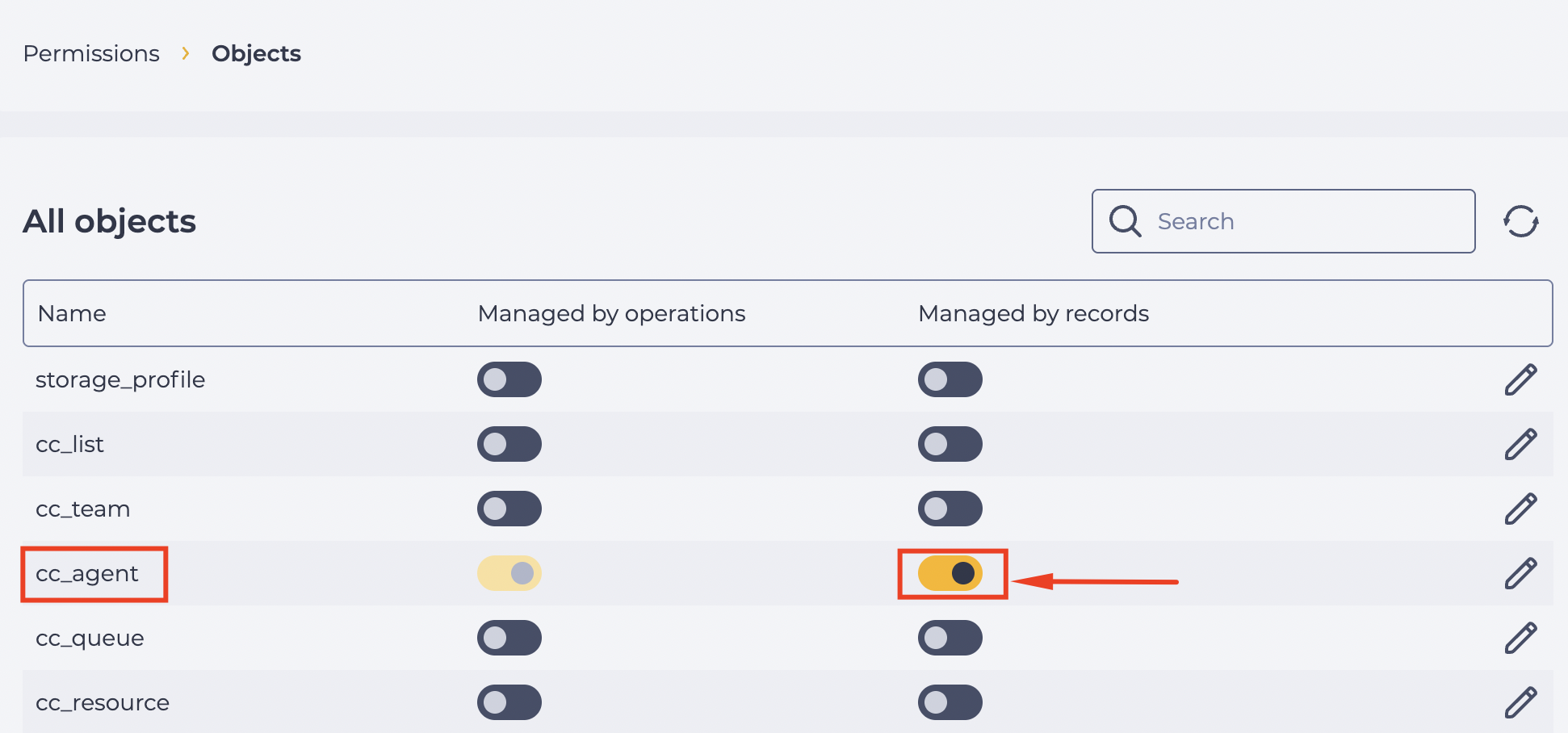
In the same section, go to "Admin" → "Permissions" → "Objects" and enable the "Managed by records" toggle for the cc_agent object (Fig. 5).
-
Open cc_agent and go to the "Managed by records" tab.
-
For a user or role, set the following value:
-
"Read" — "Allowed".
-
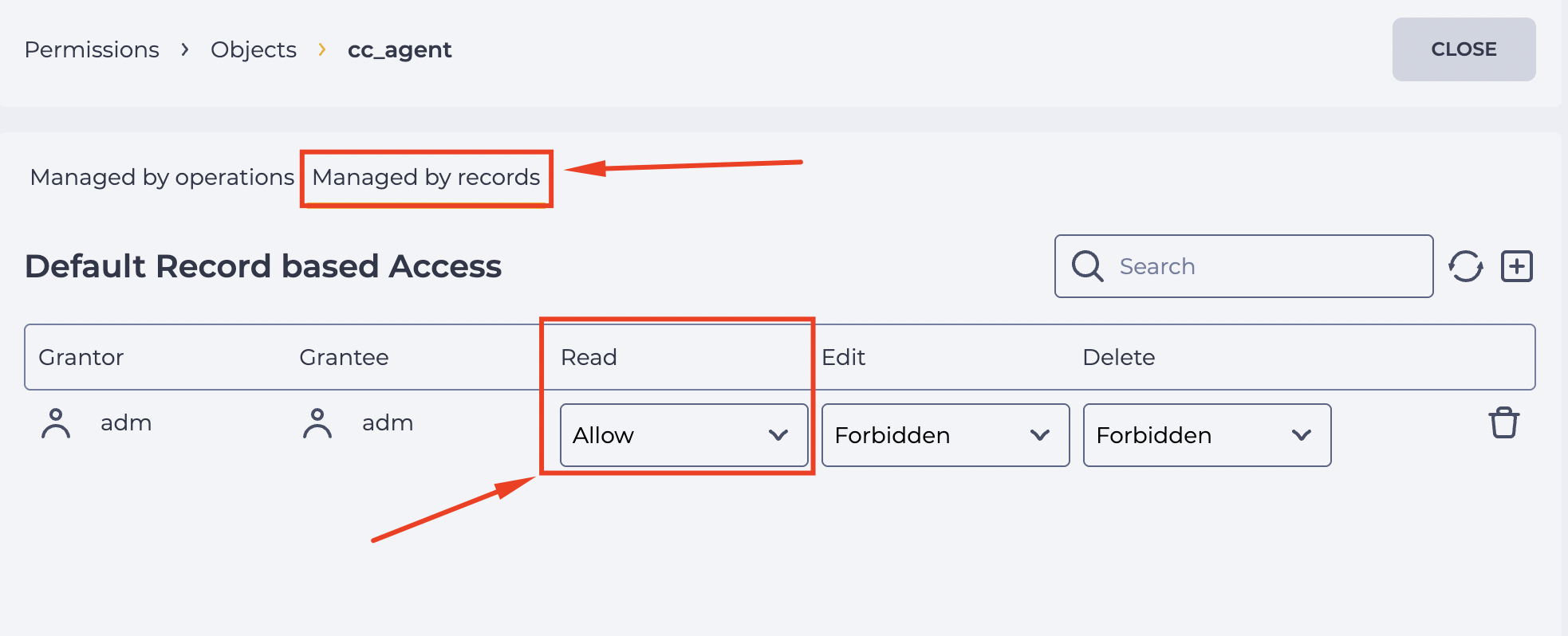
This configuration is required so that the system can identify the user’s team and skills. Without access to their own record in cc_agent, catalogs are not filtered by teams or skills.
3. How to configure the catalog
-
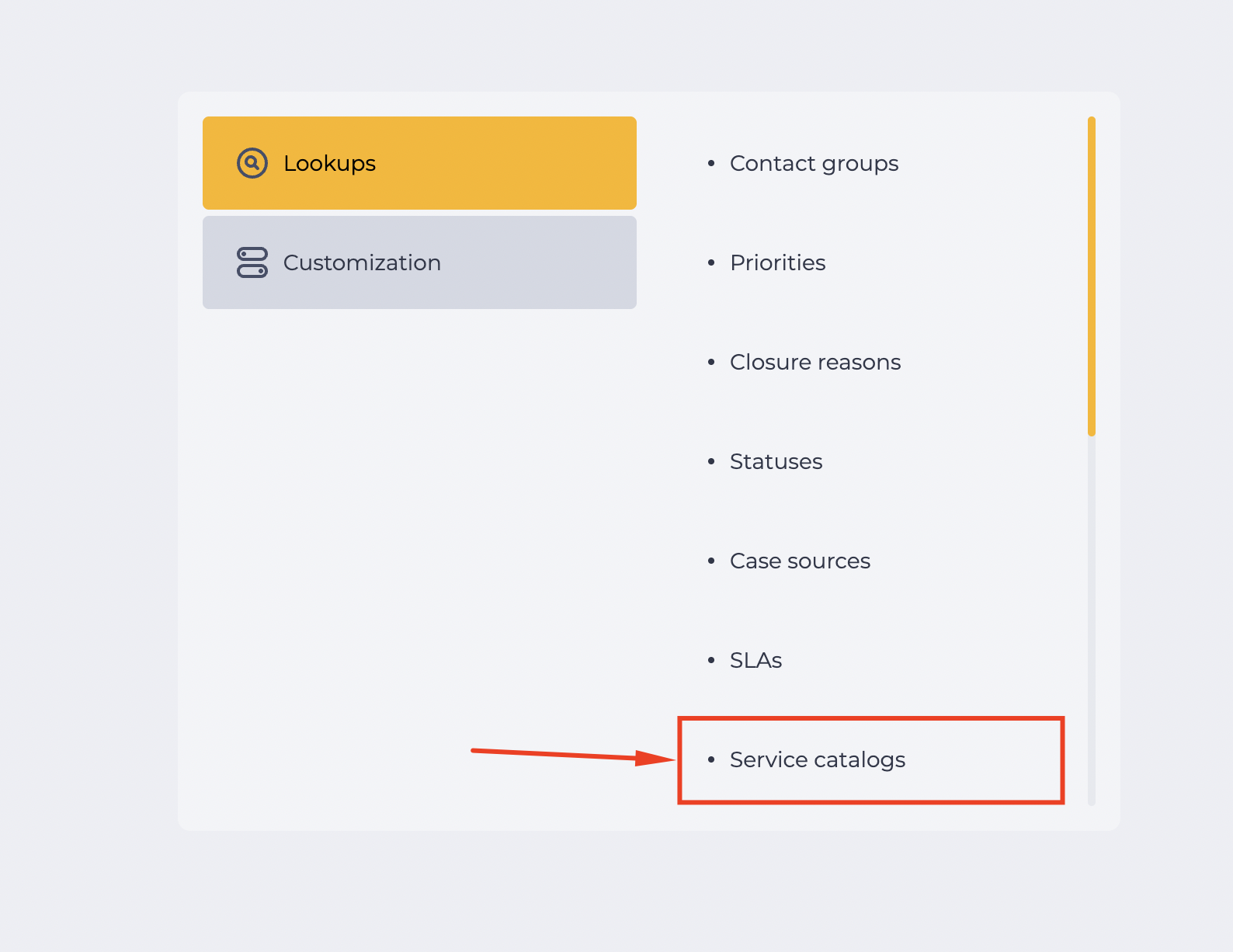
Go to "CRM" → "Configuration" → "Lookups" → "Service catalogs" (Fig. 7).
-
Open the required catalog or create a new one.
-
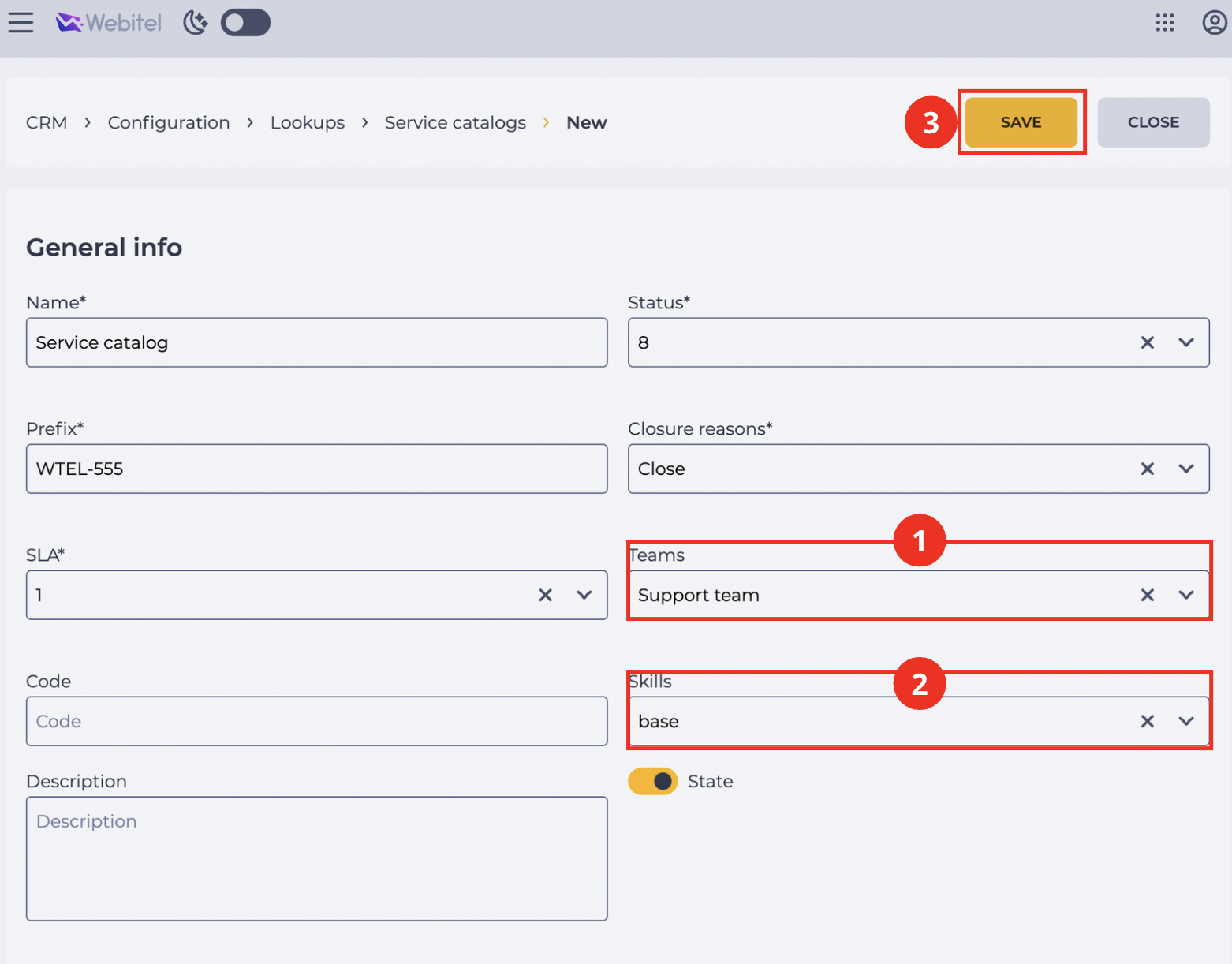
In the "Teams" field, select the teams that will have access to this catalog (Fig. 8.(1)).
-
In the "Skills" field, specify the skills required to work with this catalog (Fig. 8.(2)).
-
Click "Save" (Fig. 8.(3)).
4. How the restriction works
After saving the settings, the system automatically applies catalog filtering:
-
Users can see only those catalogs associated with their teams or skills.
-
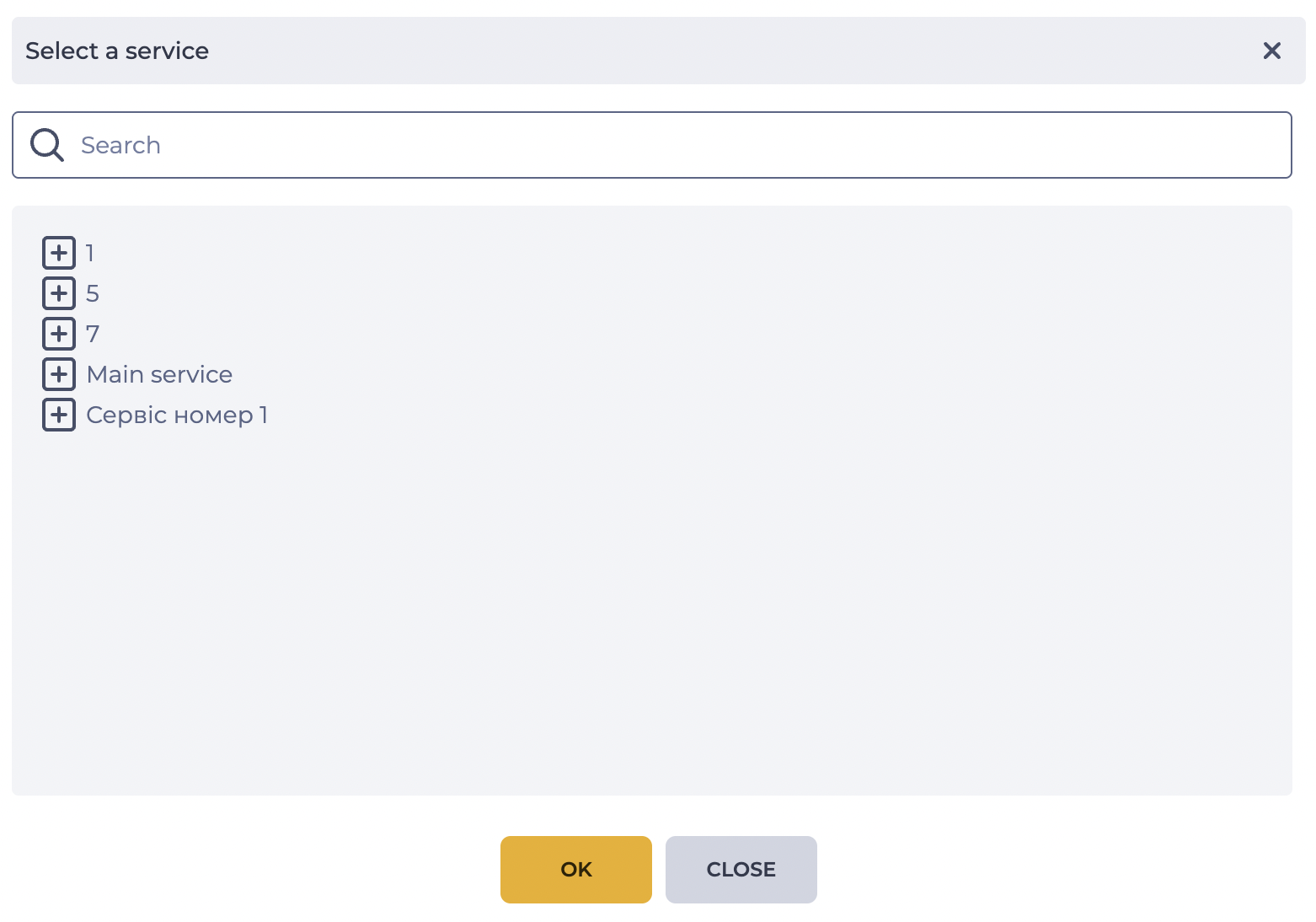
Catalogs to which the user has no access are not displayed in the Select service modal window when creating a case (Fig. 9).
-
If a catalog does not specify a team or skill, it is available to all users.
5. Notes
-
Restrictions apply only to users who do not have the global "Select" permission assigned.
-
If the global permission is active, the user can see all catalogs, regardless of team or skills.