
1. Description
It is used for mathematical manipulations.
This component is present in flow types like:
-
Voice;
-
Chat;
-
Forms;
-
Service.
The block (Fig.1(1)) is used in space to build the Flow. The settings panel for this component opens (Fig.1(2)) when you click on the block.
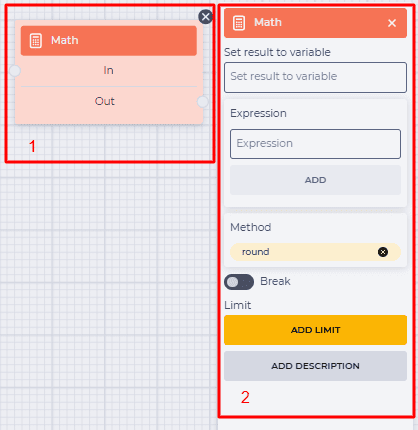
Fig.1. Math component
1.1. Math block
The block consists of the following elements:
-
The name of the component;
-
In branch — receiving (connecting with the previous block) branch;
-
Out branch — outgoing (connecting with the following block) branch. When hovering over the Out field, a switch appears. The switch allows this component to be connected to a component that already has a connection.
The presence of an 
Changing the switch position removes the outgoing branch of this component.
The 
1.2. Math settings panel
It consists of the following elements:
-
Set result to variable;
-
Expression;
-
Method;
-
Break;
-
Limit;
-
Add description.
1.2.1. Set result to variable
Here enters the name of the new variable in which the result will be written.
1.2.2. Expression
The Expression field contains the values with which it is necessary to perform manipulations.
Values can be set using a variable, or multiple options can be arranged. To do this, enter a value in the field and click the Add button.
1.2.3. Method
It is designed to select the method of manipulation.
By default, the round option is selected in the field. To change, you must click the button and choose a new option and click the Add button.
The following options are available:
-
round — rounds a number to the nearest whole number;
-
ceil — rounds a number up to the nearest whole number;
-
floor — rounds a number down to the nearest whole number;
-
min — search for the smallest value in the list of arguments;
-
max — search for the largest value in the list of arguments;
-
random — returns a random number from an array.
You can select from the drop-list or set it manually.
1.2.4. Break
Responsible for the completion of the flow execution.
-

-

1.2.5. Limit
It is intended to determine the maximum number of passes through this component.
The failover branch appears in the edited component when the limit is set 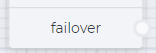
The failover branch will be used if more passes are passed through the component than entered in the Max field.
Clicking on the Add Limit button adds a Max field and a Delete limit button.
The number of possible passes is indicated in the Max field.
Clicking on the Delete limit button removes the limit and returns the Add limit button.
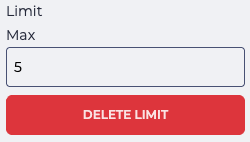
Fig. 2. Setting a limit
1.2.6. Add description
When you click the Add description button, a Description field and a Delete description button will be added.
The Description field is used to add comments to the component.
Clicking the Delete description button removes the description field and brings back the Add description button.
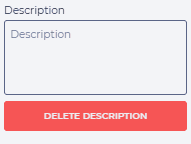
Fig. 3. Add description